


How to install and Sign In to Adobe Creative Cloud on macOS

Last updated: Jun 09, 2026
8224
views

1. Open Self Service on your Mac. If you are viewing this article on your Mac, you can click here to open Self Service.
2. Choose Install to begin the installation process.

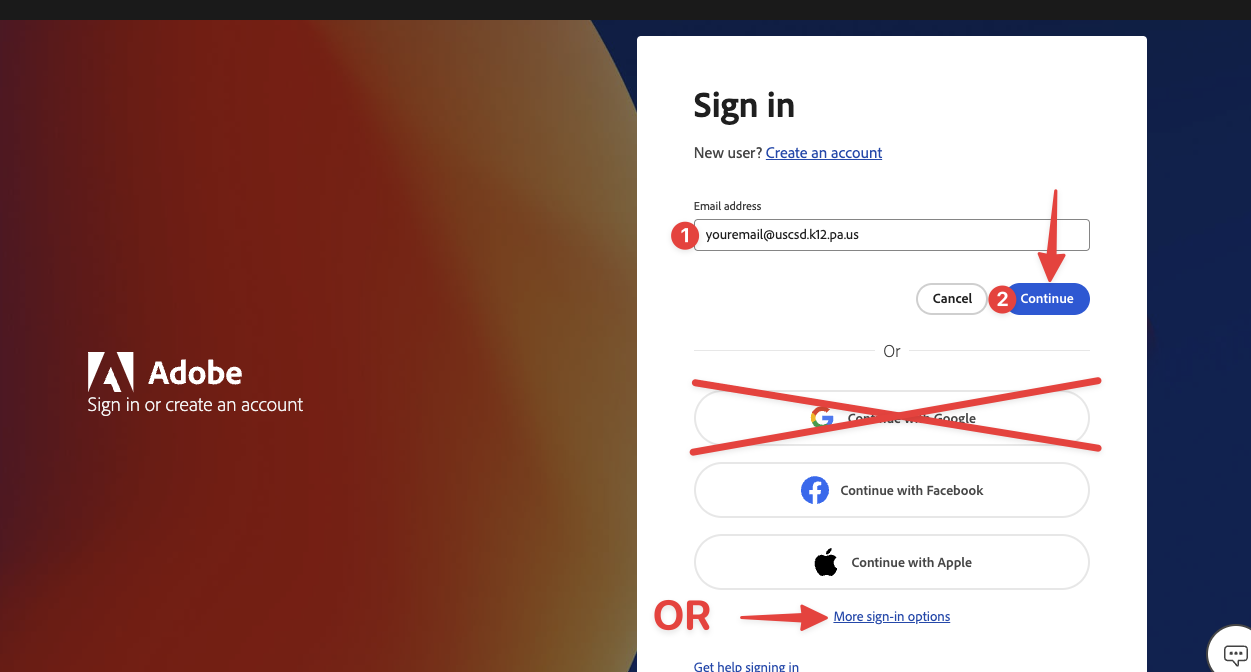
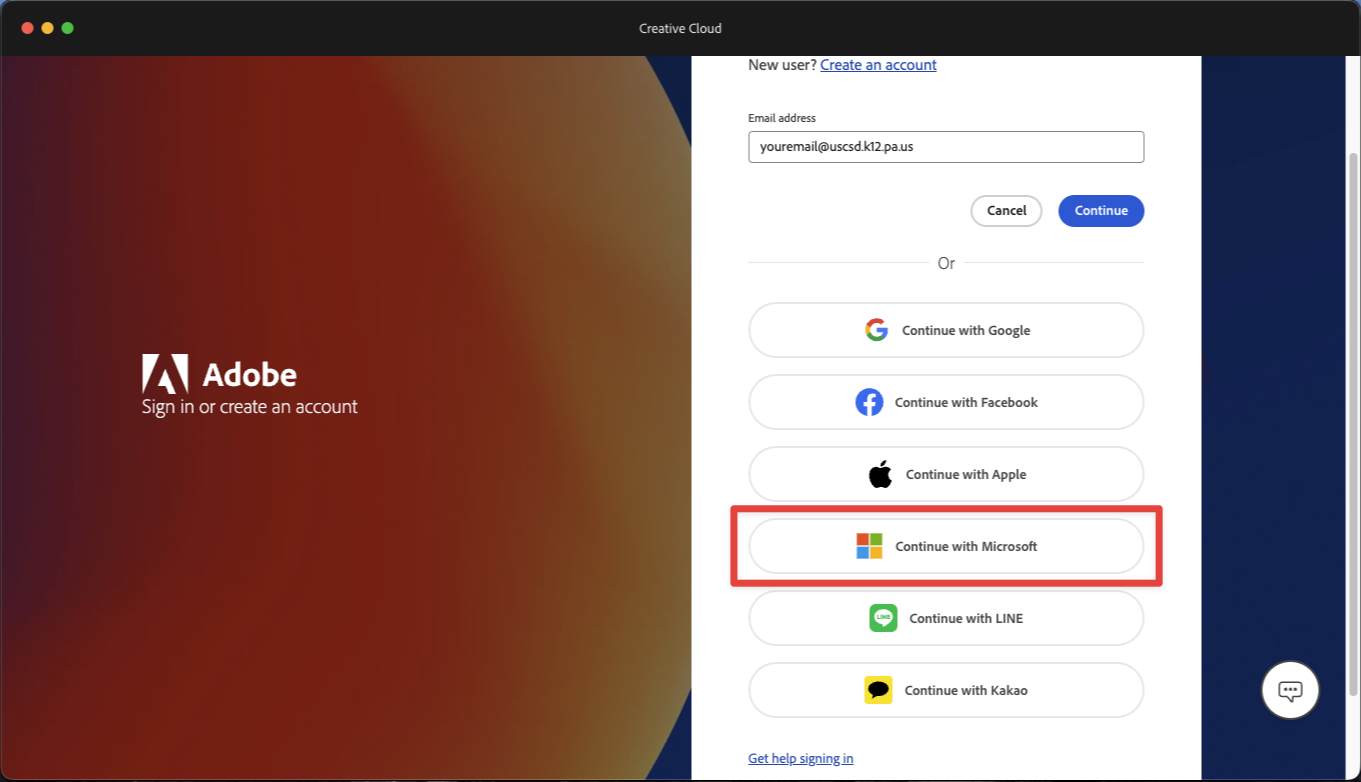
3. Once installation is complete, you can open the Creative Cloud application and sign in with your Single Sign-on (SSO) account. DO NOT click "Continue with Google". Either enter your District email and click the blue Continue button or click More sign-in options and then Continue with Microsoft.
OR
4. Creative Cloud will now be installed on your computer. To install additional Creative Cloud apps, such as Acrobat, Photoshop, InDesign, or Illustrator, open the Creative Cloud application and navigate to the apps page.

