



Transportation data generated in Routefinder Plus (transportation software) is synchronized to Focus (student information system) multiple times per day to ensure that Focus has up-to-date information for each student. Each bus travels a particular route and each route has its own unique Trip ID. In the event that a phone call or email needs to be sent to the parents/guardians of students on a particular bus route, follow the steps below to generate a list of students on that route.
1. Locate the Trip ID by going to the Staff Links Page and clicking on Bus Information. The Trip ID can be found by locating the school and bus number.

2. Log in to Focus using your USC single sign-on credentials.
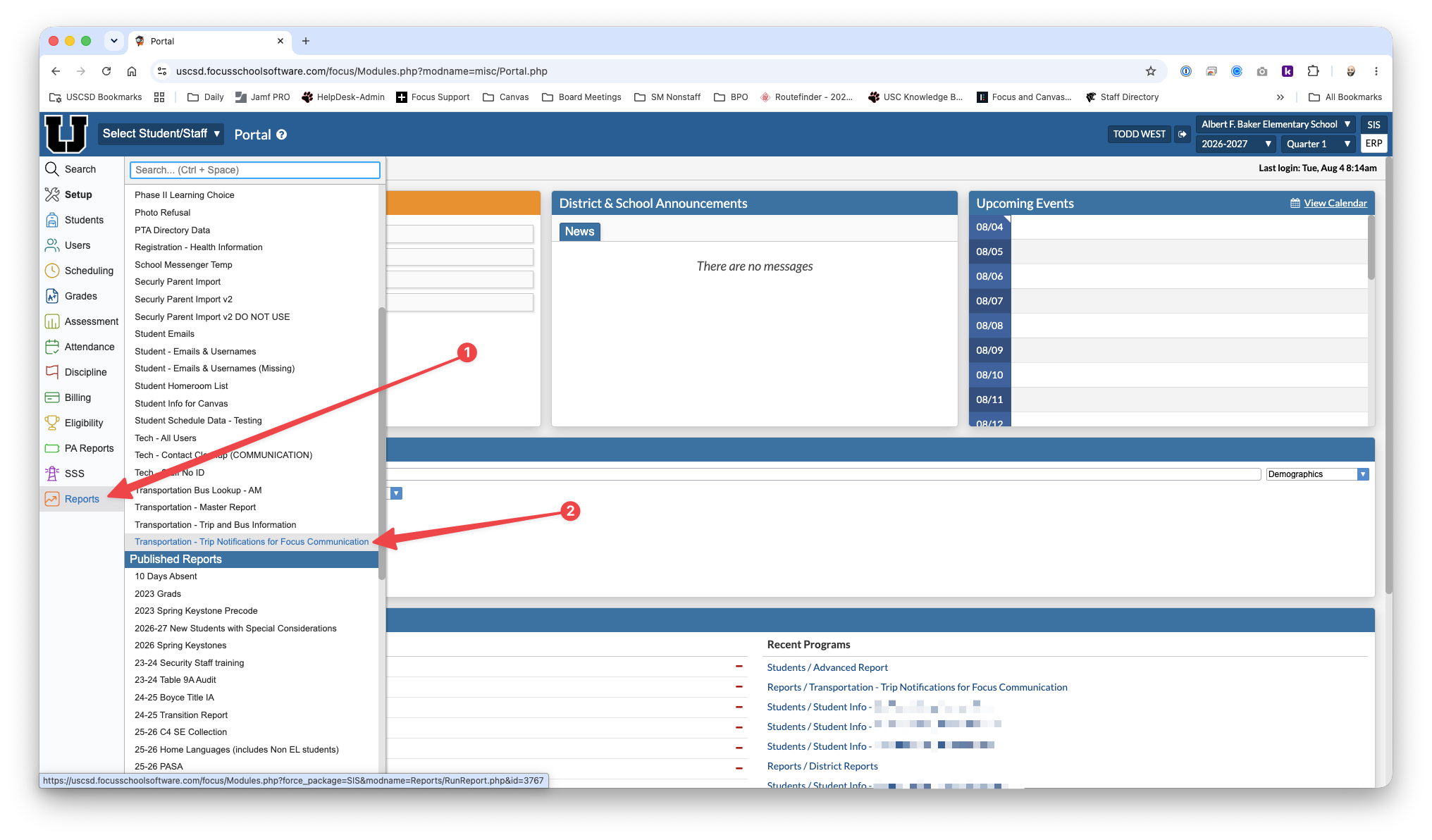
3. Click the Reports [1] button and choose the report titled Transportation - Trip Notifications for Focus Communication [2].
4. Once the report loads, enter the Trip ID [1] into All six filters near the top of the screen. After the Trip ID has been entered, click the Run Filter button [2]. The report will now filter the results and only show students that match the Trip ID that you entered. After you've run the filter, click the icon next to the total number of students in the top left corner of the report to download the report to your computer [3].

5. Open the downloaded file in Microsoft Excel. You will notice that the first column of the report is the student ID number for each student on this particular route. Highlight all of the ID numbers in the Local ID column and copy them (ctrl + c).

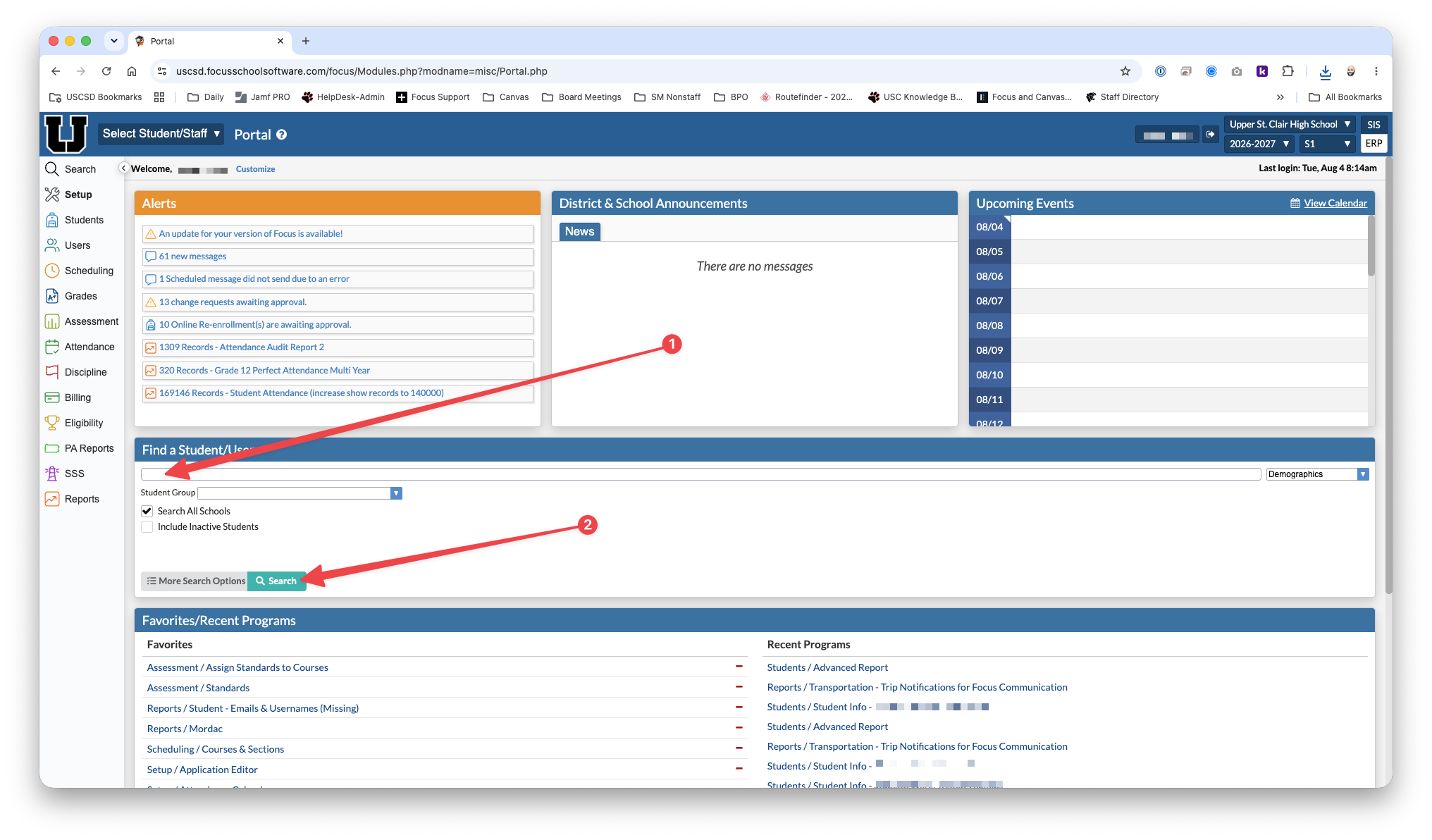
6. Navigate back to the Focus home page and paste (ctrl + v) the student ID numbers that you just copied from the excel file into the Find a student [1] text box and click Search [2].
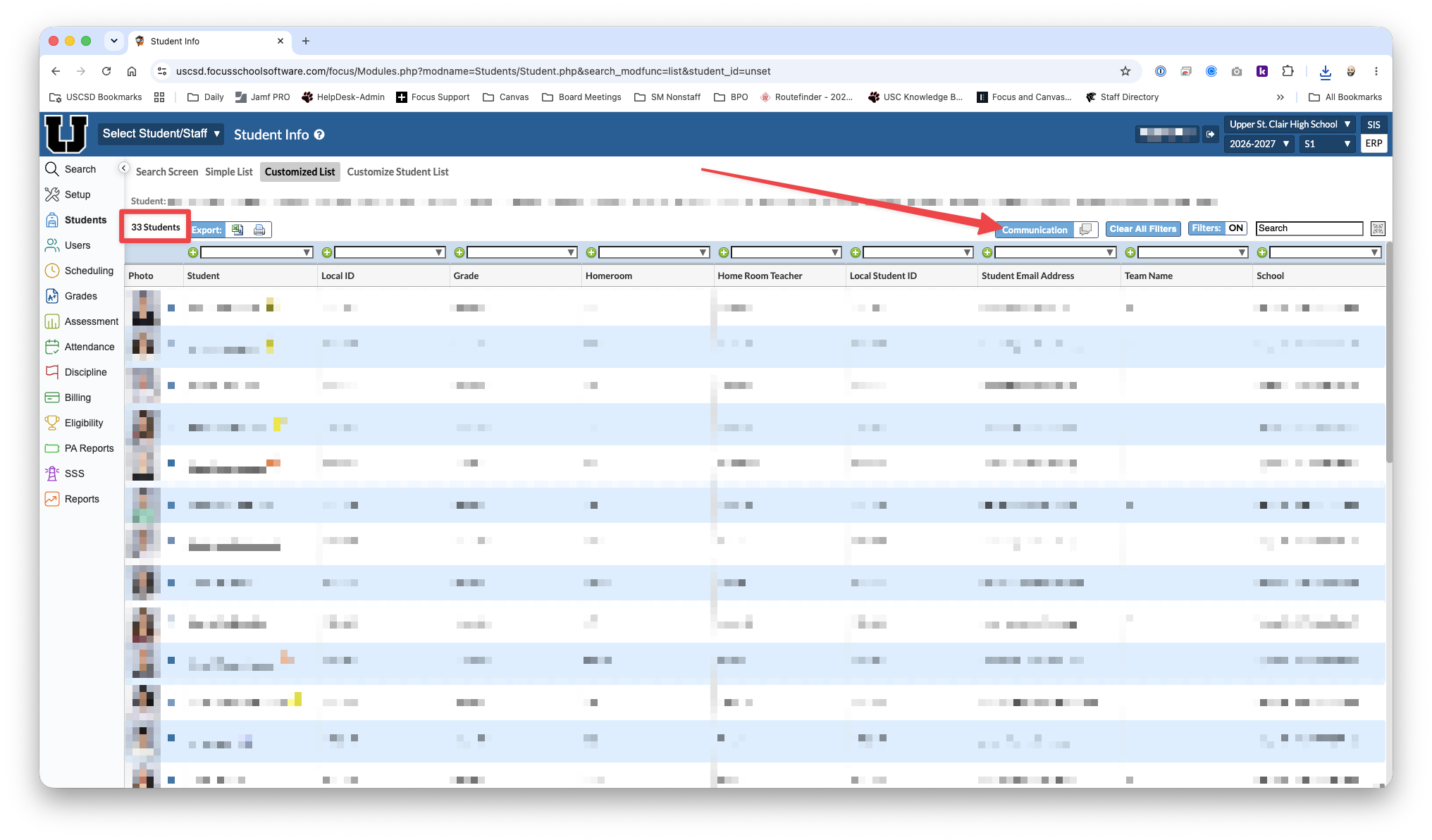
7. This will list all students from the file on screen. You can verify the total amount of students from the file matches the number of students from the search results in the top left corner. Next click the Communication button near the top of the student list.
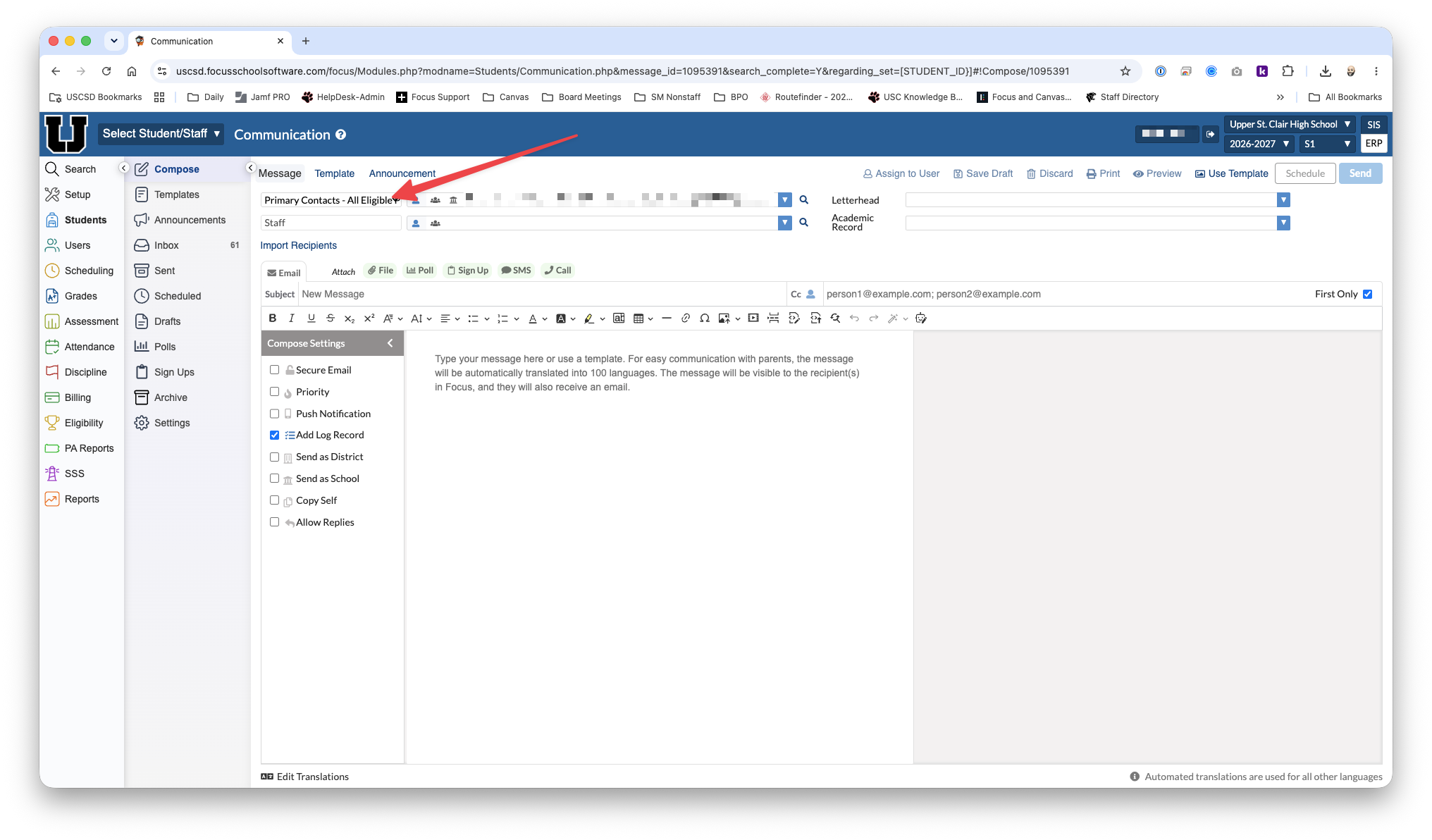
8. This will open the communication module with the list of students from your search results listed as the intended recipients. Make sure to change the dropdown in the top left to Primary Contacts - All Eligible Phone Numbers. This will ensure the message is delivered to all appropriate custodial contacts. Lastly, create your email, phone call, or sms message and click Send.
For additional assistance using the Focus Communication module, Please review the following article: Focus Communication Module

