



This article will walk you though verifying the settings of the sound volume and output location on your Chromebox or Chromebook.
There are two ways to find your sound settings. The quickest way to determine if your volume is up is by tapping on the time in the bottom right corner of your screen and then interacting with the volume slider. If the slider is grayed out, it is muted. Simply tap it to unmute. A GIF showing this process is below. To open the sound settings menu, tap on the small ">" symbol to the right of the volume slider.
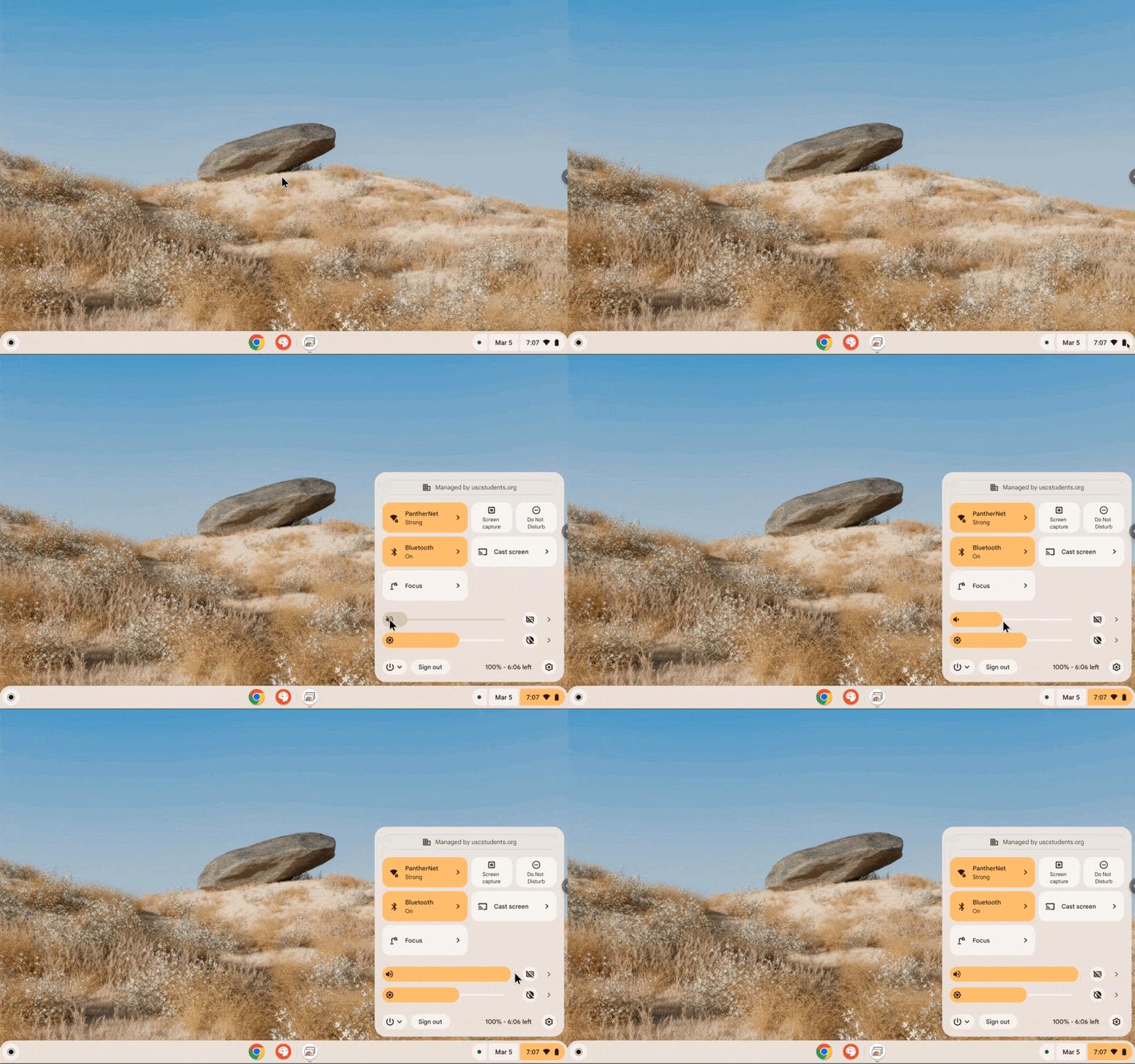
The second way to find your sound settings is described below:
Select the round “Launcher” icon from the lower left corner of the screen, then select “Settings.”
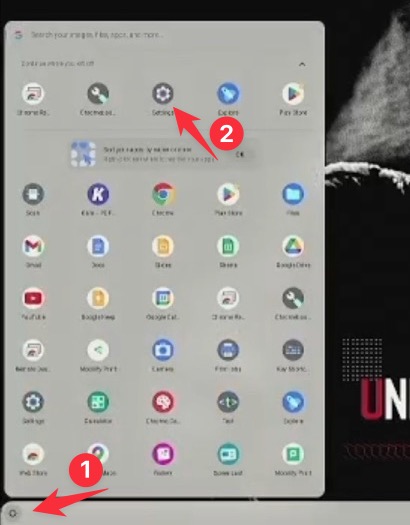
In “Settings,” select “Audio.”

Verify that your board type is selected in the “Speaker” drop-down box and that the volume for the Chromebox is at full volume.

To change the volume of the ActivPanel, use the front volume buttons located on the ActivPanel.
You can view the whole process below:

Please note that some video players (such as Boxcast, PBS, or YouTube) have their own volume slider. If you have confirmed that both your Chromebox and board's volume settings are both correct, check that the video player's volume isn't low or muted.

