



If you share your ActivPanel with a colleague, you will need to have a separate user account for each person who uses your Chromebox. The first time you create your account and log in, you will need your full SSO credentials and password. You will be prompted to enter a 6-digit PIN of your choice. From this point on, you can simply use that 6-digit PIN when switching between user accounts on your Chromebox.
Here are the steps to Add A User Account and set up a PIN.
1. In the lower left corner of your screen tap the “Add Person” button.
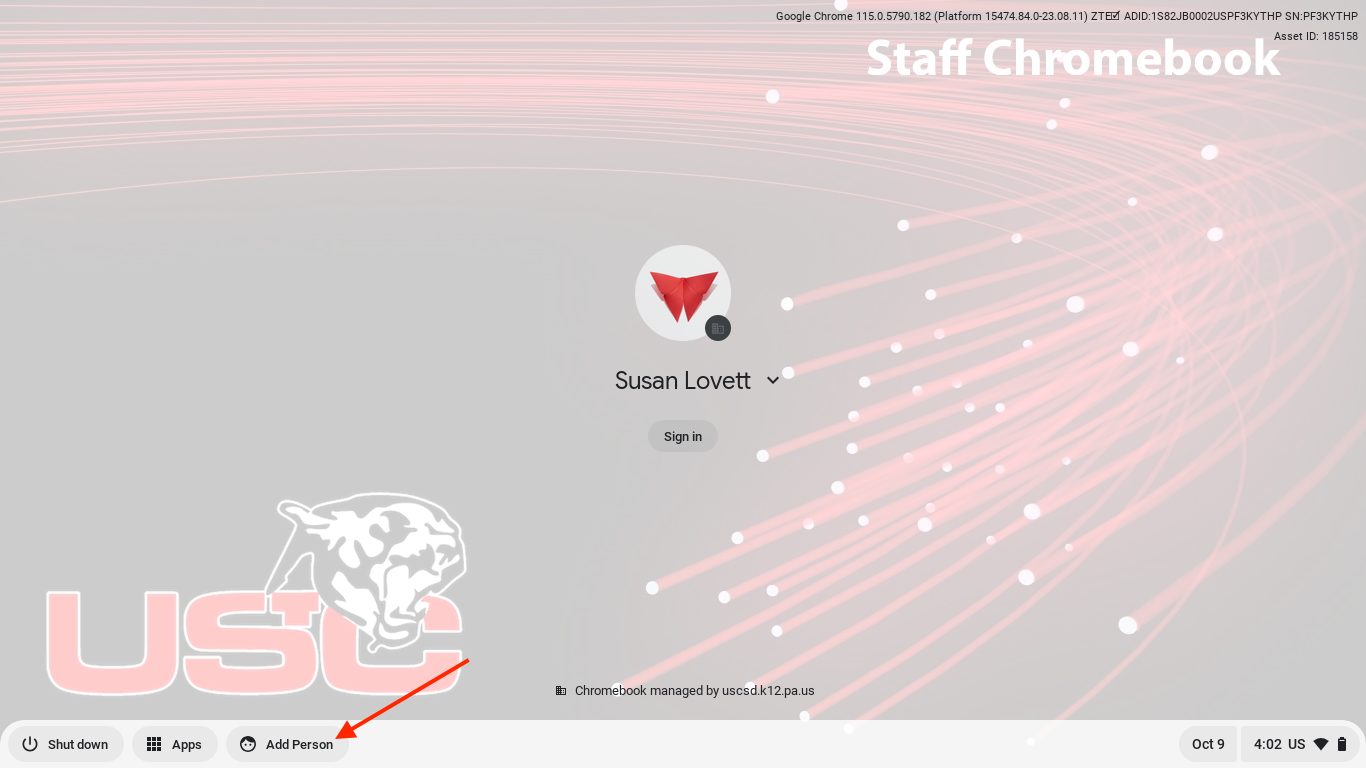
2. Login using your complete SSO credentials.

3. After you enter your password, you will be prompted to setup a PIN. (You will only need to enter your PIN and not your complete SSO credentials).
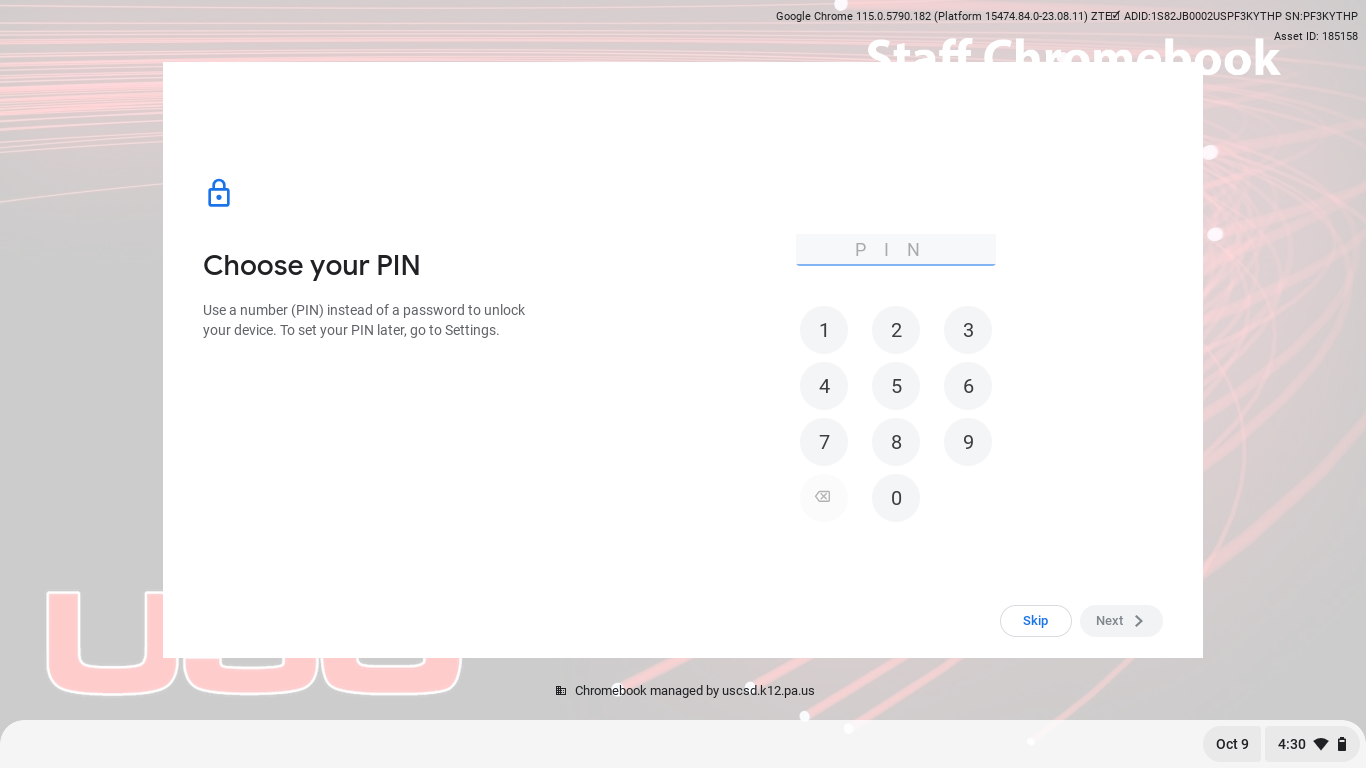
4. You will be prompted to enter your PIN again to confirm, and then you will see the confirmation

5. Since there are other users using the Chromebox, when you leave your ActivPanel, tap the clock in the bottom right corner and choose “Sign Out.”

6. You will be returned to the login screen where you can now see both user accounts. To gain access to your account again, enter your 6-digit PIN.


