



Google Takeout allows you to export and download data from your district account, including email, calendars, and photos. This process creates an archive that you may then save to an external drive, such as a flash or thumb drive.
The export time varies based on the total size of your files. Please begin this process at least two days before you need the files to ensure the download finishes on time.
Downloading a copy of your data will not remove the original files from the Google servers.
Visit the Google Takeout page (https://takeout.google.com/settings/takeout). You might have to sign in to your Google Account.
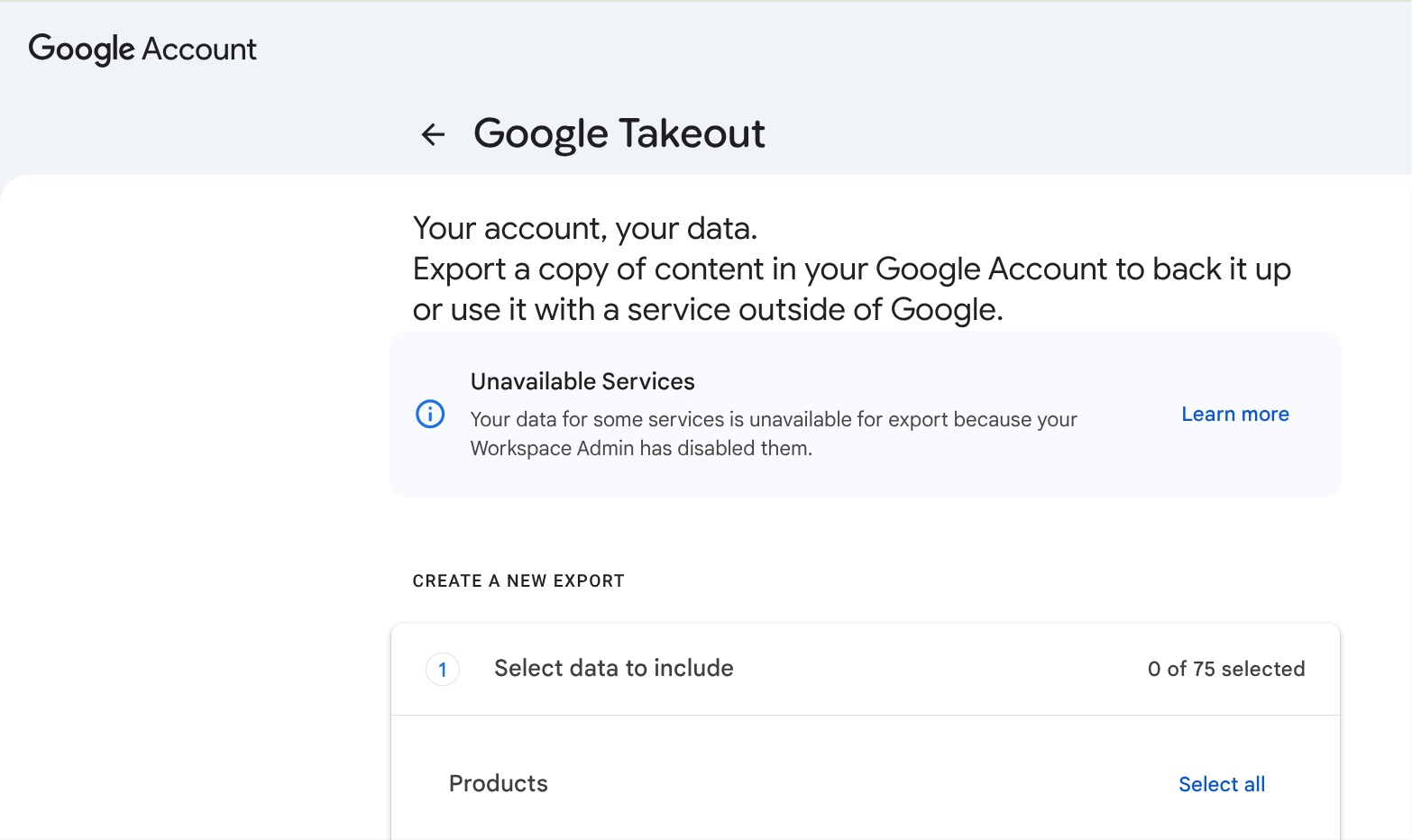
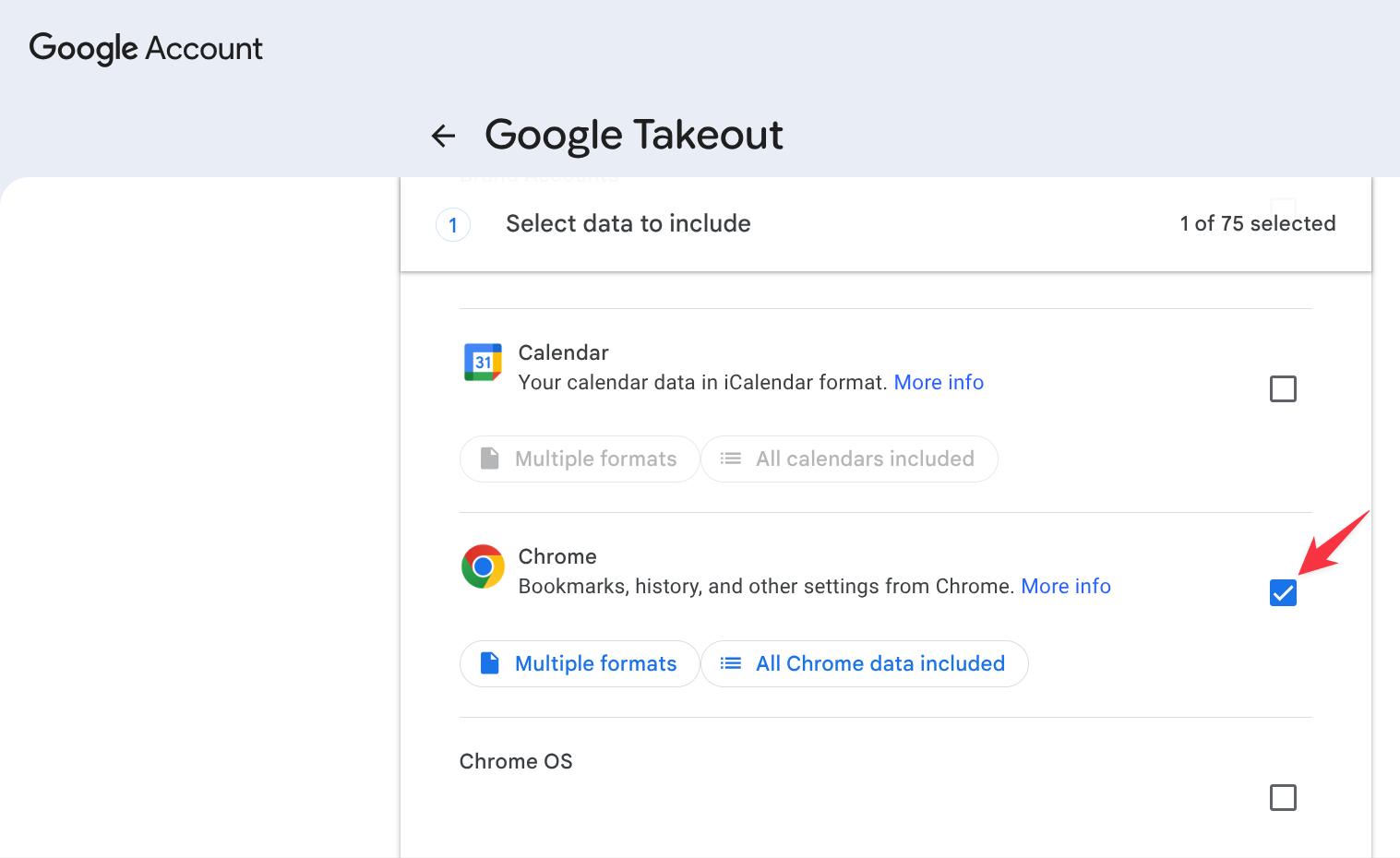
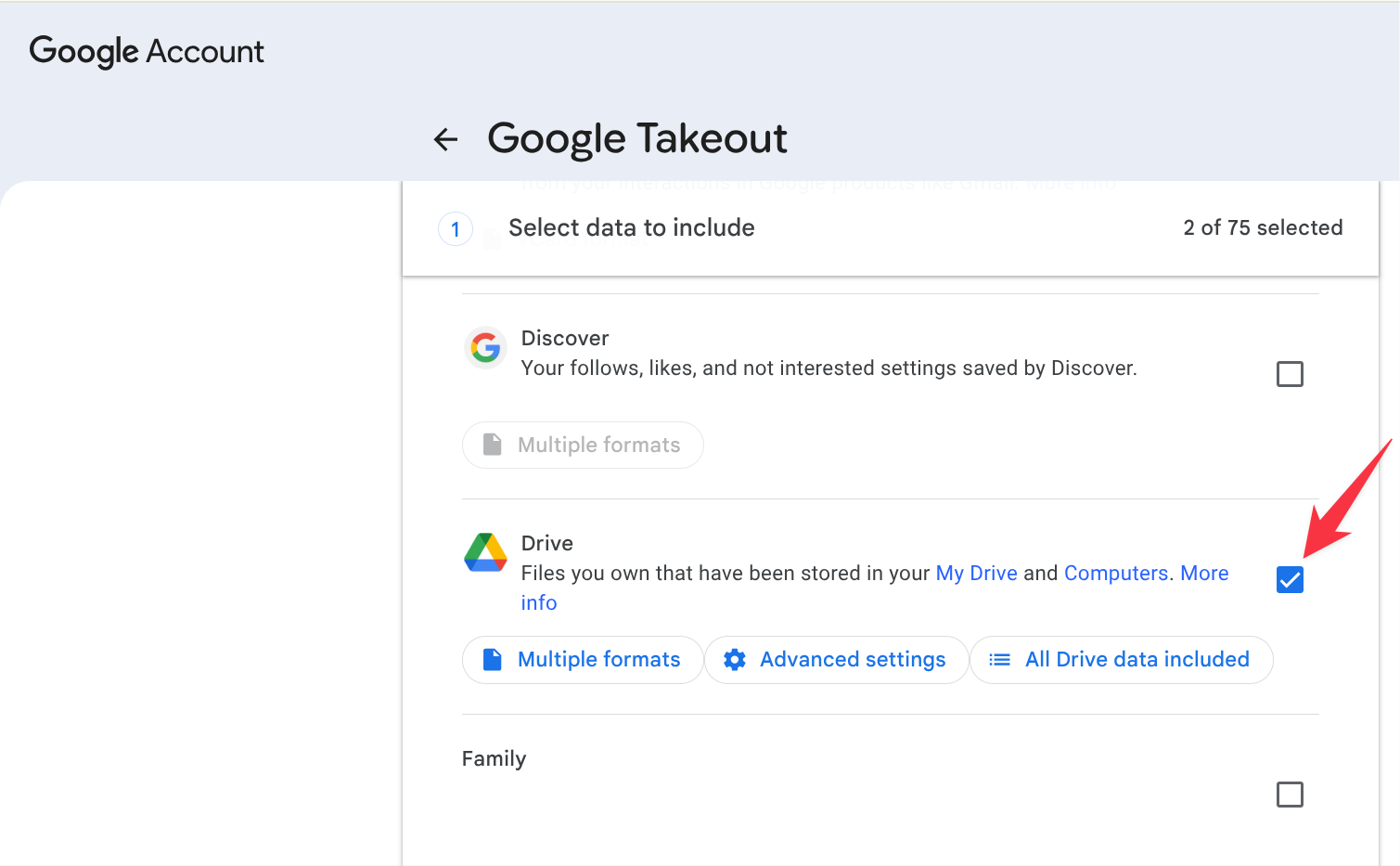
Choose which Google products to include in your download. To see more details and options for a product, select the down arrow.
- Important items you should consider downloading include Chrome, Drive, Google Photos, Keep, and Mail
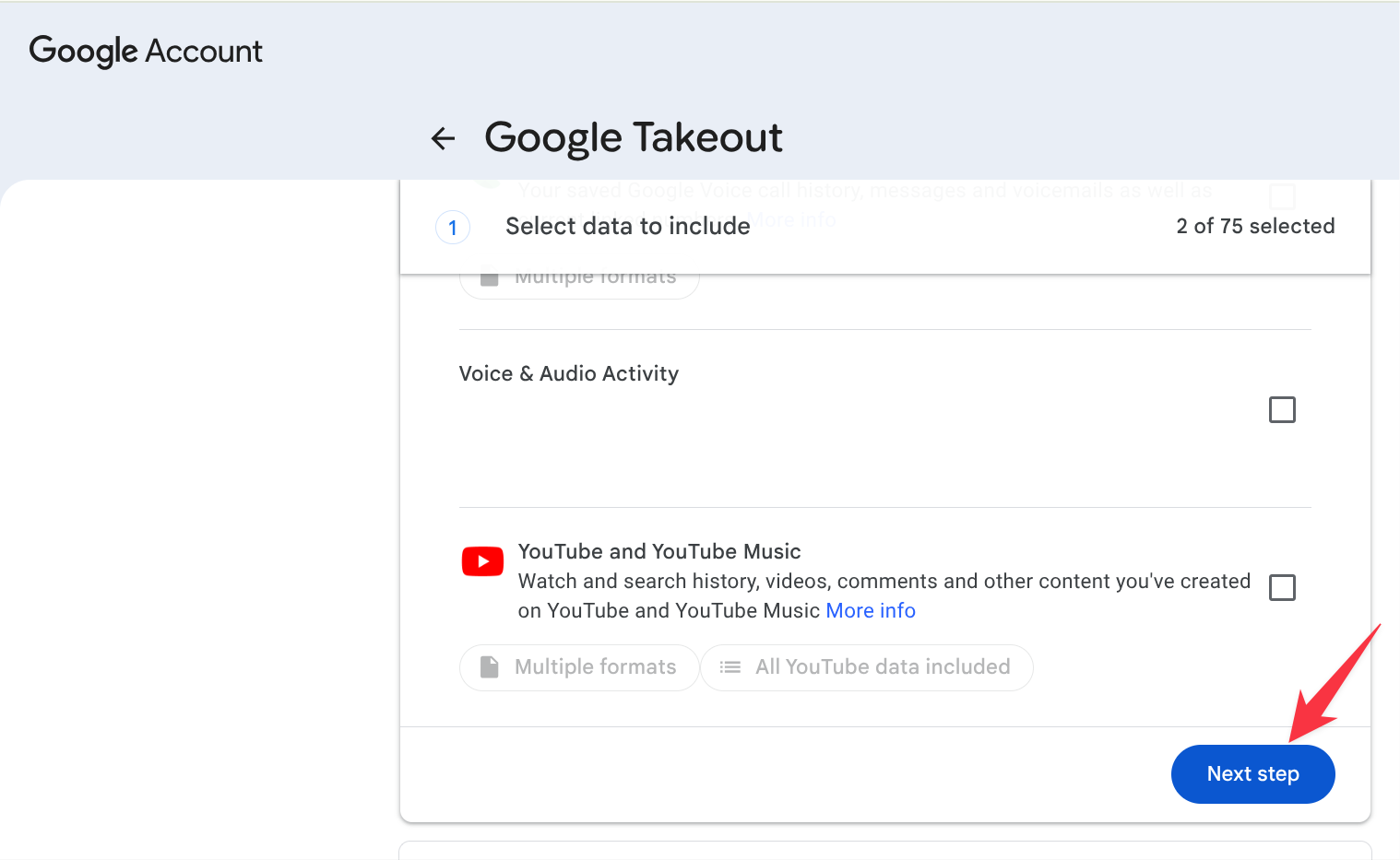
Select Next Step
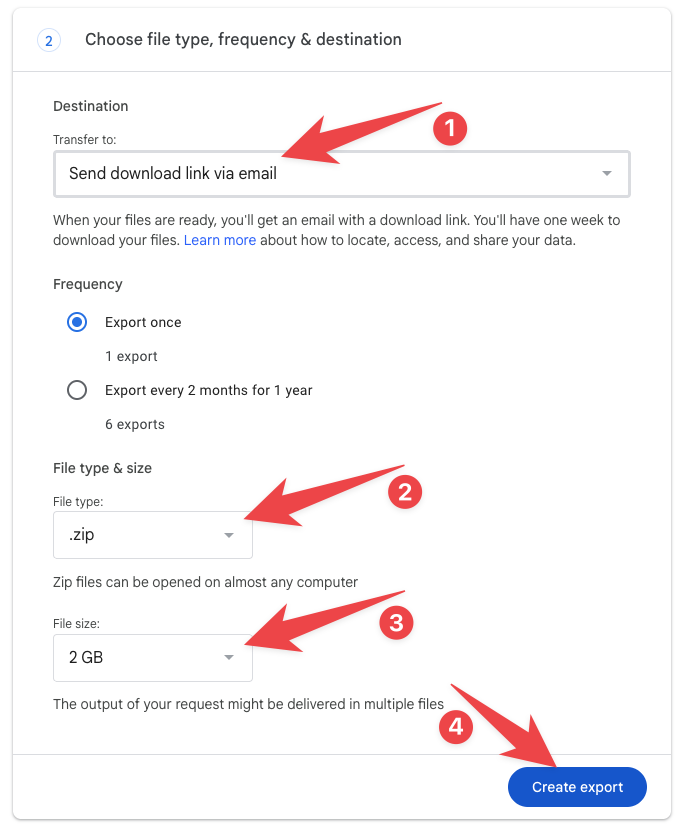
In the Choose file type, frequency & destination, ensure that your selections are
[1] Send download link via email
[2] File type is set to .zip
[3] File size is set to 2 GB
Select [4] Create export when done
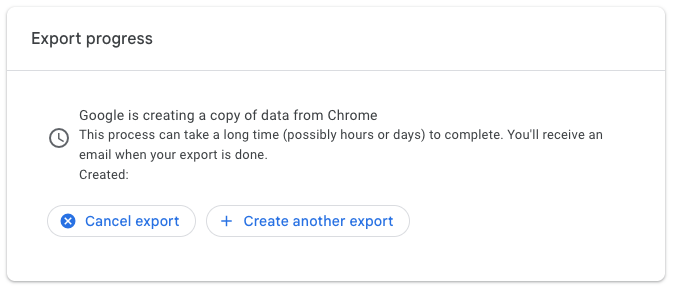
Google will provide you with a progress of your export.
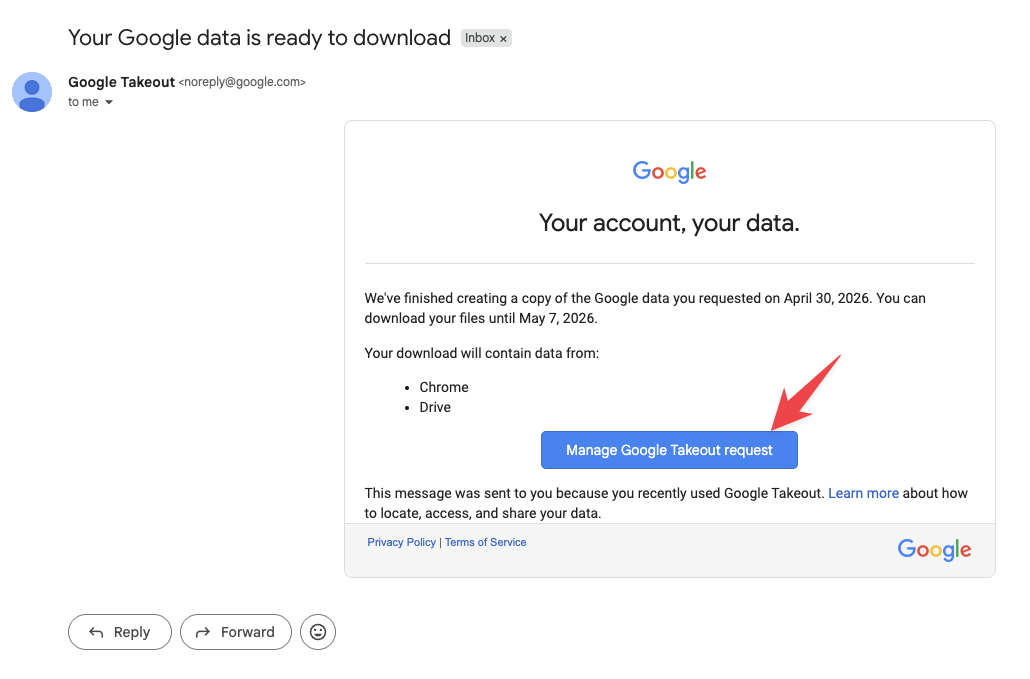
When your archive is created, you will receive an email with the subject Your Google data is ready to download. Select the Manage Google Takeout request in the email.
Depending on the amount of information in your account, this process could take a few minutes or several hours. Most people get the link to their archive the same day that they request it.
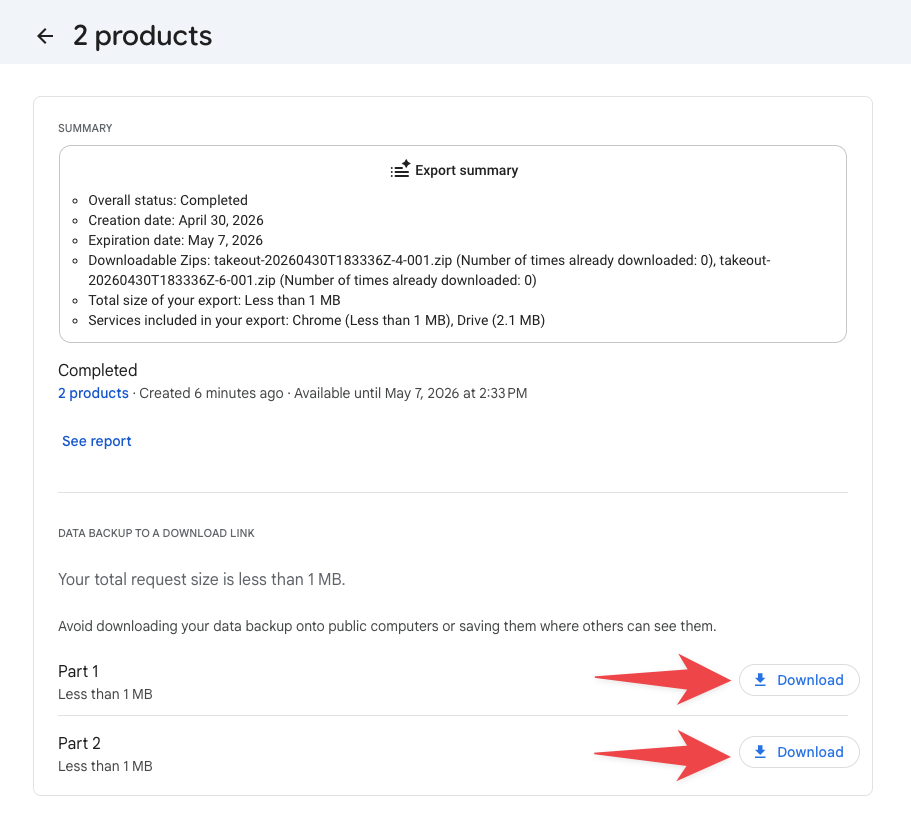
Once selected, you will be taken to the Google Takeout download page.
At the bottom of the email, you will see links to download your files. Depending on the amount of services selected and their data, you may see many download links.
The downloaded files will appear in Google Drive with names starting with the word takeout. These .zip files must be moved to an external USB drive using the Files app. Leaving the .zip file(s) in your Google Drive does not back them up. SENIORS: Move the .zip files to a personal external storage device so you can access them after graduation.
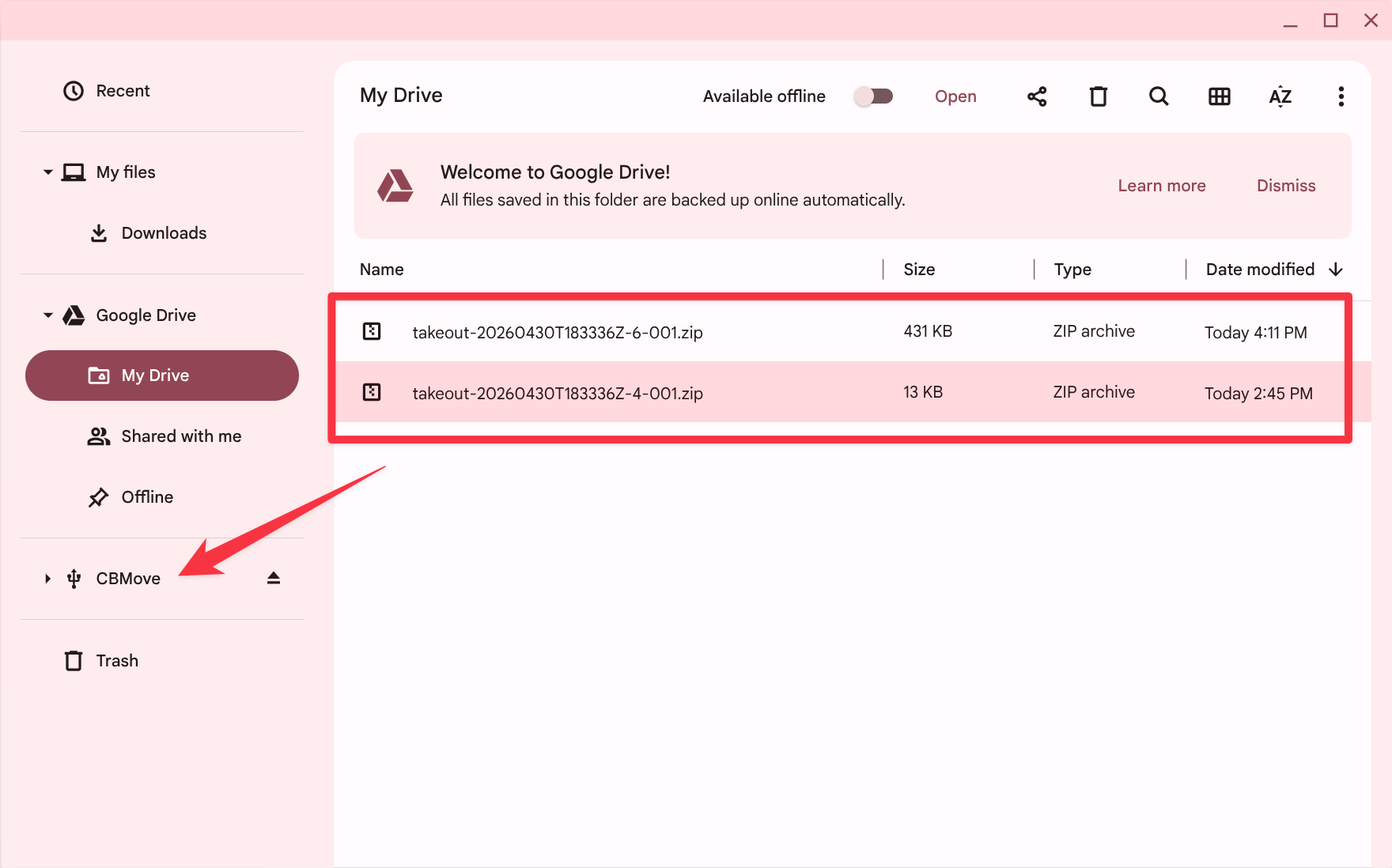
When the .zip file(s) have copied over to your external storage, you must unzip the file(s) to see the individual files inside.

