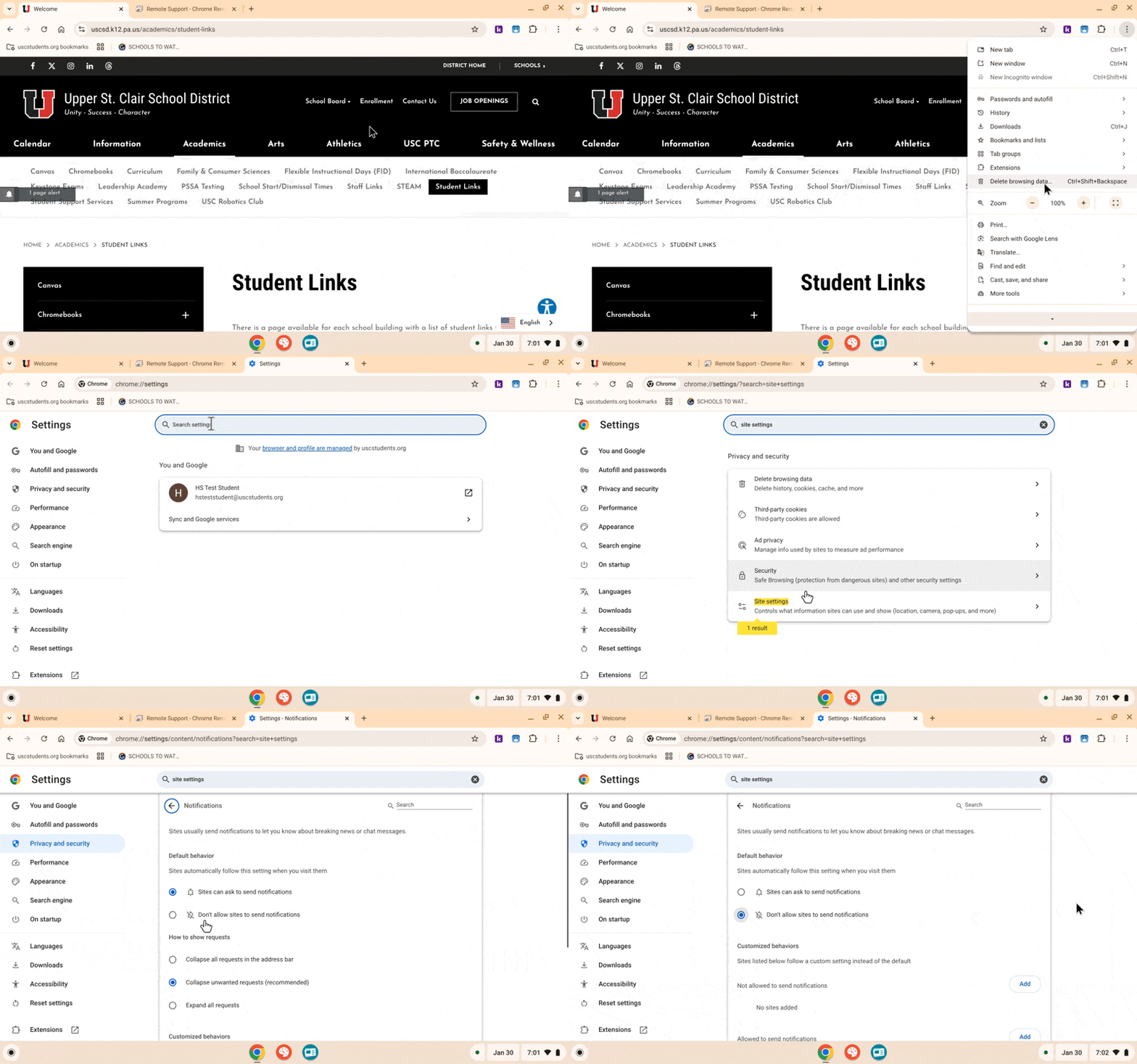
Occasionally, you may see pop-up notifications on your Chromebook. These can appear to be viruses, but are actually fake and intended to trick you, or they can simply be a nuisance. Follow the instructions below to remove the pop-ups.
1. While in Chrome, open Settings by clicking on the menu icon in the top right corner of your screen, scroll all the way down to "Settings".
2. Within the settings searchbar, type "Site Settings" and click on the option highlighted.
3. Scroll down until you see "Notifications" under the "Permissions" section, and click on it.
4. Lastly, click the "Don't allow sites to send notifications" button.
Additionally, on the "Site Settings" page, you may see websites listed under the "Recent Activity" section. You can click the ">" button to the right of the listing, and then click "Reset Permissions" on the following page to silence just that single website. In most cases, the website causing the fake or nuisance pop-ups will be listed under this "Recent Activity" section.
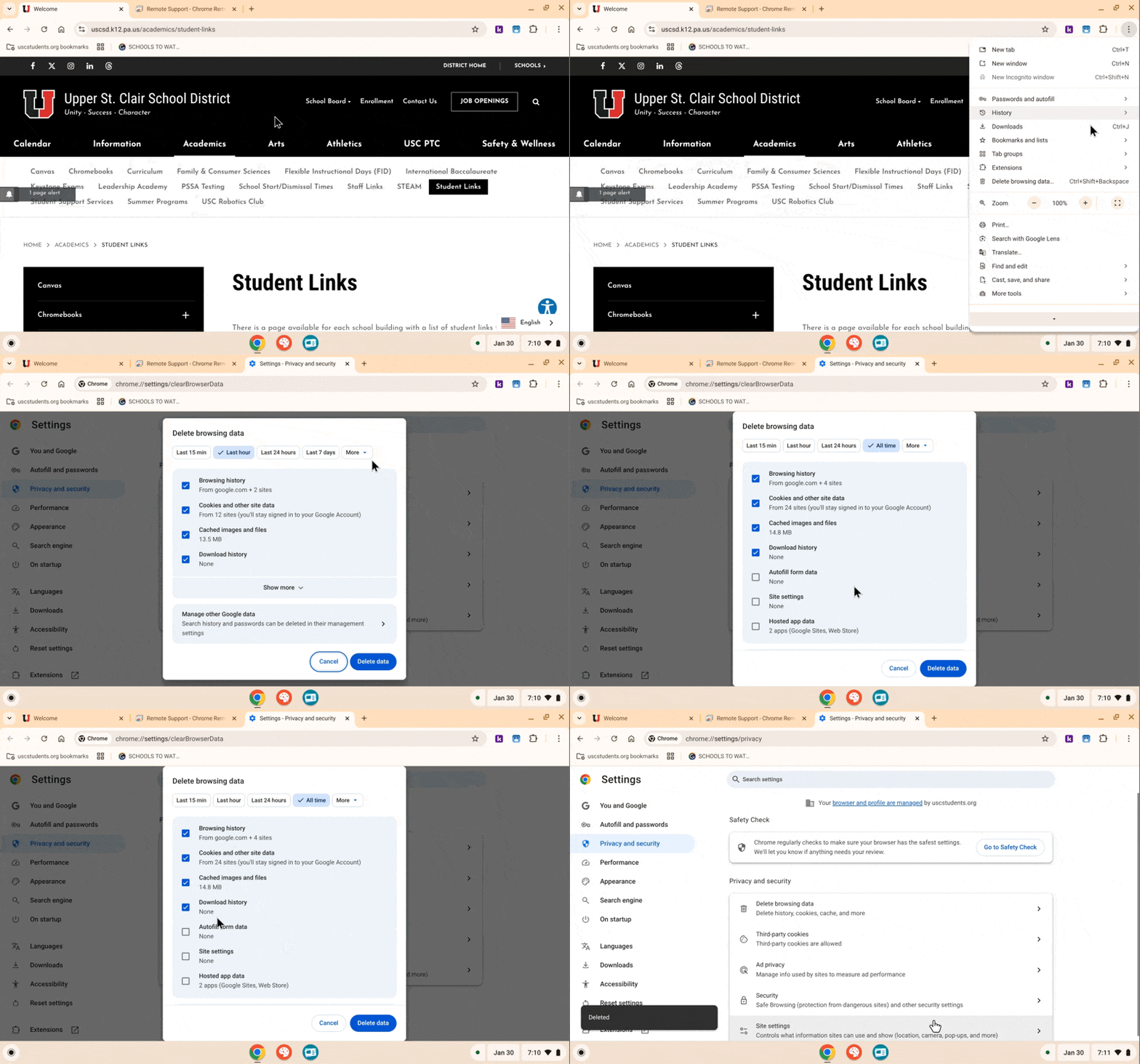
If you so wish, you can also take an additional step and clear your cache and cookies by doing the following:
1. While still in Chrome, click on the menu icon in the top right corner again, then find and click on the option listed "Delete browsing data". You can also press Ctrl + Shift + Backspace on your keyboard to get to this same window.
2. Select the "More" tab, and then click "All time".
3. Ensure that at least the following check boxes are selected: "Browsing history", "Cookies and other site data", and "Cached images and files". Note - if you select "Autofill form data", this will delete any logins that automatically fill in your username and/or password on any websites that you have saved your login for, and it is not recommended to delete these.
4. Click "Delete data".