


Performing the Readiness Check for PSSA & Keystone Exams

Apr 15, 2026
1176

The following are the steps to perform the readiness check for the PSSA & Keystone Exams.
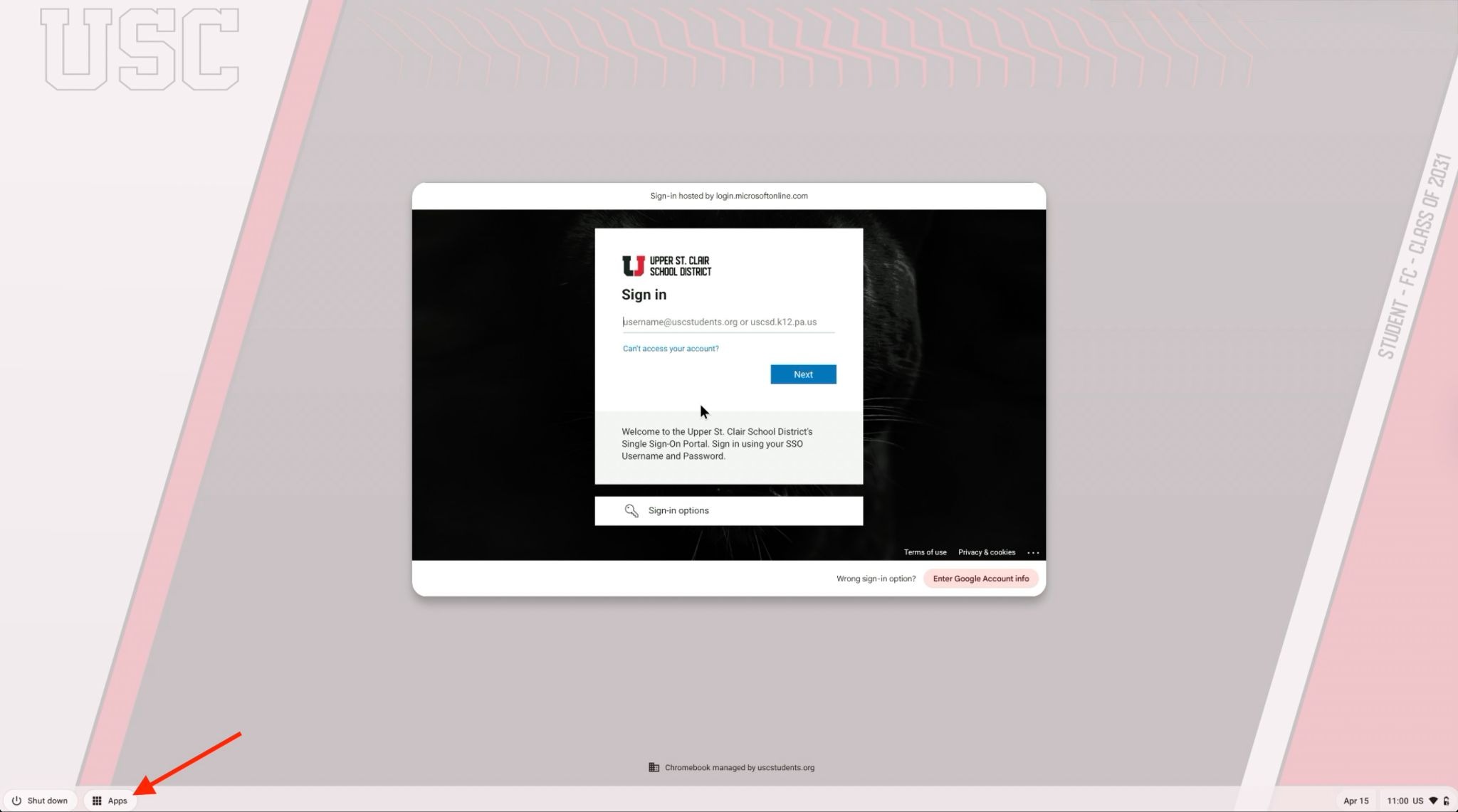
1. If you are logged in to your Chromebook, log out. You should see the SSO login window.
2. Select the “Apps” button from the bottom left corner.
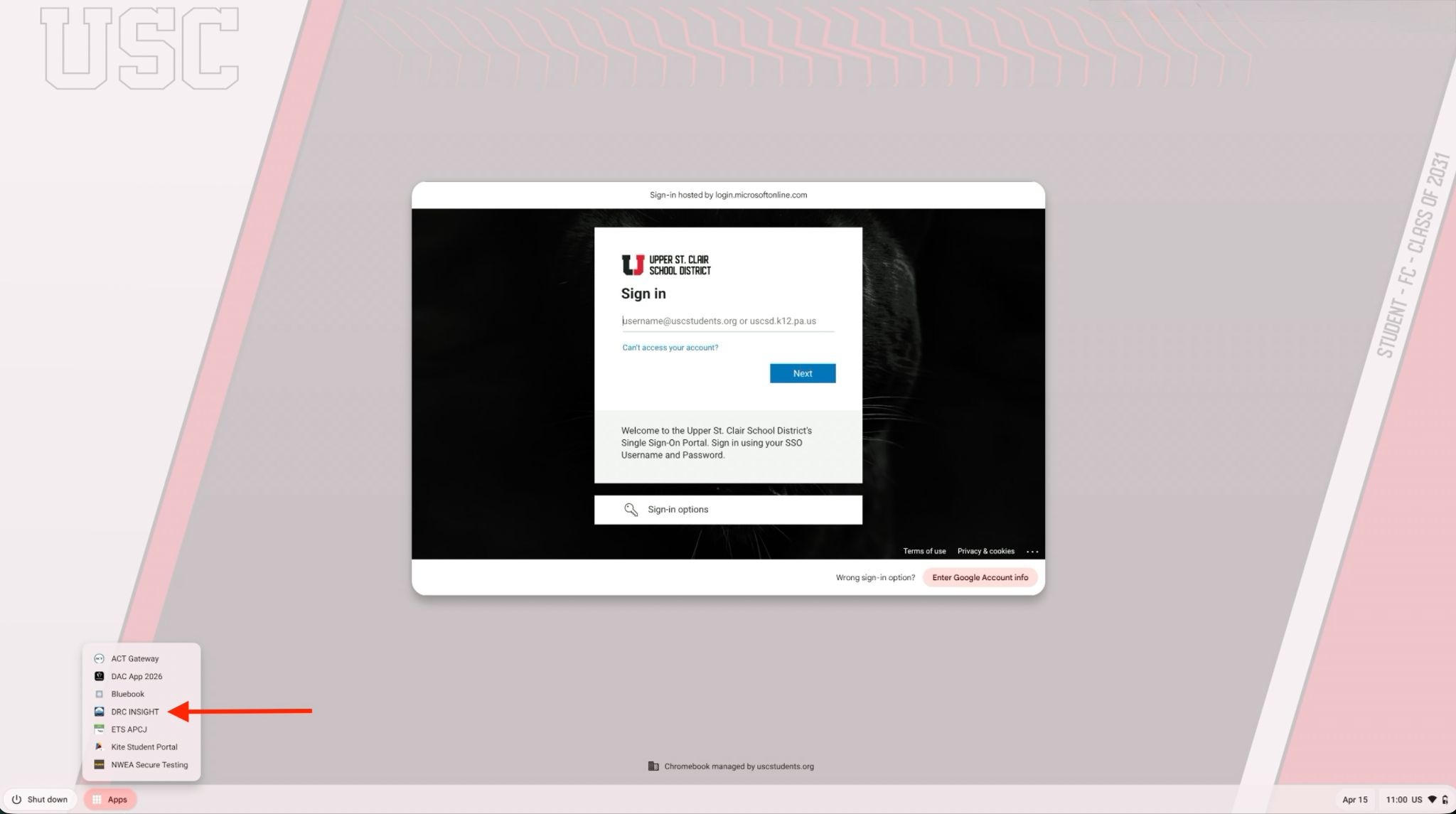
3. Choose “DRC INSIGHT” from the Apps menu.
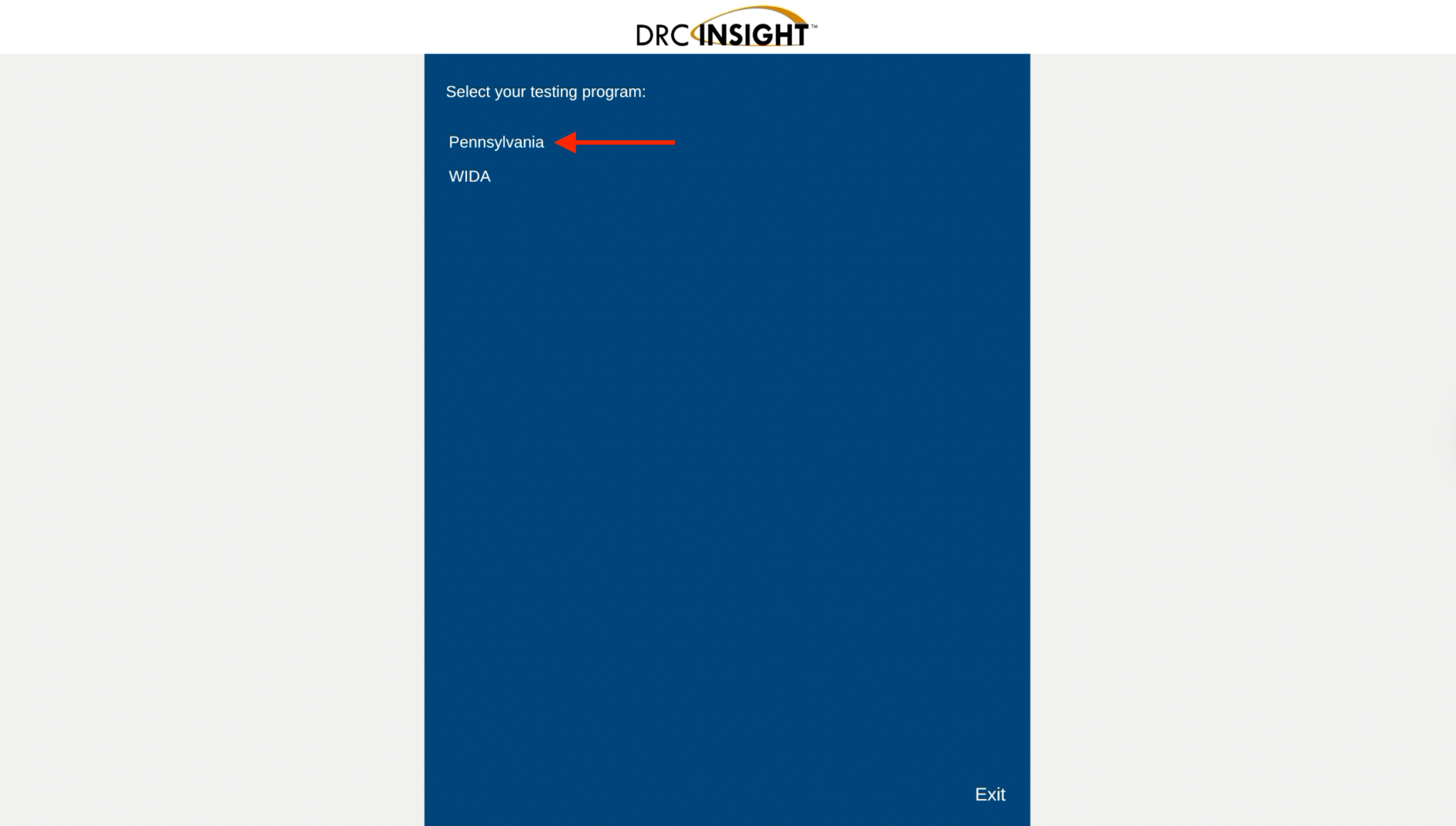
4. Select “Pennsylvania” for your testing program.
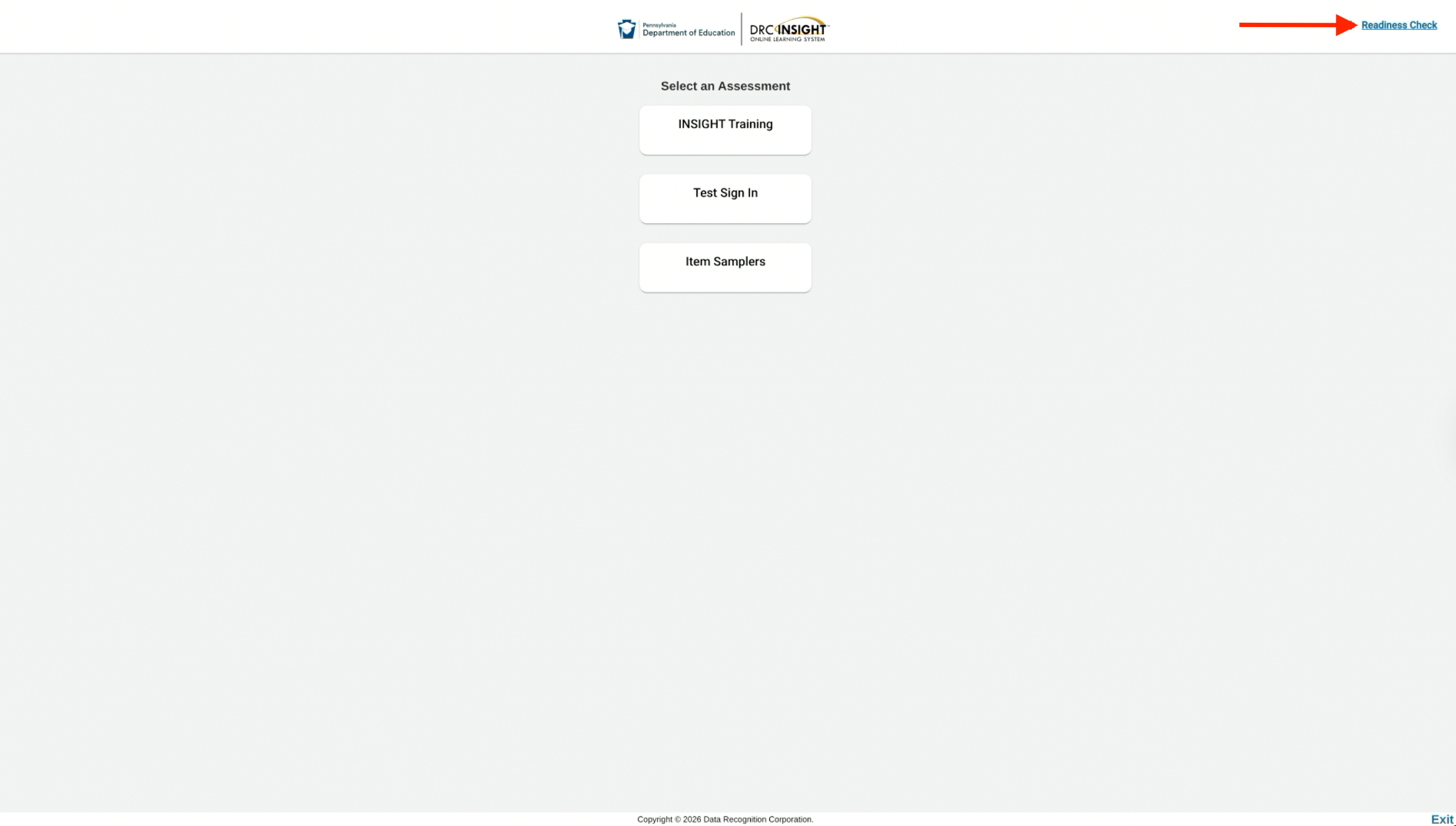
5. Select “Readiness Check” in the top right corner.
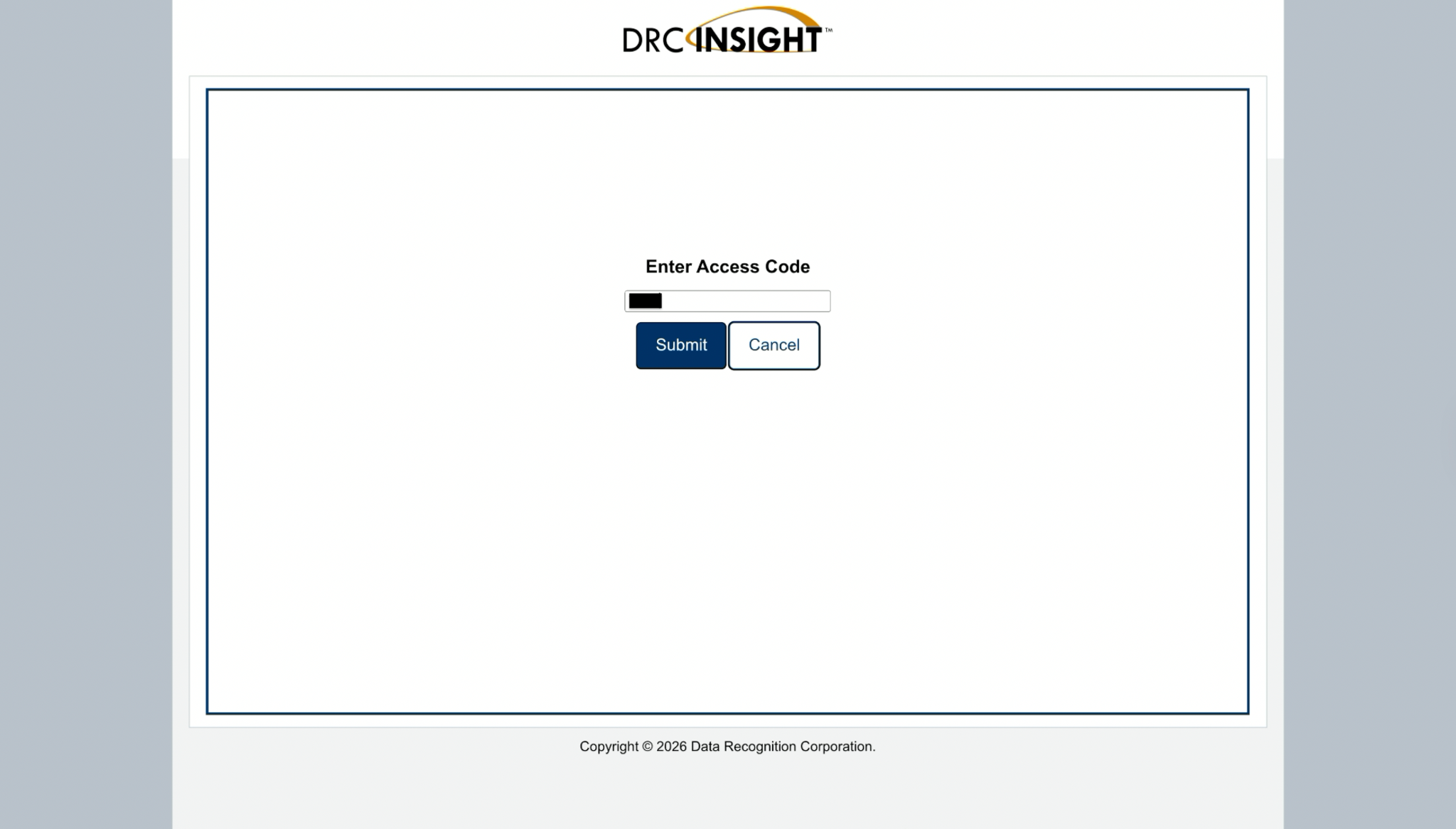
6. Enter the Access Code.
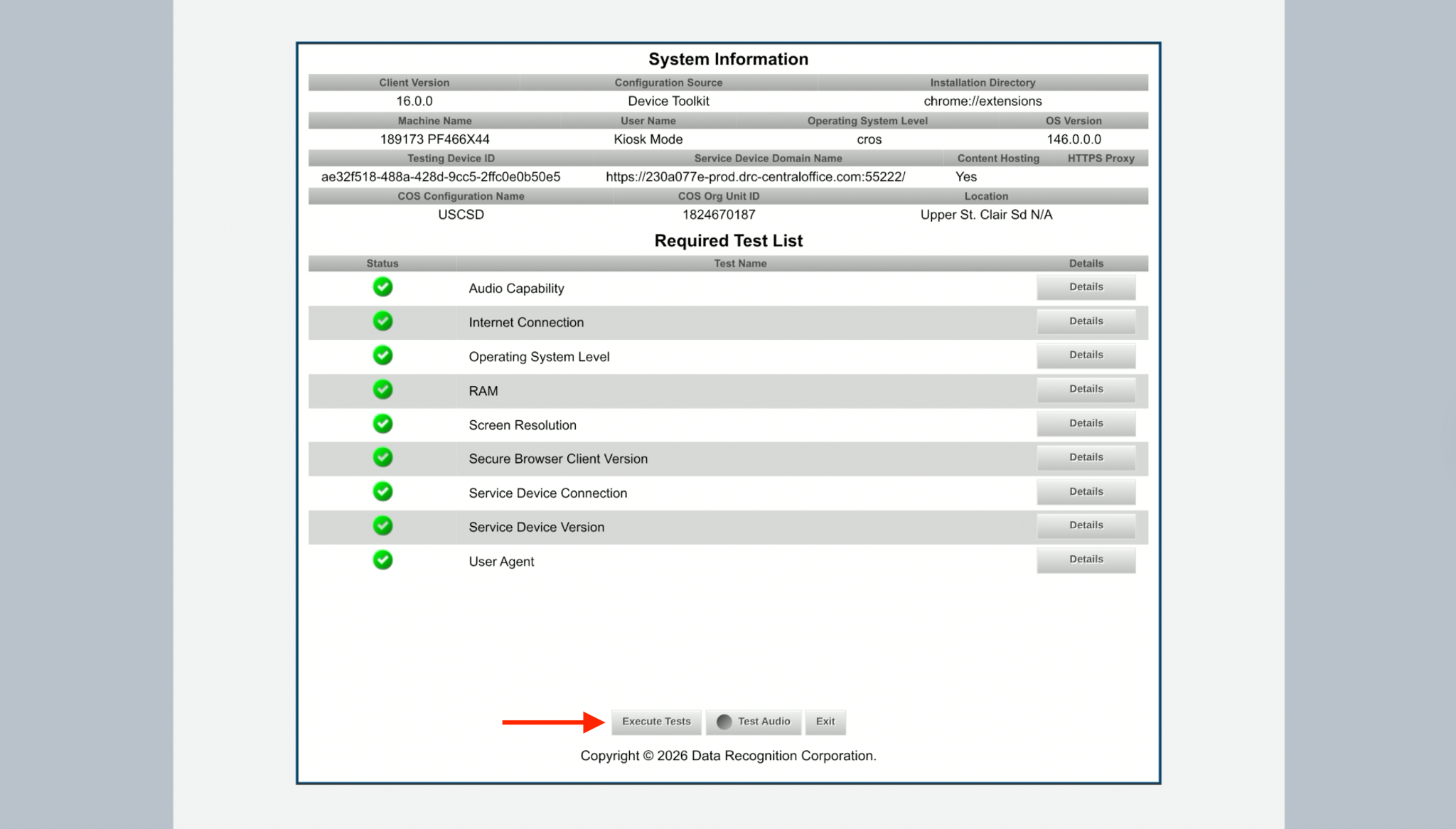
7. Select “Execute Tests” at the bottom of the screen. You should see all green checkmarks. If you do not, please submit a helpdesk ticket and include details on the items that failed.
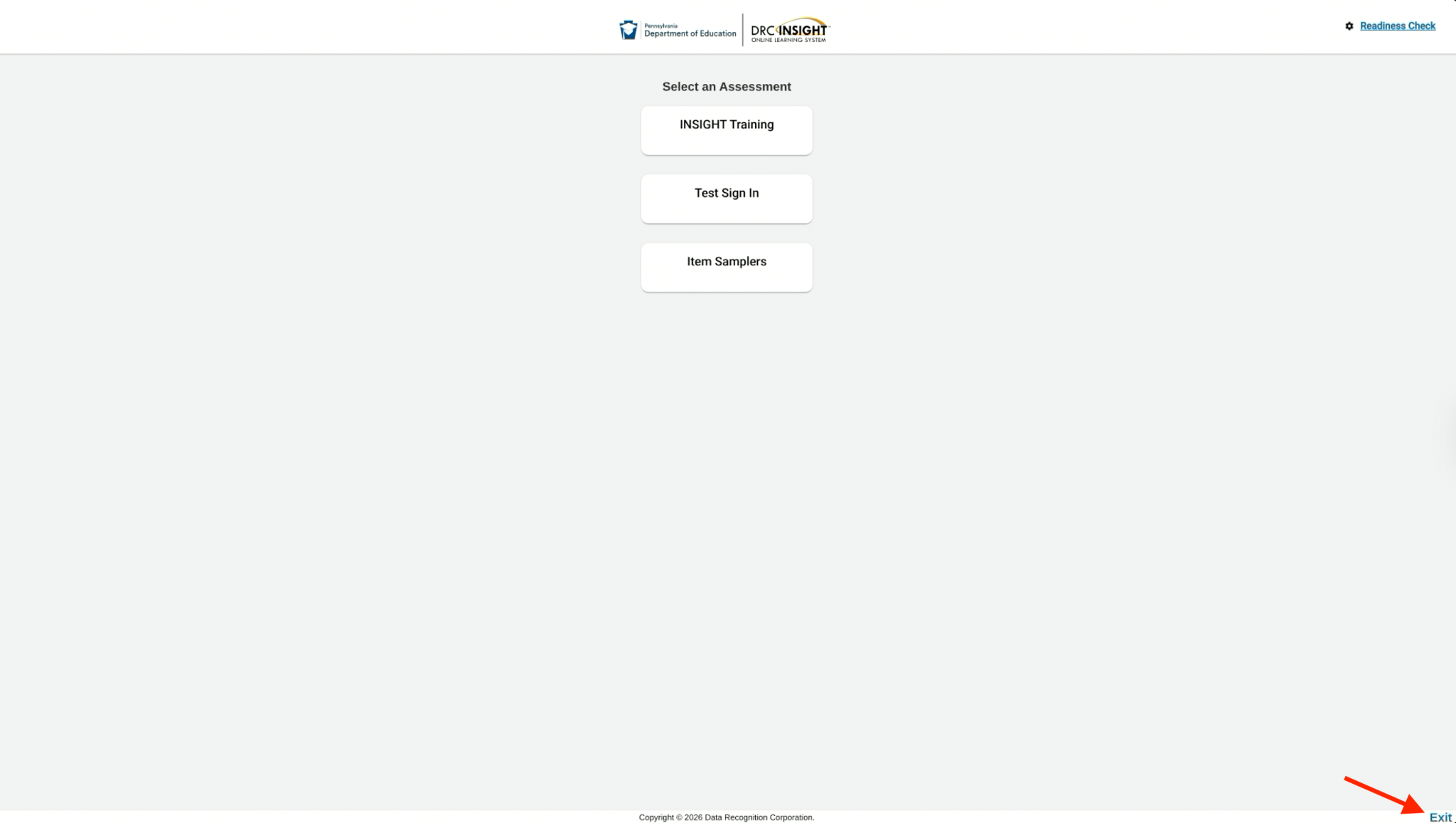
8. To exit select “Exit” at the bottom right corner of the screen.
Your Chromebook is now ready for testing.

