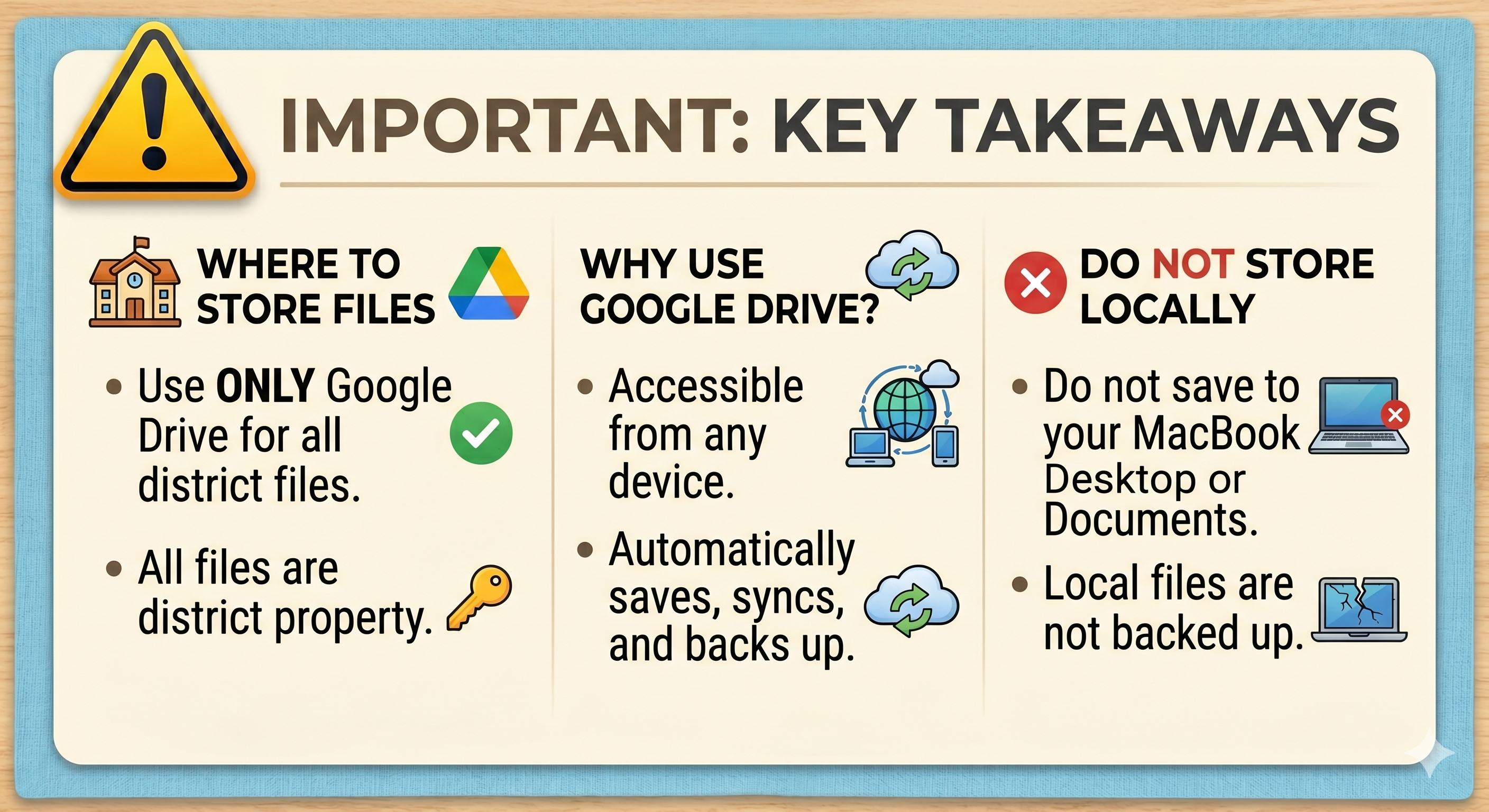
Do not store files on your Mac Desktop or in the Documents folder. All files should be stored and accessed through Google Drive.
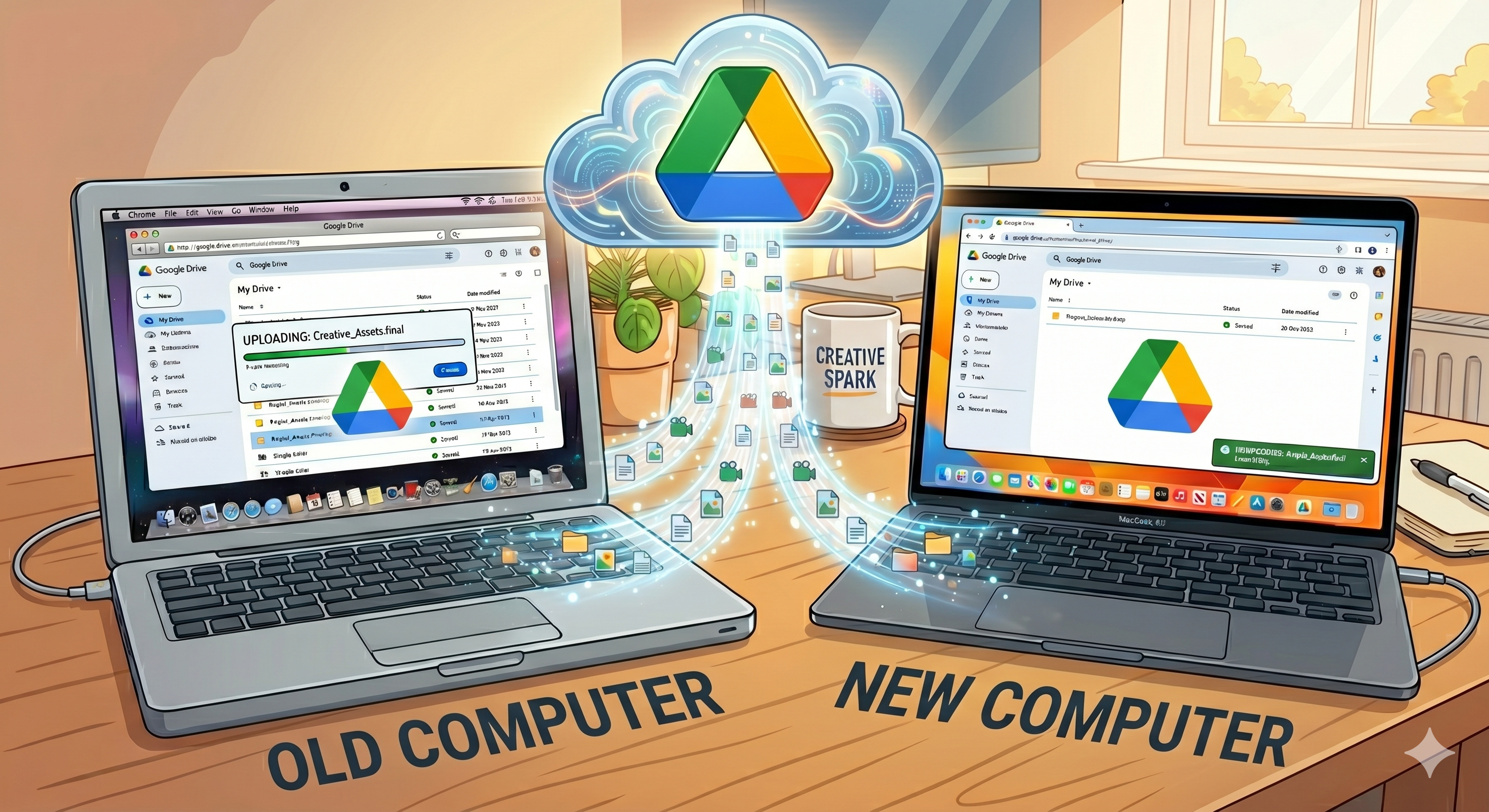
If your computer is damaged, crashes, or needs to be replaced, files saved locally on your device will be lost. When you sign in to Google Drive on a new device, all of your files will be available.
Organizing Files and Folders
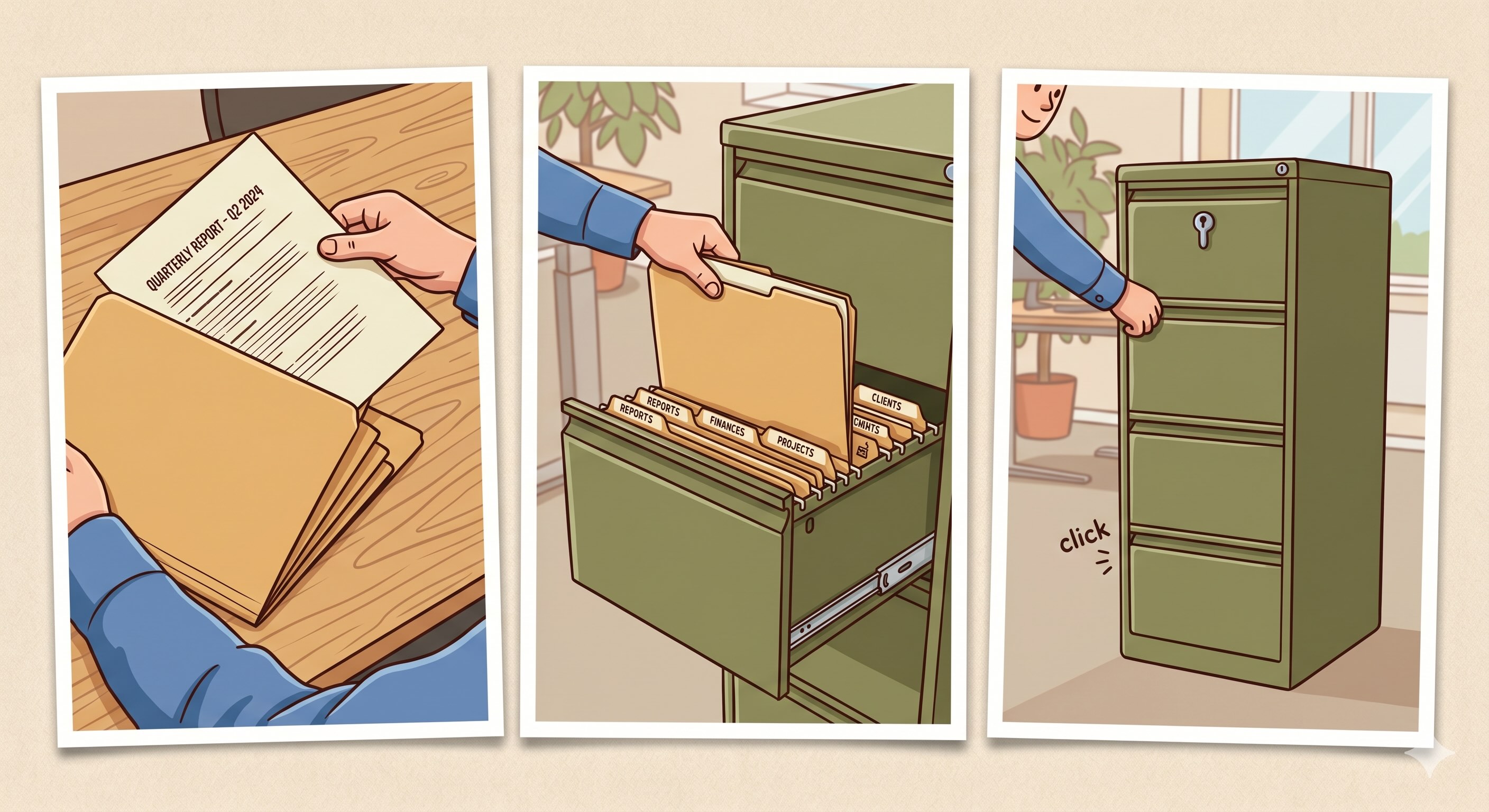
Store your files in folders within My Drive (Google Drive). Do not leave files directly in My Drive.
Using folders keeps your files organized, easy to find, and easier to manage. Just like you would not place loose papers into a file cabinet, your digital files should be placed into clearly named folders.
If you need to move files to Google Drive, please review the article below:
Moving Files from your Mac to Google Drive
Why use Google Drive?
-
Am I required to use Google Drive? Yes. Google Drive is the district’s official and approved platform for storing and accessing files.
- All USC-related files must be stored in Google Drive. Storing files on any other cloud platform, in personal storage, or on unapproved storage devices is not permitted.
- Access your files from anywhere by signing in to your account.
- Your files are protected. If your Mac is lost, damaged, or replaced, your documents remain safe and accessible.
- Automatic saving and syncing ensure your work is continuously updated and reduce the risk of lost work.
- Files are backed up regularly and, in some cases, may be recoverable if accidentally deleted.
- Built-in security protections help keep your data safe.
- Supports collaboration, allowing you to share and work with colleagues.
- All files, documents, and data on district-issued computers are the property of the district and must remain in Google Drive and district-managed systems and devices.
What is Google Drive?
- Google Drive is the district’s cloud storage platform for saving and accessing files.
- It allows you to store all types of files, including Google files (Docs, Sheets, Slides), Microsoft Office files, and files from other applications on your Mac.
- Files are stored in the cloud and linked to your district account, rather than on your device alone.
- It includes tools for organizing files, such as folders, search, and file management.
Google Drive: Web Version vs. Mac Finder
Google Drive gives you two easy ways to work with your files on a Mac:
1. Via the Internet - https://drive.google.com/
For: Google files
- Google Docs
- Google Sheets
- Google Slides
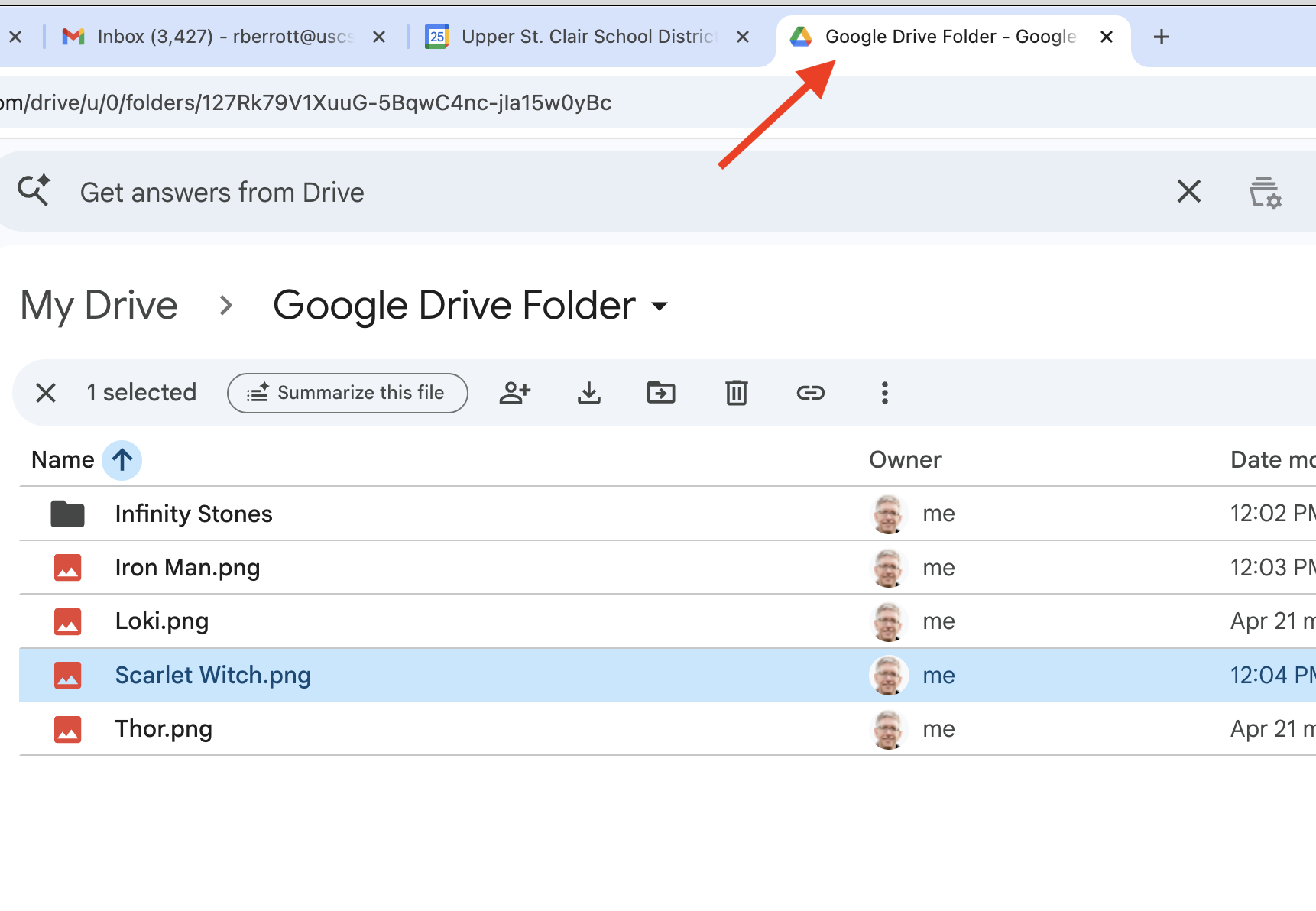
2. Via your Mac's Finder
For: Non-Google files
- Microsoft PowerPoint Presentations
- Microsoft Office Documents
- PDFs
- Images, videos, or any other file type you created on your Mac
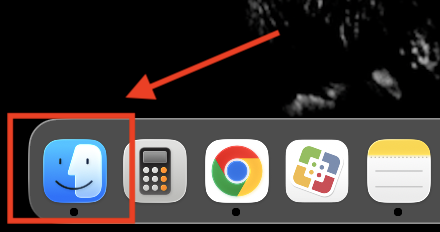
- In your Dock, the Mac Finder is in the bottom left-hand corner of the screen
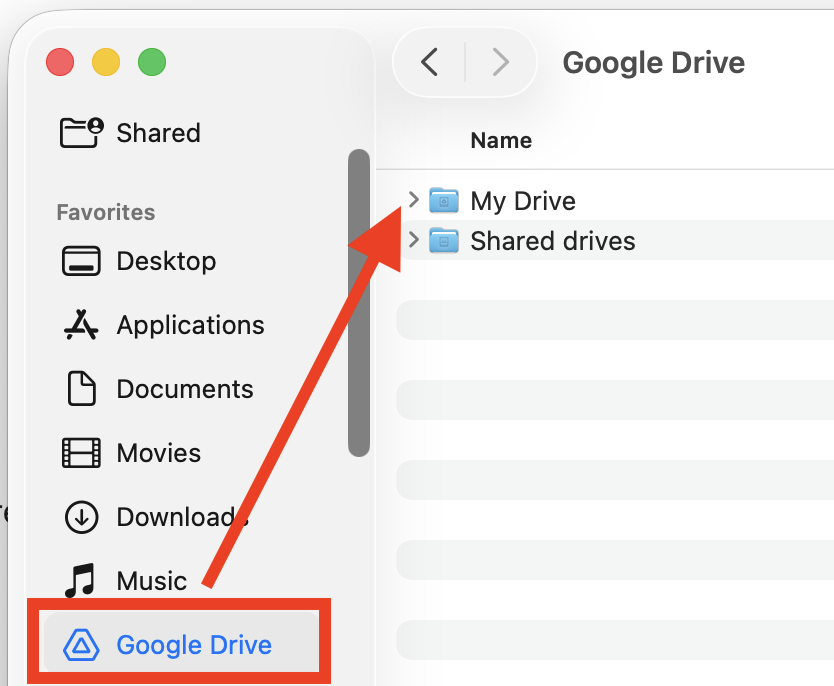
- Click on Google Drive from the left, and click on My Drive to access your files.
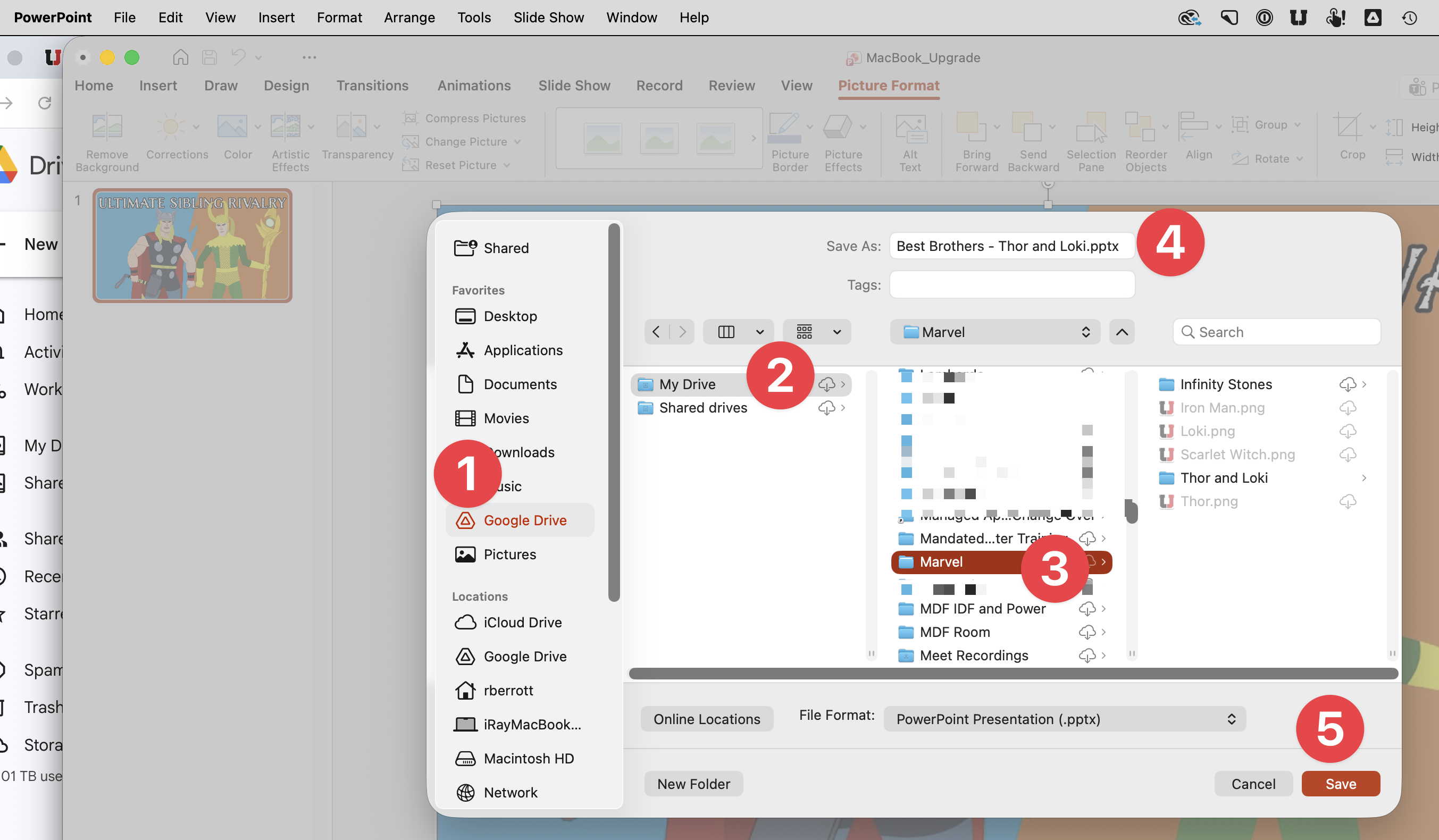
When saving Non-Google files
- Choose Google Drive
- Select My Drive
- Choose the folder where you want to save the file
- Enter a file name
- Click Save
Note: Both versions connect to the same cloud storage and show the exact same files. The main difference is how you access and work with them.