If you are not familiar with Google Drive, please review the article below:
Google Drive: File Storage and Access Guide for Staff
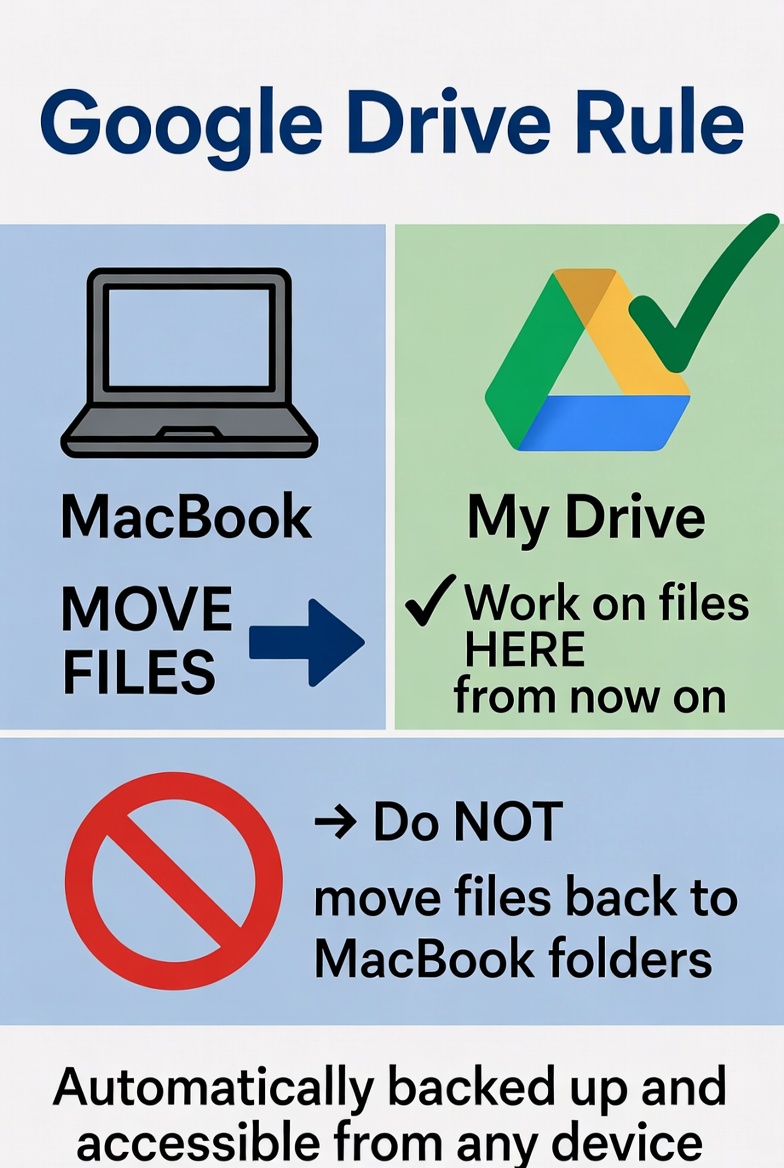
Do not store files on your Mac Desktop or in the Documents folder. All files should be stored and accessed through Google Drive.
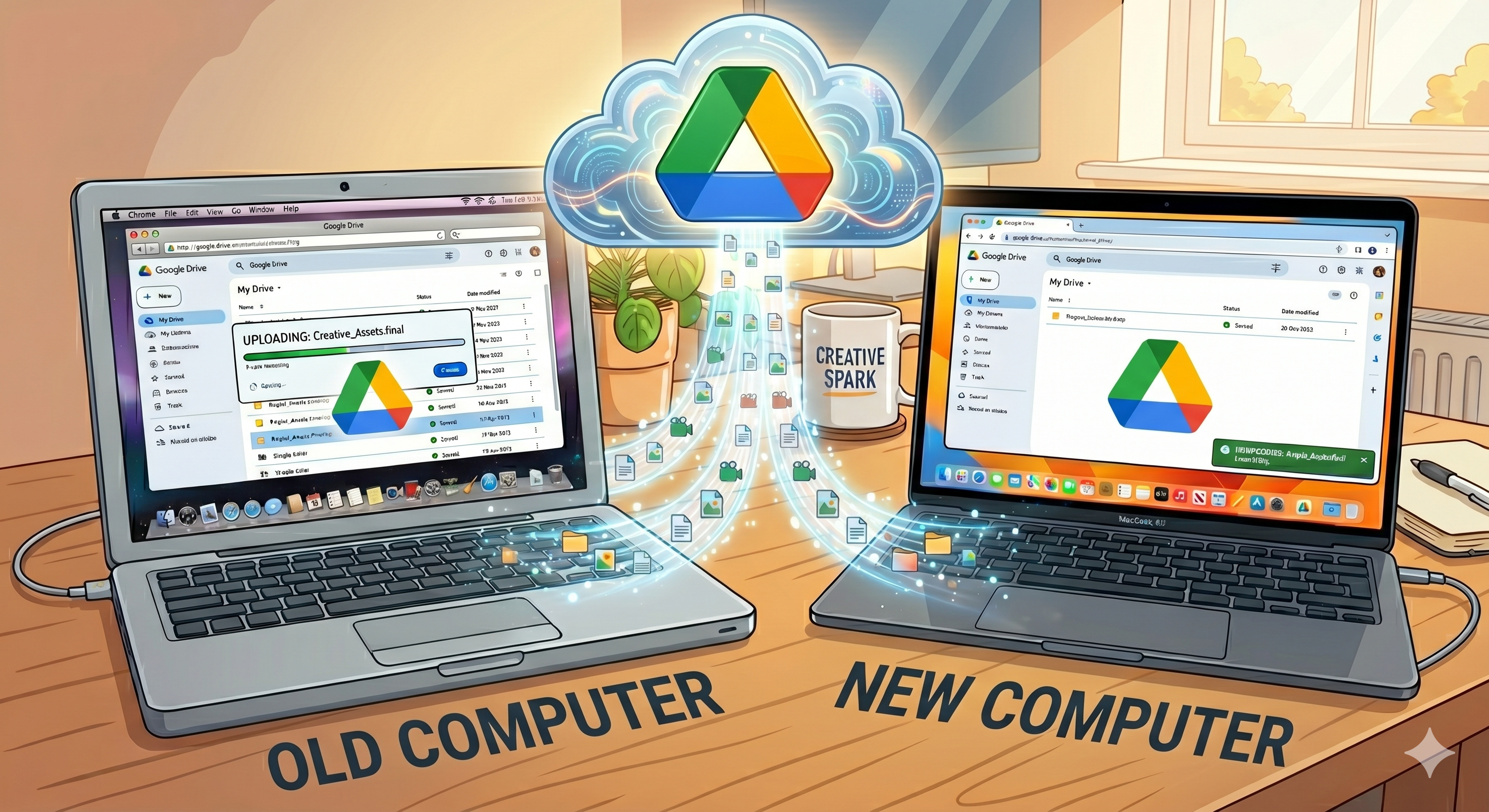
If your computer is damaged, crashes, or needs to be replaced, files saved locally on your device will be lost. When you sign in to Google Drive on a new device, all of your files will be available.
Organizing Files and Folders
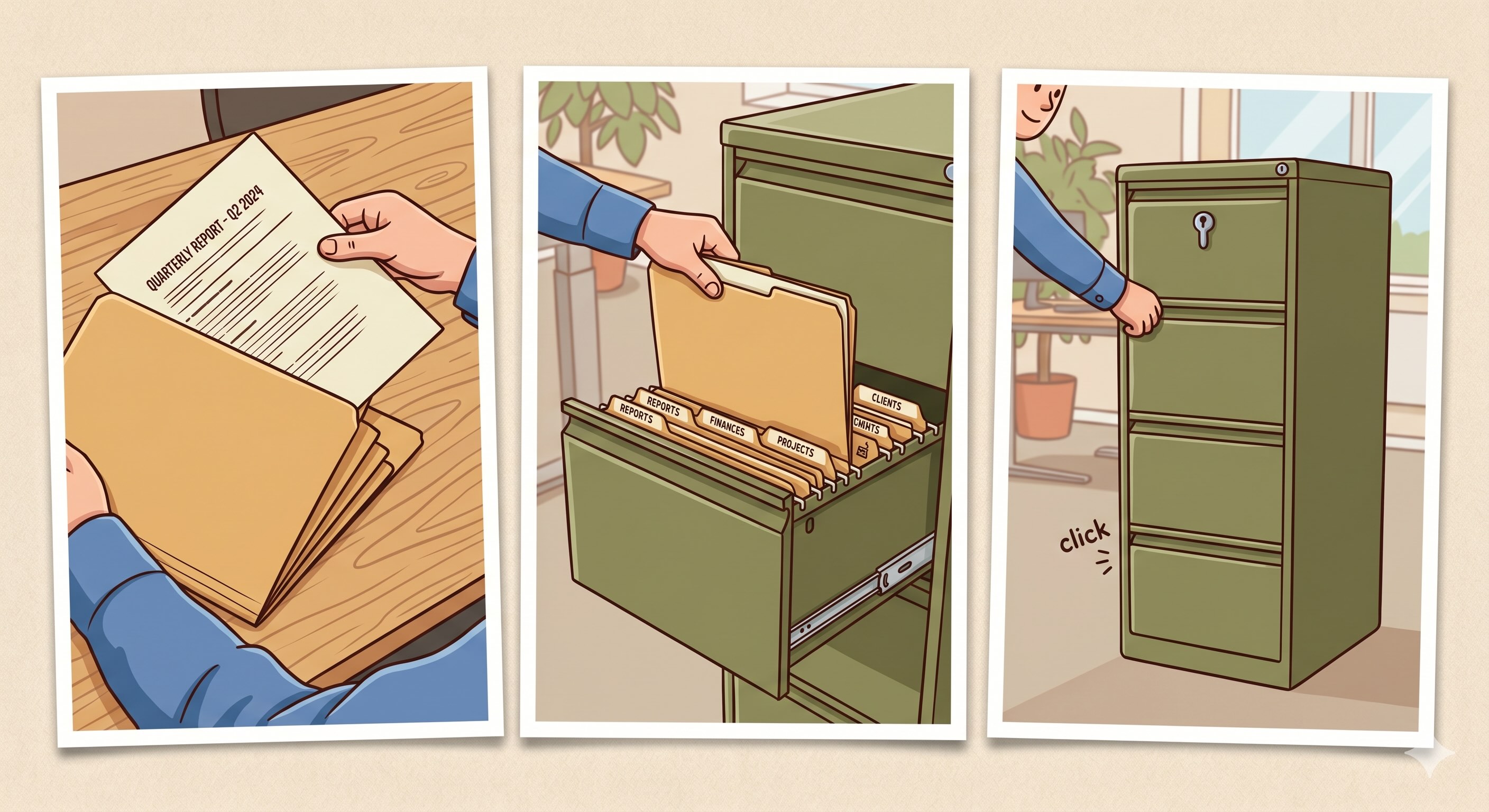
Store your files in folders within My Drive (Google Drive). Do not leave files directly in My Drive.
Using folders keeps your files organized, easy to find, and easier to manage. Just like you would not place loose papers into a file cabinet, your digital files should be placed into clearly named folders.
Moving Files from your Mac to Google Drive
Note: Once your files are stored in Google Drive, access and manage them there. Do not move them back to your Desktop, Documents, or Downloads folders. Always open and work with your files directly from Google Drive.
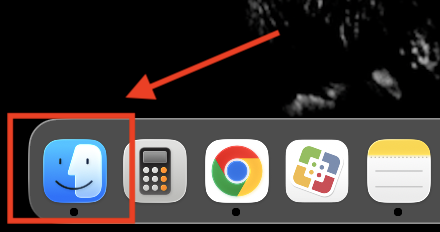
1. Open the Mac Finder.
- The Finder icon is located in the bottom left corner of your Dock.

2. Select the folder that contains the files you want to move (for example, Desktop, Documents, Downloads).
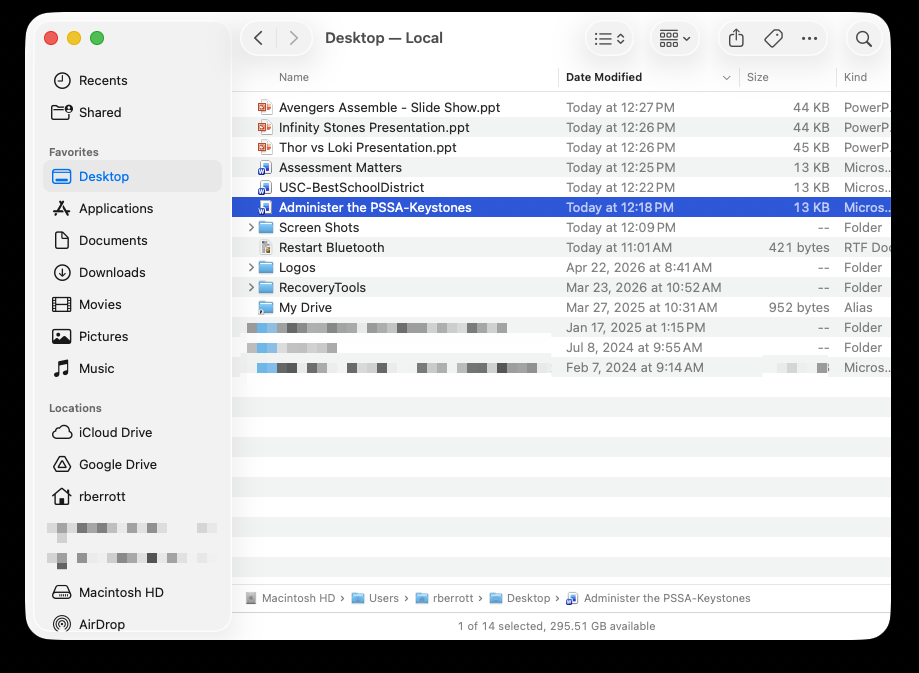
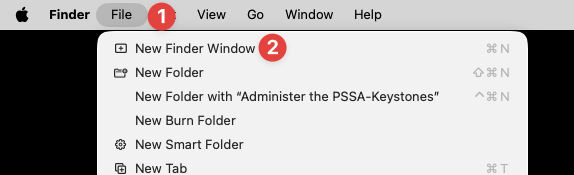
3. Open a second Mac Finder window.
- Click on File [1] on the top left hand corner of your screen, then New Finder Window [2].
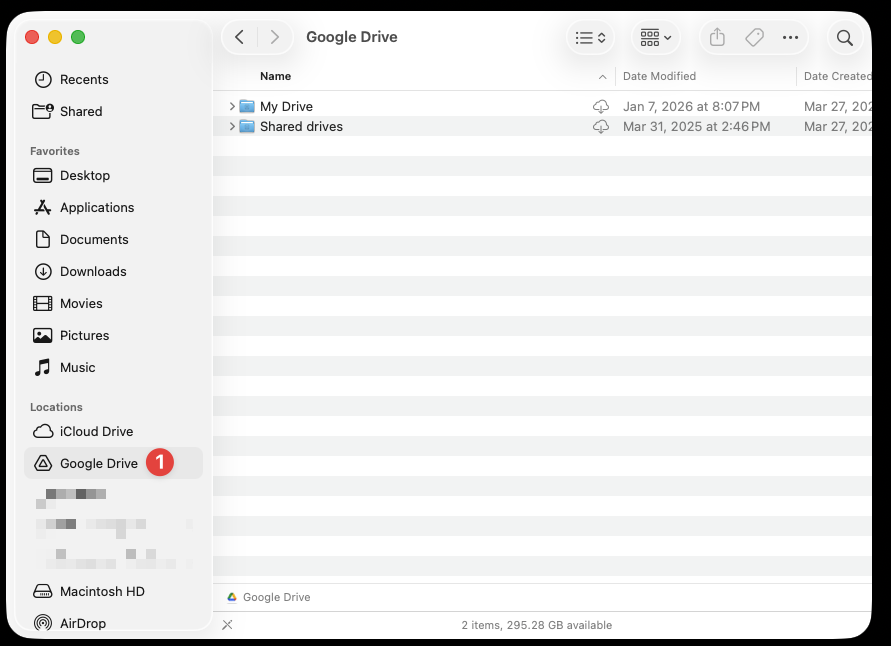
4. In the new window, select Google Drive [1] from the left navigation column.
5. Place both Finder windows side by side.
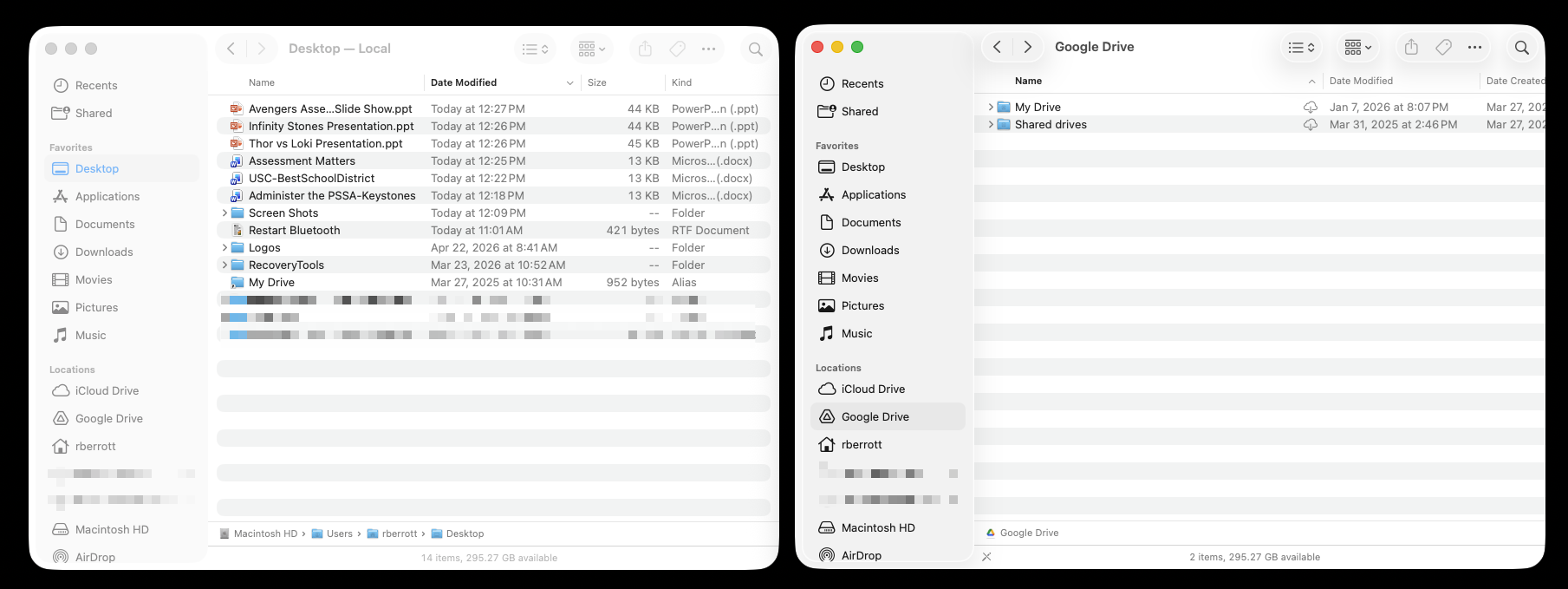
6. In the Google Drive window:
- Double click My Drive to open it.
- Locate the folder where you want to move your files, then double click to open it (for example, Presentations).
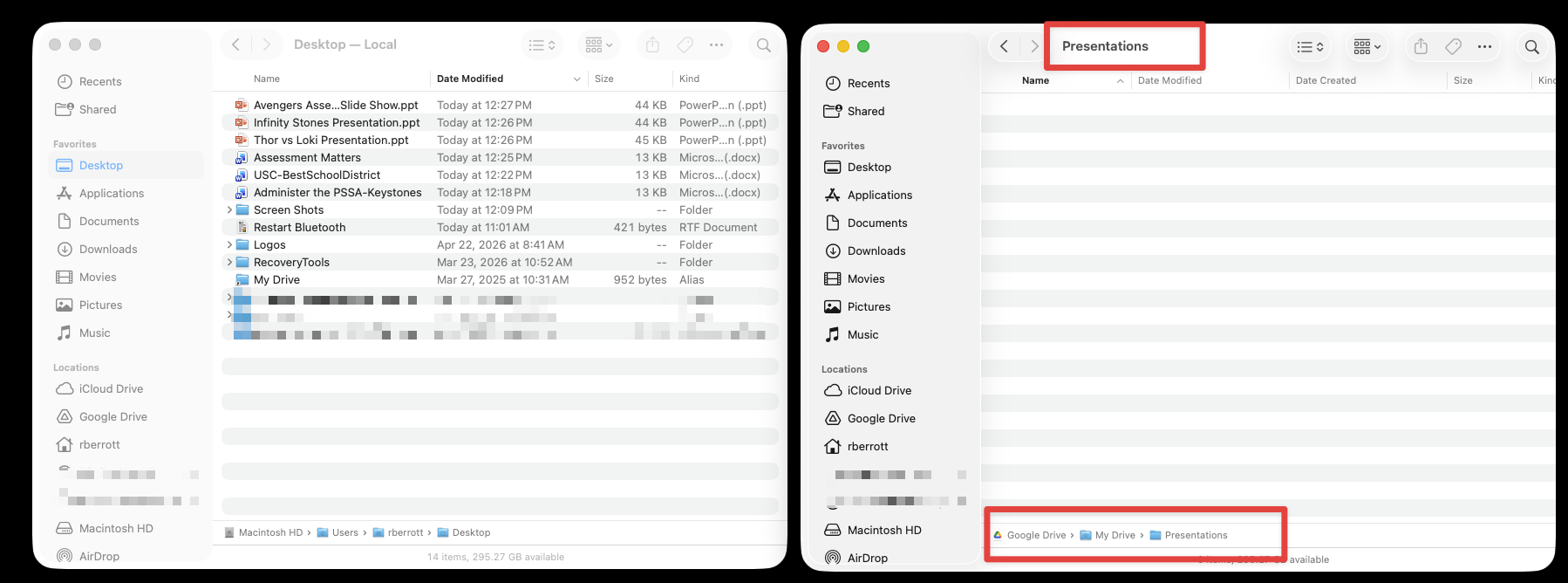
If you are moving an entire folder:
- Double click My Drive to open it first.
- If placing it inside another folder, open that folder before moving it so the files go to the correct location.
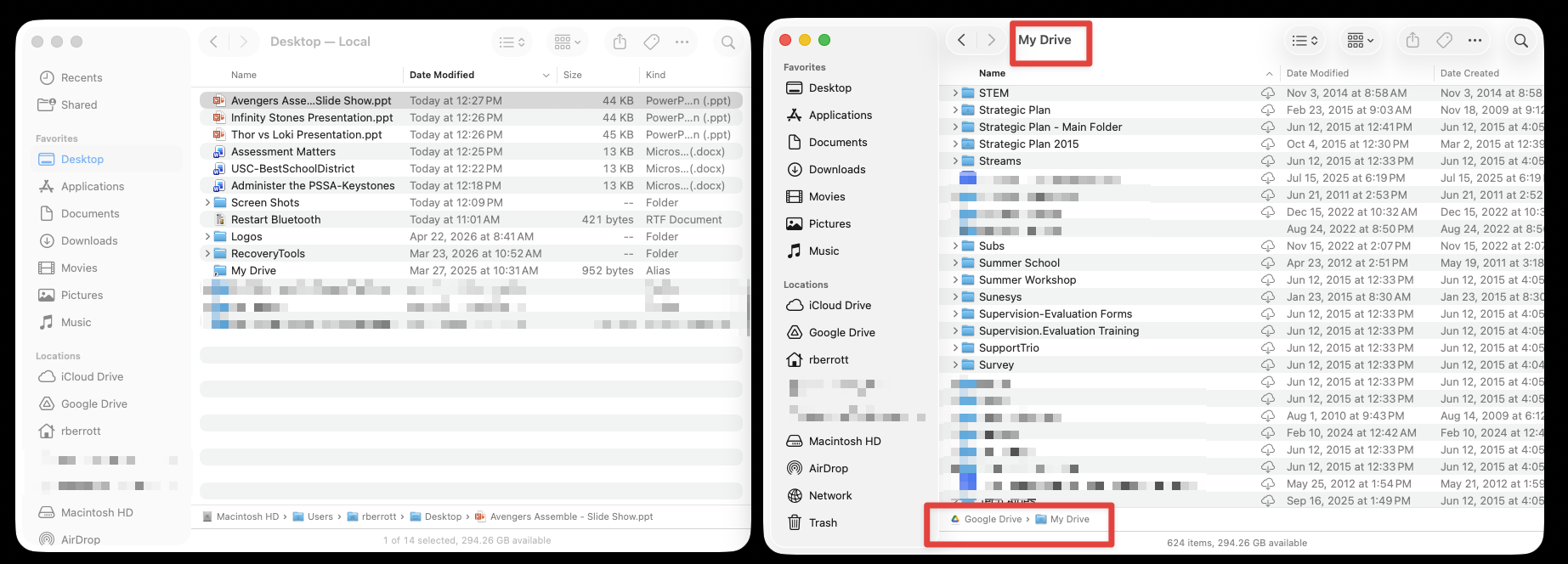
7. Move the Files or Folders.
Selecting files:
- Select a single file: Click the file once.
- Select multiple individual files: Hold the Command (⌘) key and click each file you want.
- Select a group of files in a row: Click the first file, then hold Shift and click the last file.
- Select all files in a folder: Press Command (⌘) + A.
Moving files (drag and drop):
- Move selected files: Click and hold one of the selected files, drag them into your My Drive folder, then release to drop them into that location.
- Move an entire folder: Click and hold the folder, drag it into My Drive, then release to drop it. This moves all files inside the folder.
Important: Once files are moved into My Drive (Google Drive), access and work with them from that location. Do not move them back to your MacBook folders. Files stored in Google Drive are automatically backed up and can be accessed from any device when you sign in.