



There are a couple of different ways that you can back up your Notes from your Mac. They are:
1. iCloud
Accessible from any device signed in with your Apple ID (visible in the Notes app).
Action: Verify your Notes are stored in iCloud (see instructions below).
2. Google Drive
You will first need to export your Notes or copy their contents into a different format, such as a Google Doc. This is only recommended if you have a few notes. Otherwise, the recommended method is to log in to an Apple ID and use iCloud.
Action: See instructions below.
Verify your notes are stored in iCloud
If you are already automatically backing your notes up to iCloud using an Apple ID, there is no need to perform additional backups of your Notes. To check this:
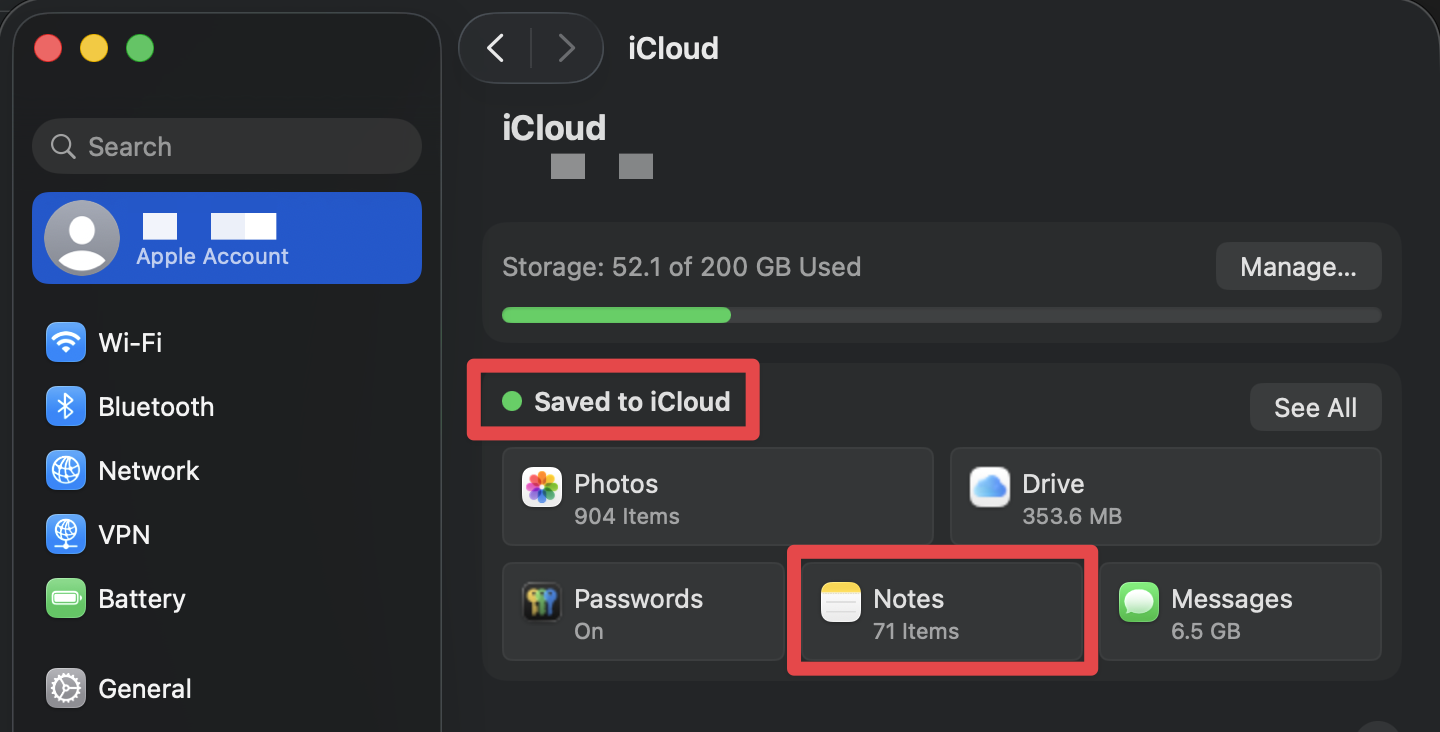
Go to Apple menu → System Settings → [your name] → iCloud
Under Saved to iCloud you will see Notes listed if you are automatically backing up to iCloud.
Exporting your Notes out of the Notes app
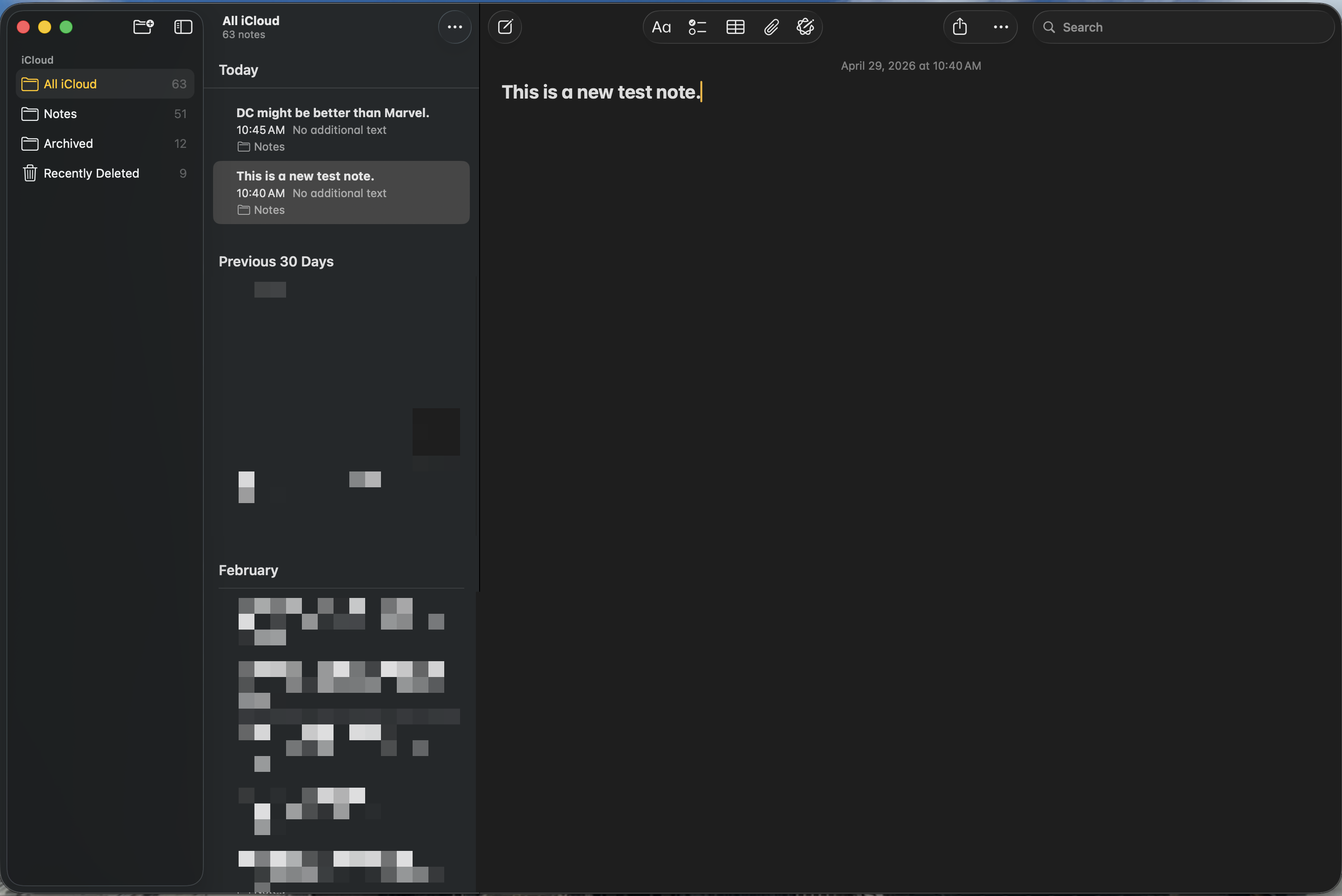
Exporting a Note must be done one Note at a time. First, open the Notes app.
Select the Note that you want to export.
In the Menu Bar at the top of your screen, click on File, then hover over Export as, and then you will be presented with two options:
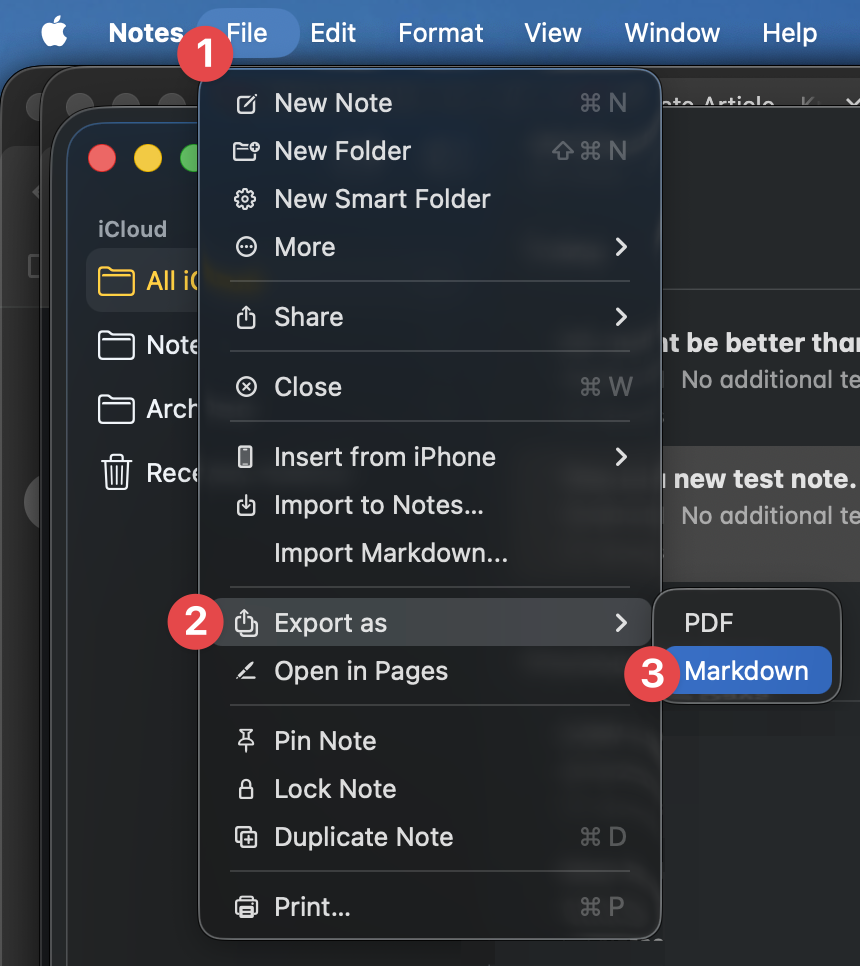
- PDF - makes the Note easily shareable, but you will not be able to edit this Note further in Notes, as you cannot import a PDF.
- Markdown - the Note is not easily shareable or editable in this form, but allows you to import it back into Notes to continue working on it at a later date or on a different device.
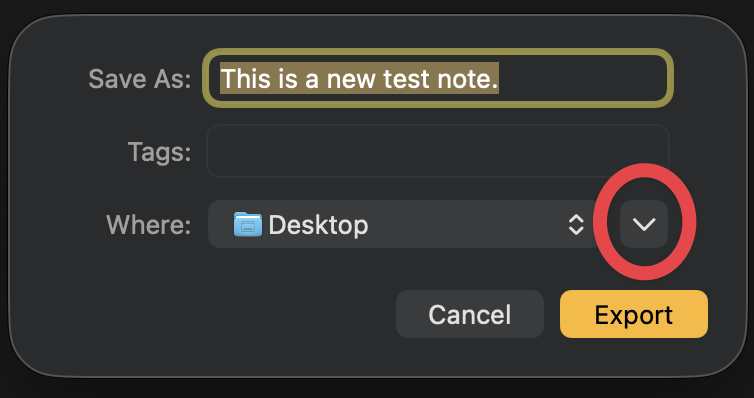
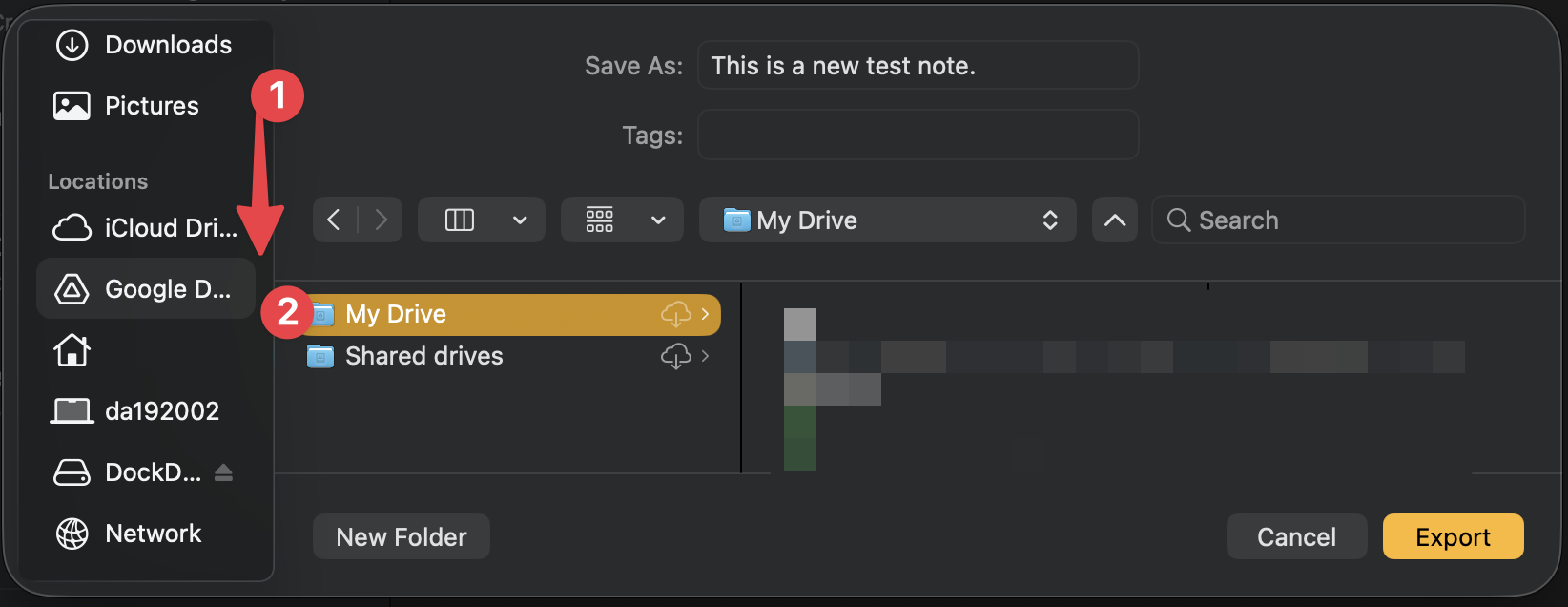
For the purposes of this tutorial, select Markdown, wait for it to convert, then click the down arrow to the right of the dropdown box to expand the export window, and then choose Google Drive as your storage location on the left-hand sidebar.
To import your Notes, on your new device, open the Notes app.
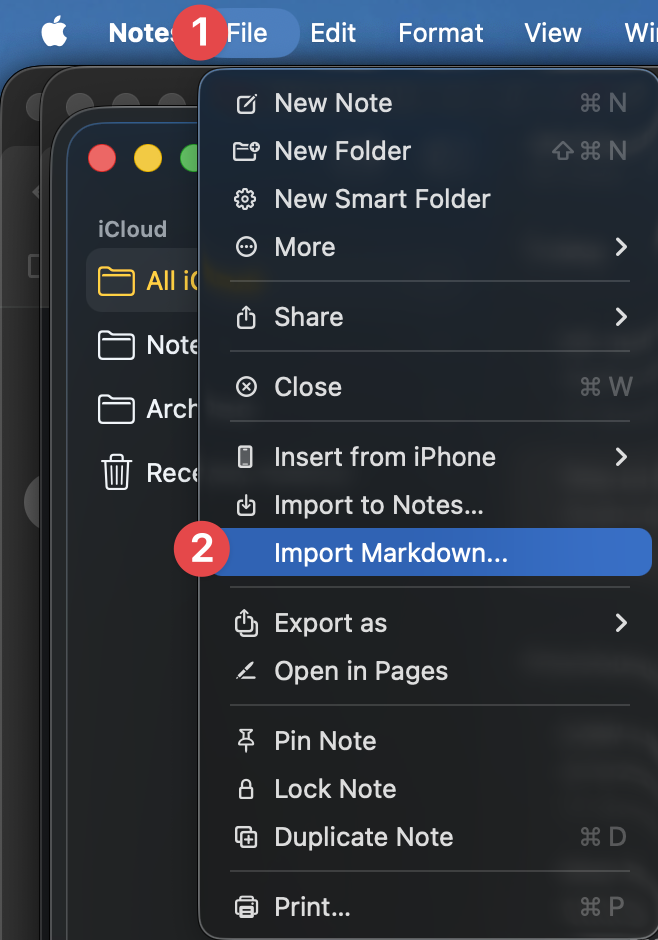
In the Menu Bar at the top of your screen, click on File, then click Import Markdown... and navigate to the folder witin your Google Drive where you exported to. You will notice that a new folder was created, named what your Note was named. Enter into the folder, and then click on the .md file within it.
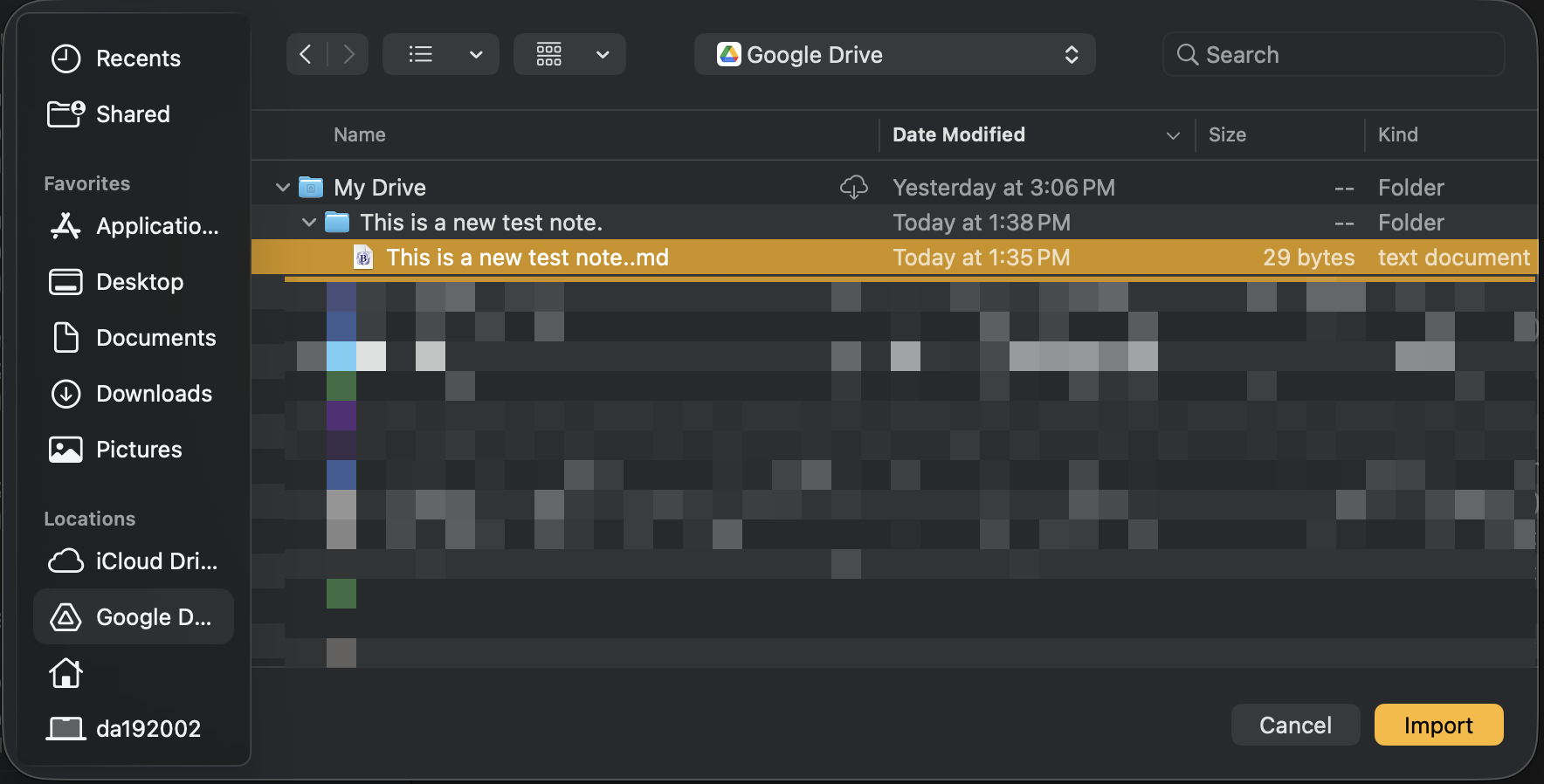
The file will now be restored to the Notes app for you to continue working on it.

