Google Takeout - Middle School

Last updated: May 07, 2026
1407
views

These instructions are specific to the Chromebook and Google Account migration project. Any data (mail, Docs, Sheets, Slides, pictures, etc.) will not be moved for students in Grades K-8. If you have any items that you would like to keep for the future, please follow the steps in this article to export and save your files.
Google Takeout is a way to save and download copies of your important school files, like your emails, calendar notes, and pictures. You can save these files onto a personal flash drive or external hard drive.
- Plan ahead! It takes time to gather all your files. Start this process at least two days before you need your files (no later than June 3, 2026)
Follow these steps to download your files:
- Go to the Google Takeout page (https://takeout.google.com/settings/takeout). You might need to sign in to your Google Account first.
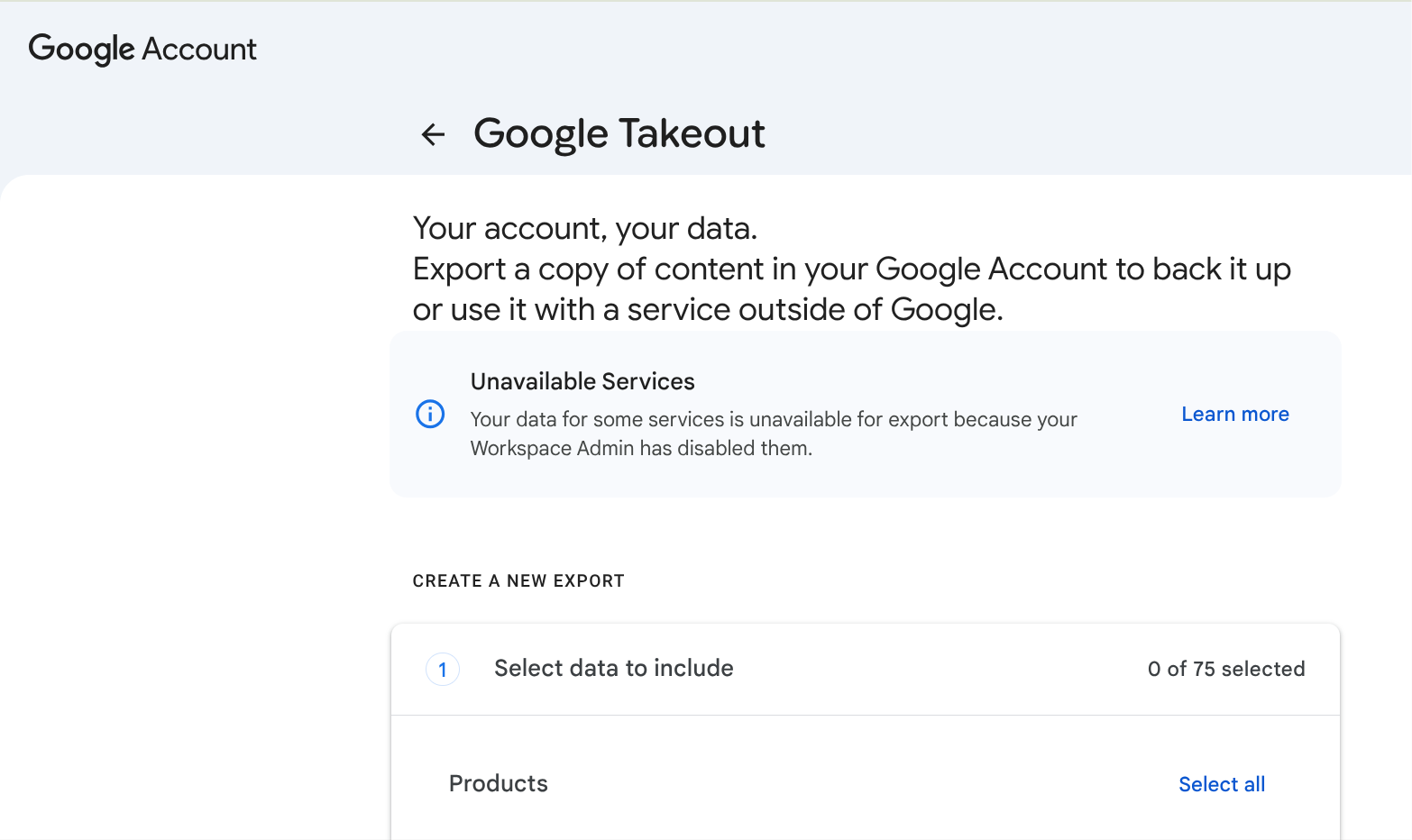
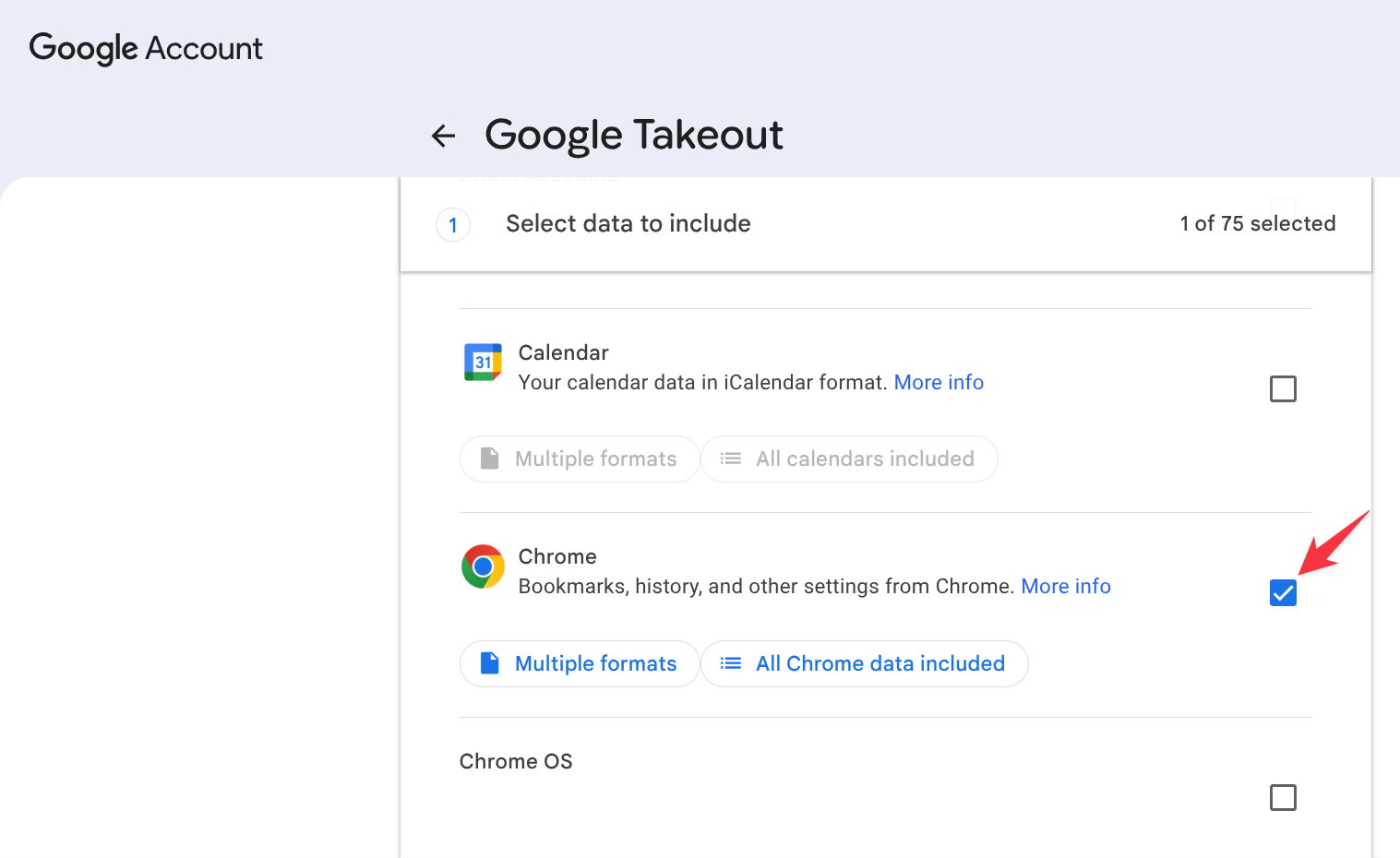
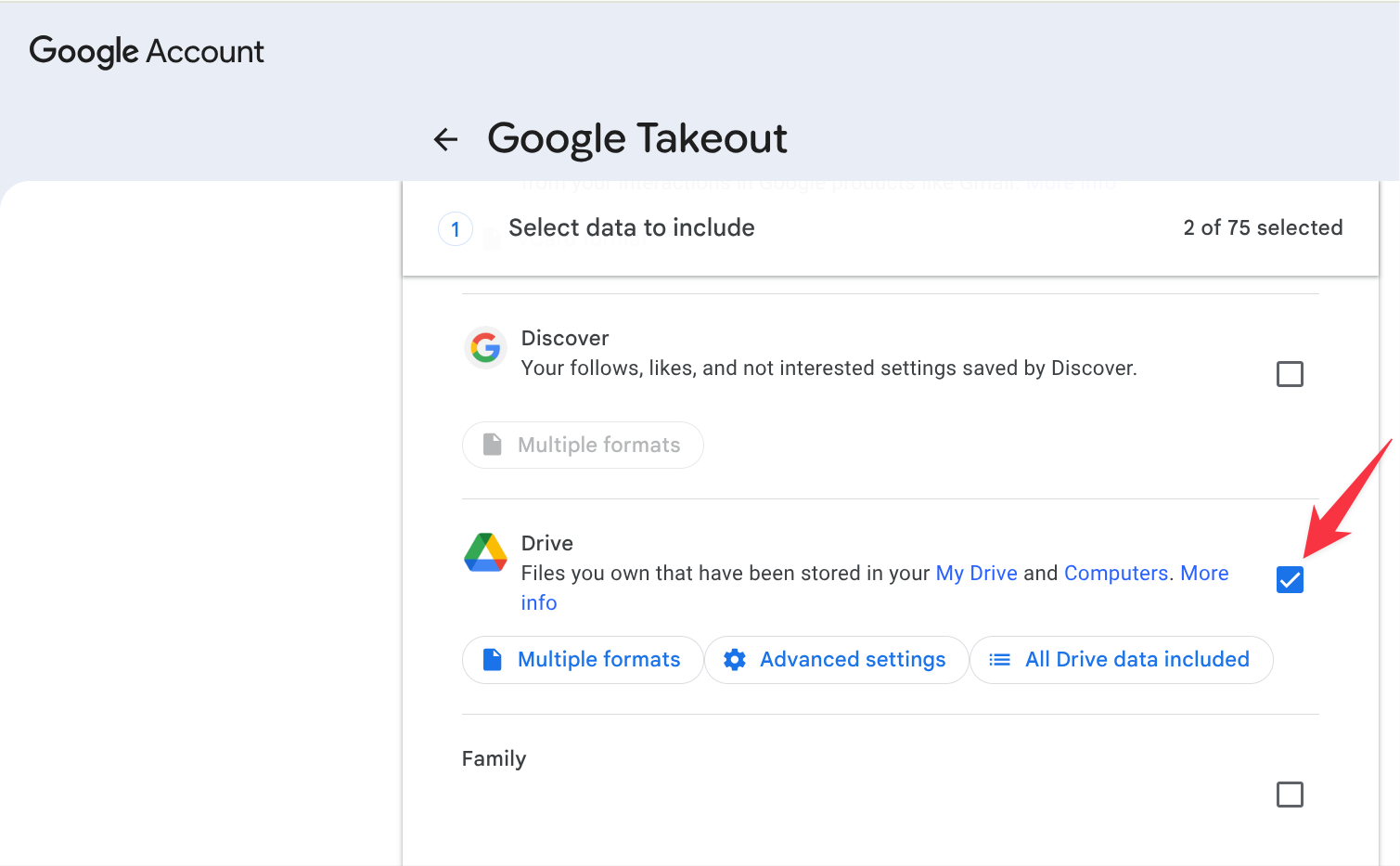
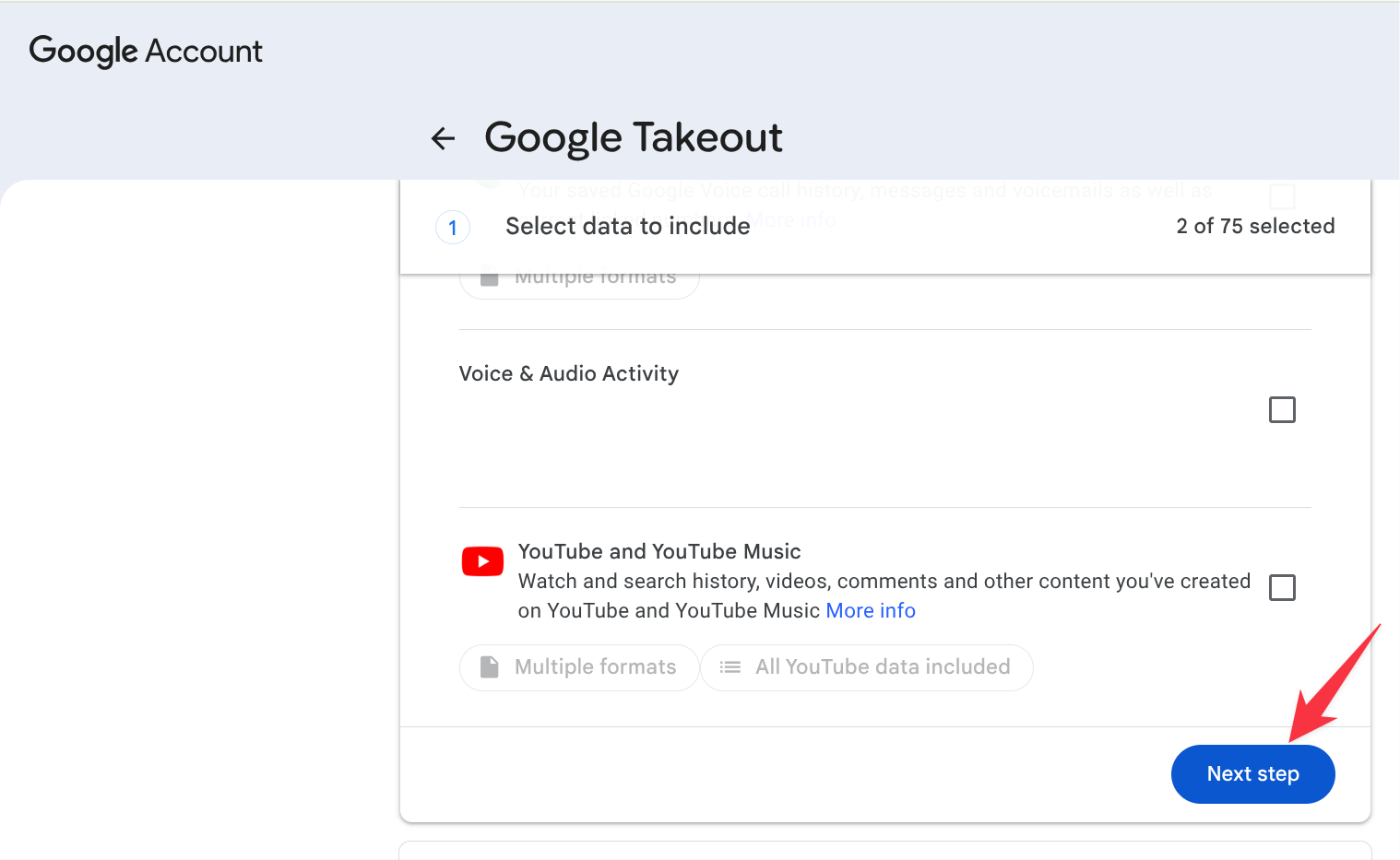
- Choose the files you want to download. Look at the list of Google products. Select the down arrow next to a product to see more choices.
- Tip: Make sure to select Chrome, Drive, Google Photos, Keep, and Mail.
- Select Next Step.
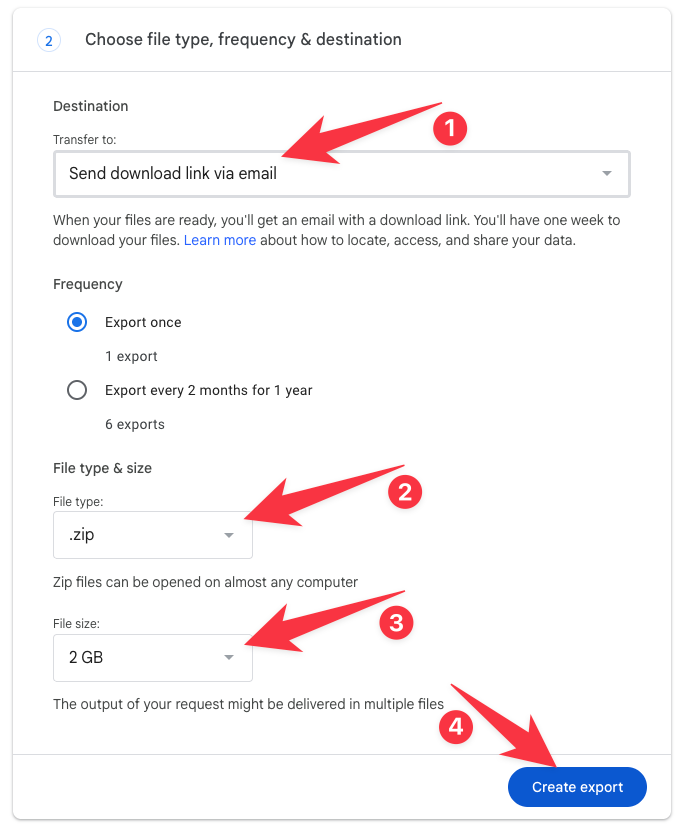
- On the next screen (Choose file type, frequency & destination), make sure these options are picked:
- The download link should be sent via email.
- File type should be .zip (This puts all your files into one big "folder").
- File size should be 2 GB.
- Select Create export.
Getting Your Files
- It could take a few minutes or several hours for Google to gather your files. Most people get the link on the same day.
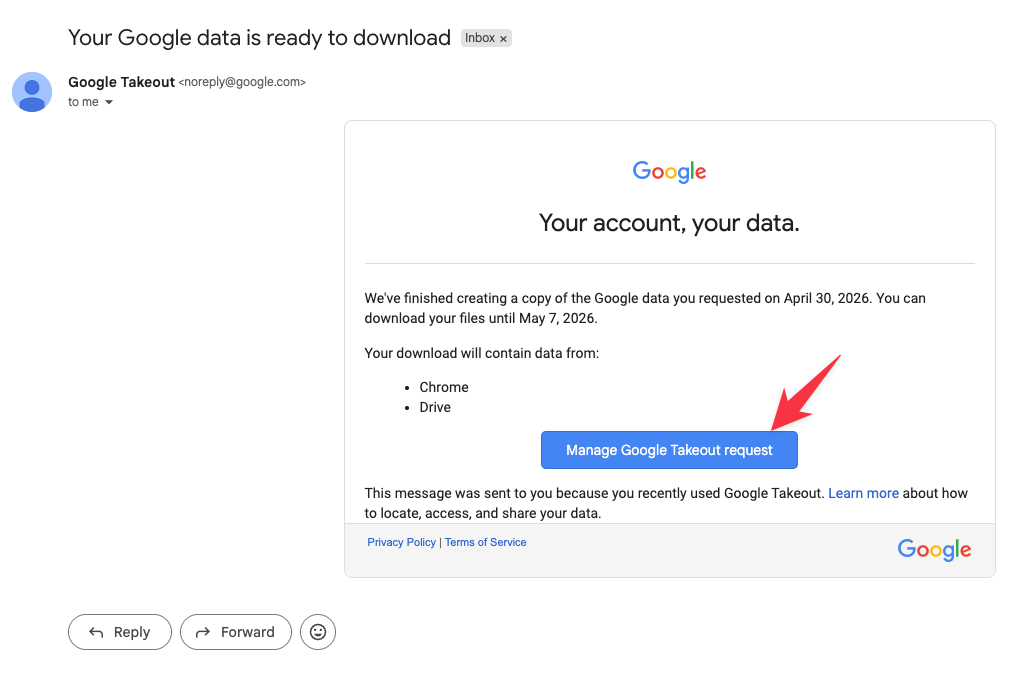
- When your file is ready, you will get an email titled Your Google data is ready to download.
- In the email, select Manage Google Takeout request.
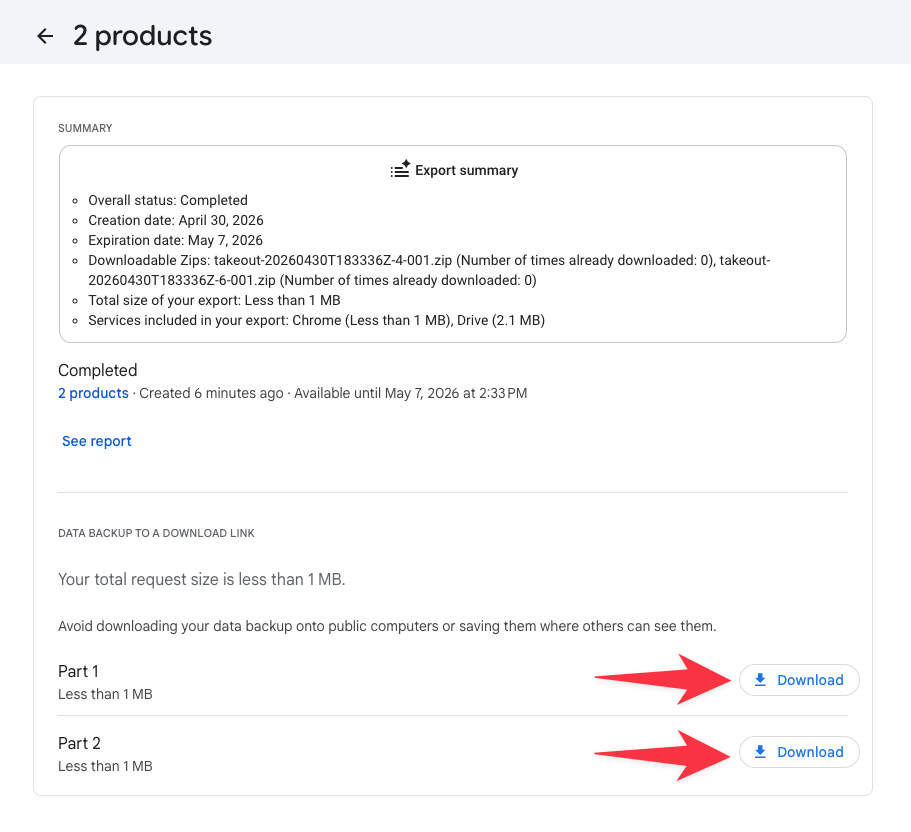
- This will take you to the Google Takeout download page. At the bottom, you will see links to download your files. If you have a lot of data, you may see many download links.
Important: Saving Your Files to a Safe Place
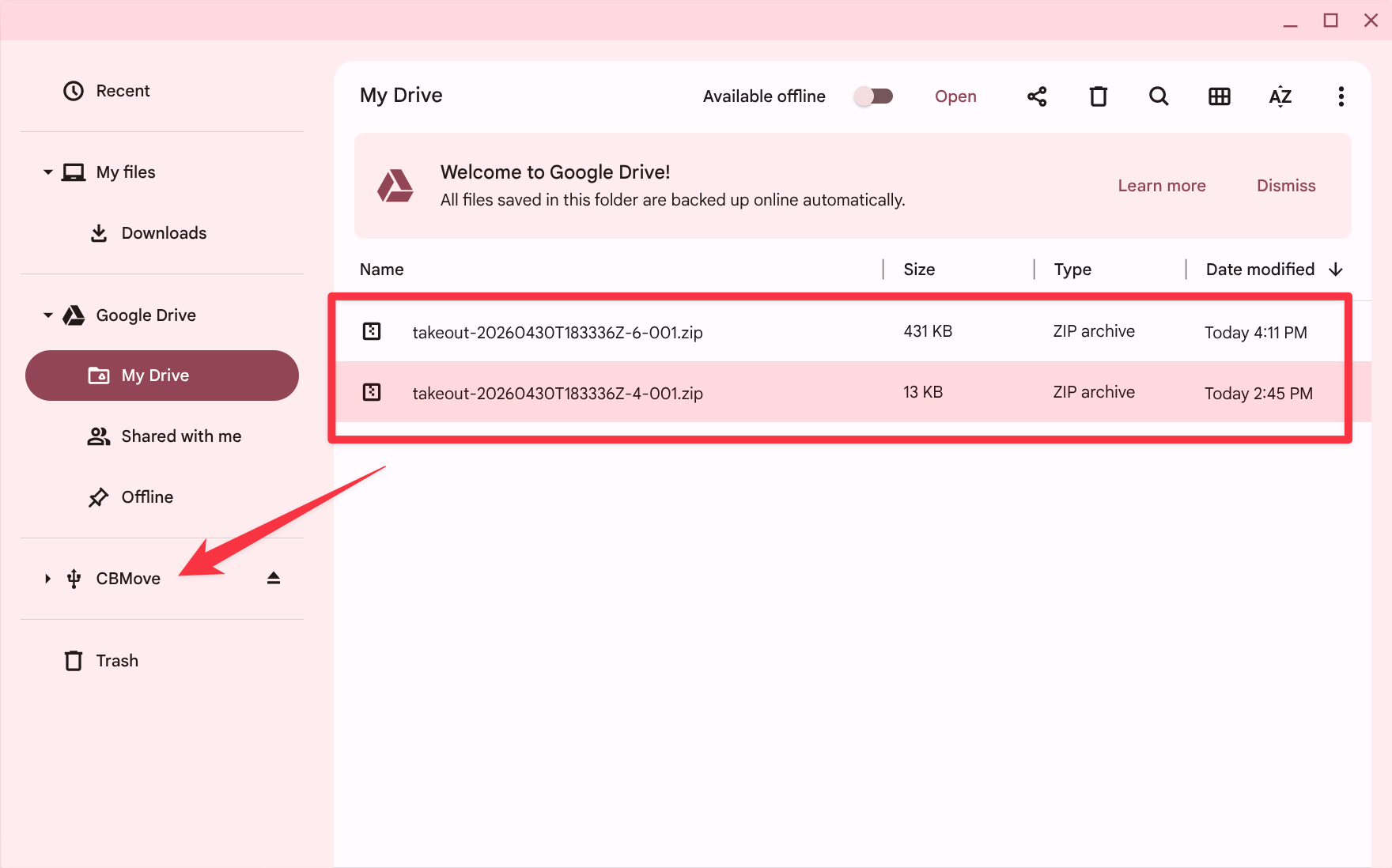
- The downloaded files will first show up in your Google Drive. The file names will start with the word "takeout." These files are in a .zip format.
- You must move these .zip files to an external USB drive using the Files app.
Warning: Leaving the .zip files in your Google Drive does not mean they are backed up! - After you copy the .zip file(s) over to your external drive, you need to "unzip" them to see the individual files (like your documents and pictures) inside.