



The ChromeOS Canvas drawing app is a drawing app that comes with Chromebooks and is used for drawing and writing on pictures. (Don’t mix it up with the Canvas website you use for classwork and homework!) Your drawings are stored locally on your Chromebook unless you export them. This means your drawings will be gone if your Chromebook is replaced or reformatted. Follow these steps to make sure your drawings are backed up to Google Drive:
Open the Canvas Drawing App. The icon looks like this: 
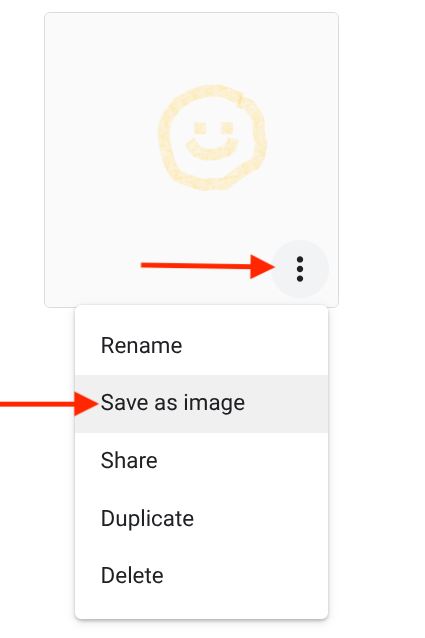
For each drawing you want to keep, Click the three dots in the lower right corner of the thumbnail, then choose Save as image
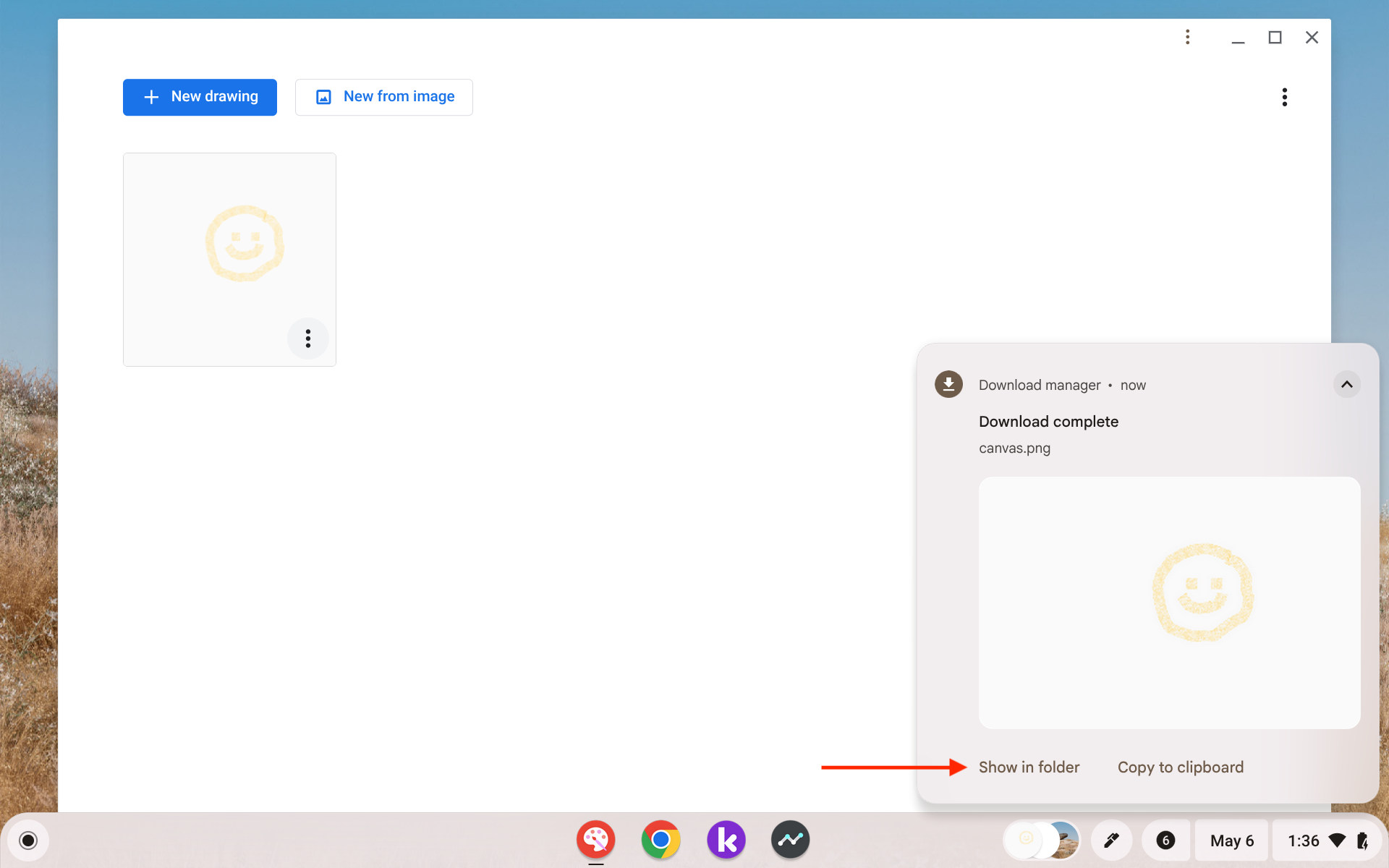
The Download manager will pop up indicating that your Download is complete. Your drawing files will save to Google Drive with the default filename “canvas.png.” To make the files easier to identify later, rename them with more descriptive names. Click Show in folder to open the saved files location and rename the files.
Once the drawings are saved to Google Drive they will be included when you use Google Takeout before the Summer 2026 Chromebook and Google Account Project. See the Google Takeout instructions here.

