


The Reports menu option in Focus leads users to a space where they can review and run advanced reports they have created, as well as being able to see what other reports have been created for usage.
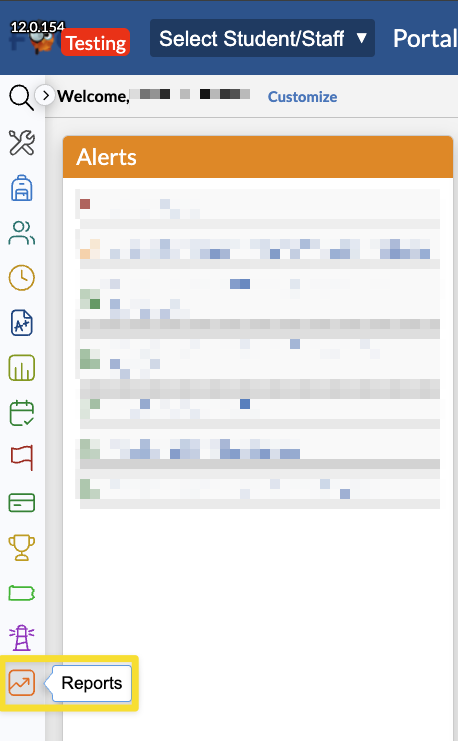
1. From the Focus landing page, navigate to the Reports Icon in the menu and click on it.
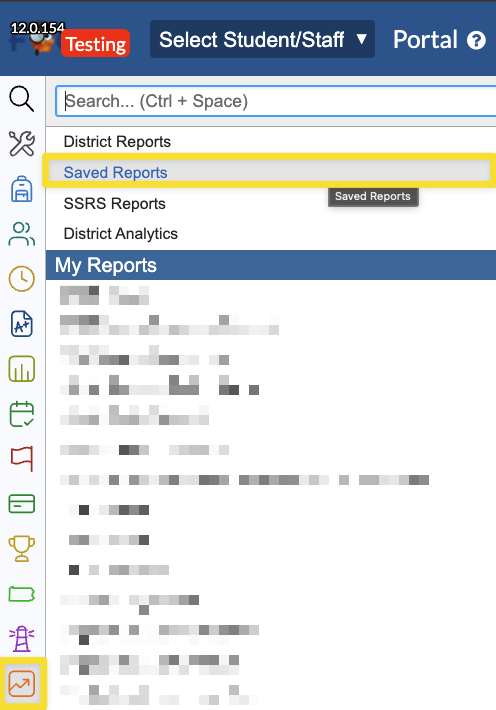
2. Click on Saved Reports in the submenu options.
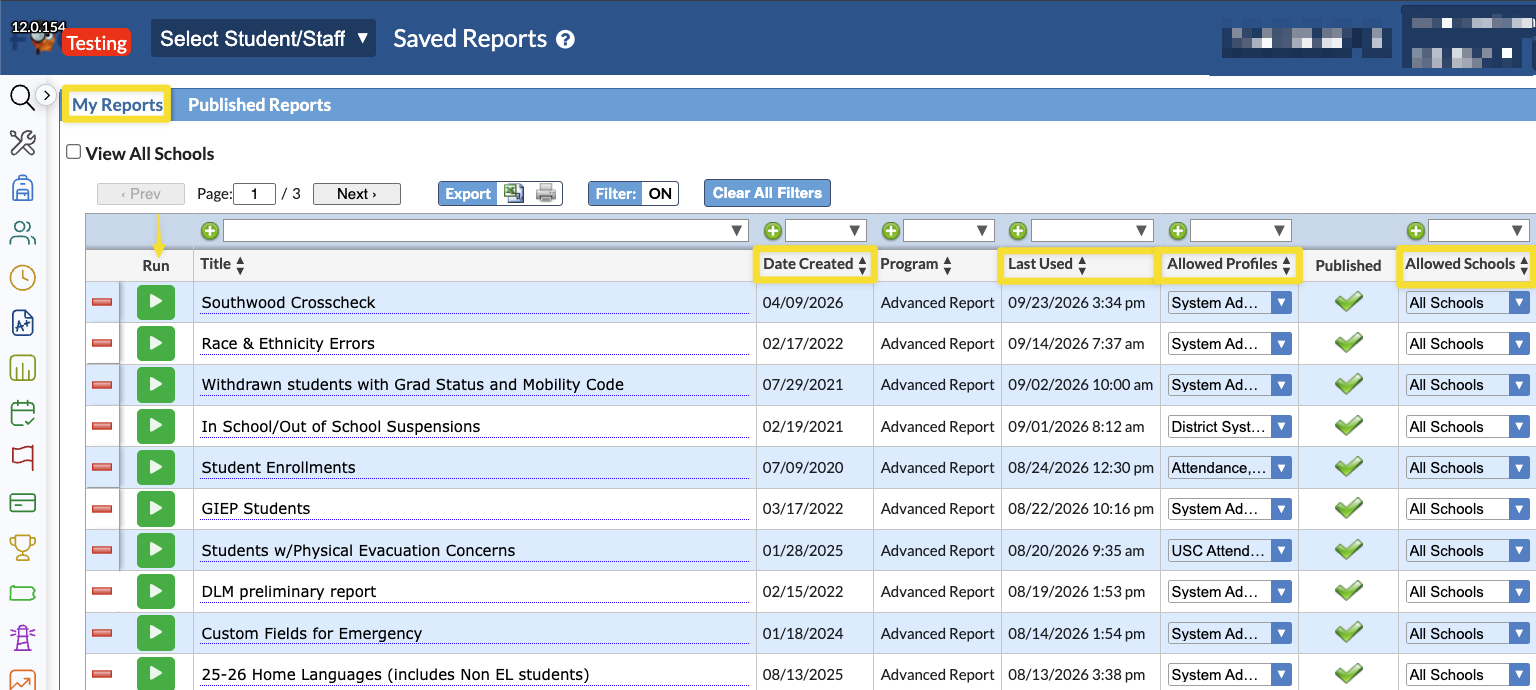
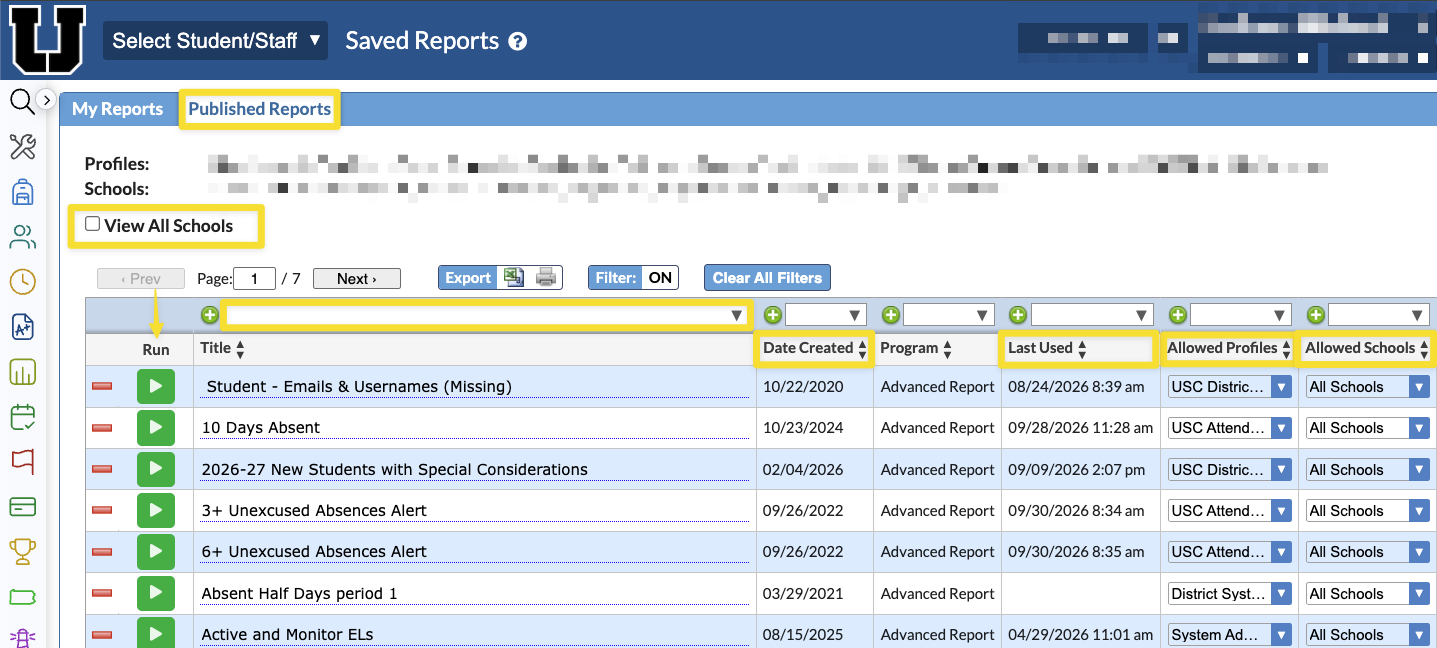
3. The My Reports tab will list all of the Advanced Reports you have personally created. These reports can be run by clicking on the green arrow button to the left of the report's title. The Title of the report can be updated on this page. This layout also reveals when you created the report, when the last time the report was used, and what user profiles you have given access to your report. NOTE: All reports should include the System Administrator and USC District System Administrator user profiles as Allowed Profiles for troubleshooting purposes. If you created a report and do not see it in your My Reports tab, please log a help desk ticket for troubleshooting.
4. The Published Reports tab will list all reports that your user profile has been allowed access. If you know the name of the report you are looking for, you can search for it in the box above the Title column. It may be necessary to check the View All Schools box. If you do not see it in the Published Reports tab, contact the creator of the report to request permission. USC District System Administrators do not grant access to reports that they have not personally created.
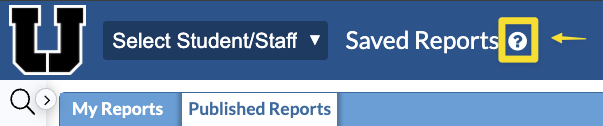
5. Focus help can always be accessed by clicking on the question mark, normally located to the right of the title of the page you are working in.