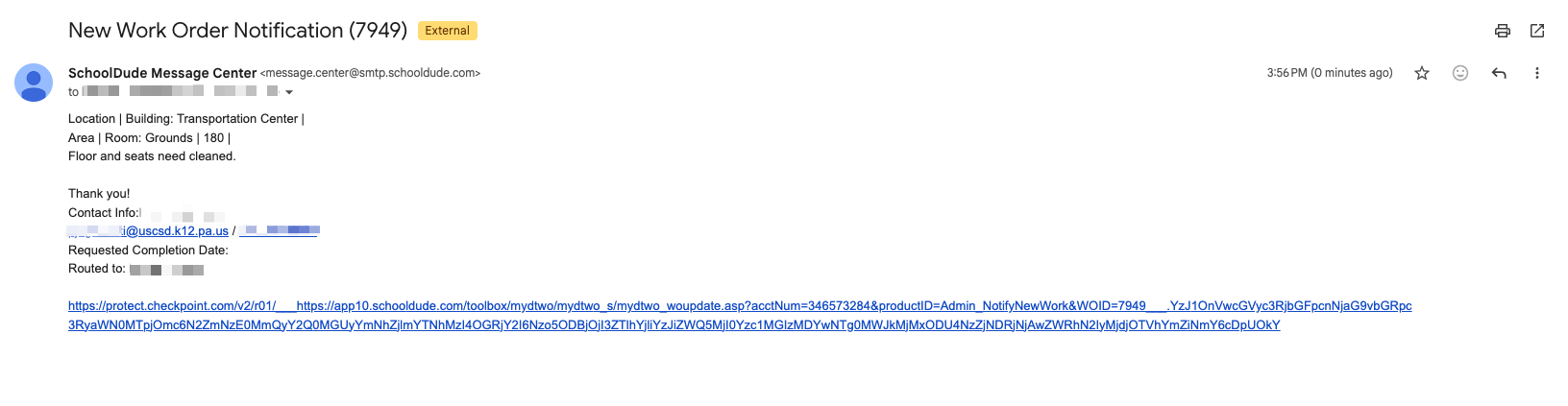



Our SchoolDude system is used by school district staff to submit work requests to our custodial and maintenance teams. This article provides guidance on using the SchoolDude system to submit a work order to our custodial team, asking for cleaning services onboard transportation department vehicles.
Please note that having a SchoolDude account is not necessary when submitting a work order.
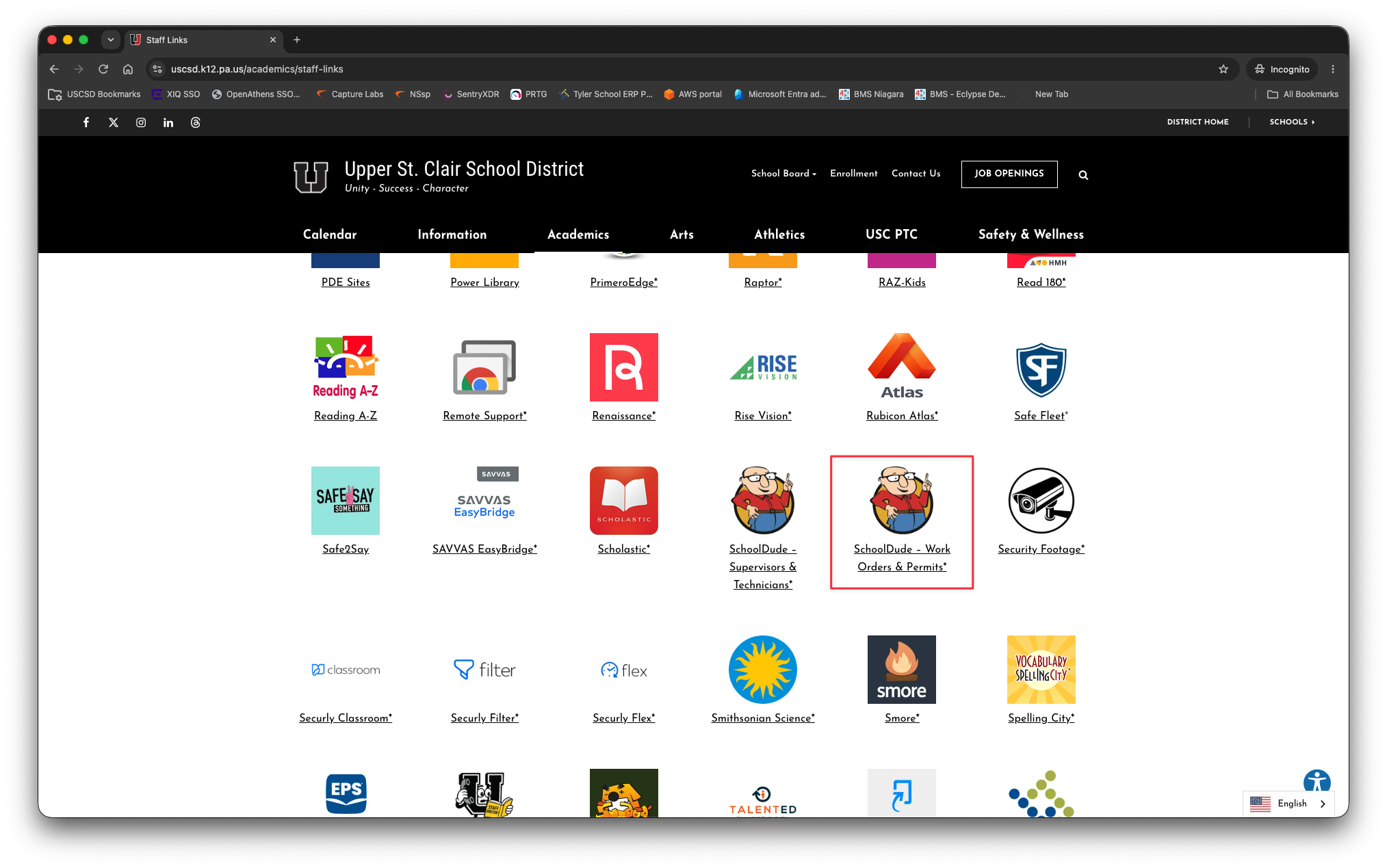
The Staff Links page (uscsd.k12.pa.us/stafflinks) includes a link to SchoolDude's Work Order & Permit system.
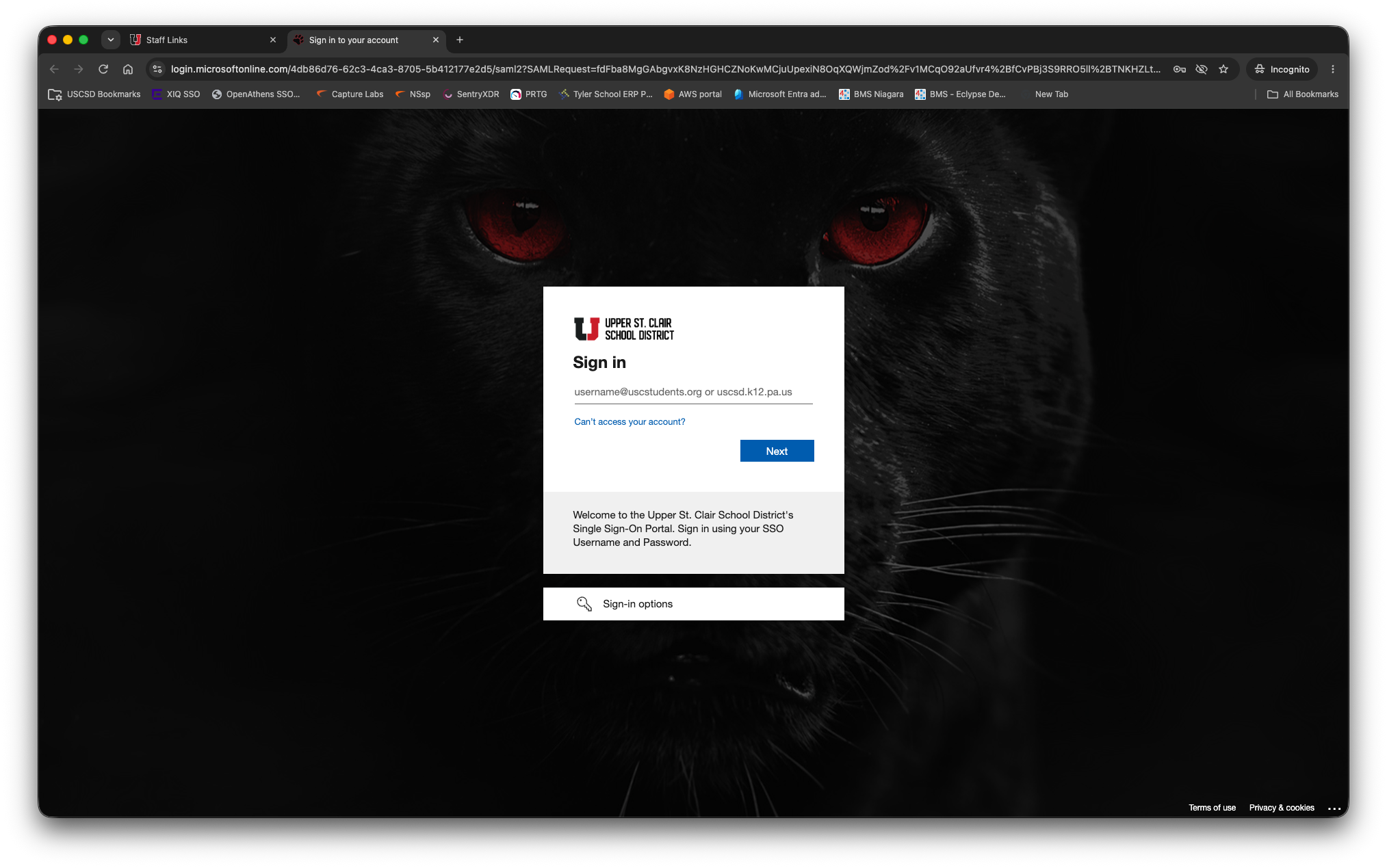
Use your SSO account to log in. If you are not sure what a SSO account is, please read this article - https://support.uscsd.k12.pa.us/kb/article/312-what-is-a-single-sign-on-sso-account/.
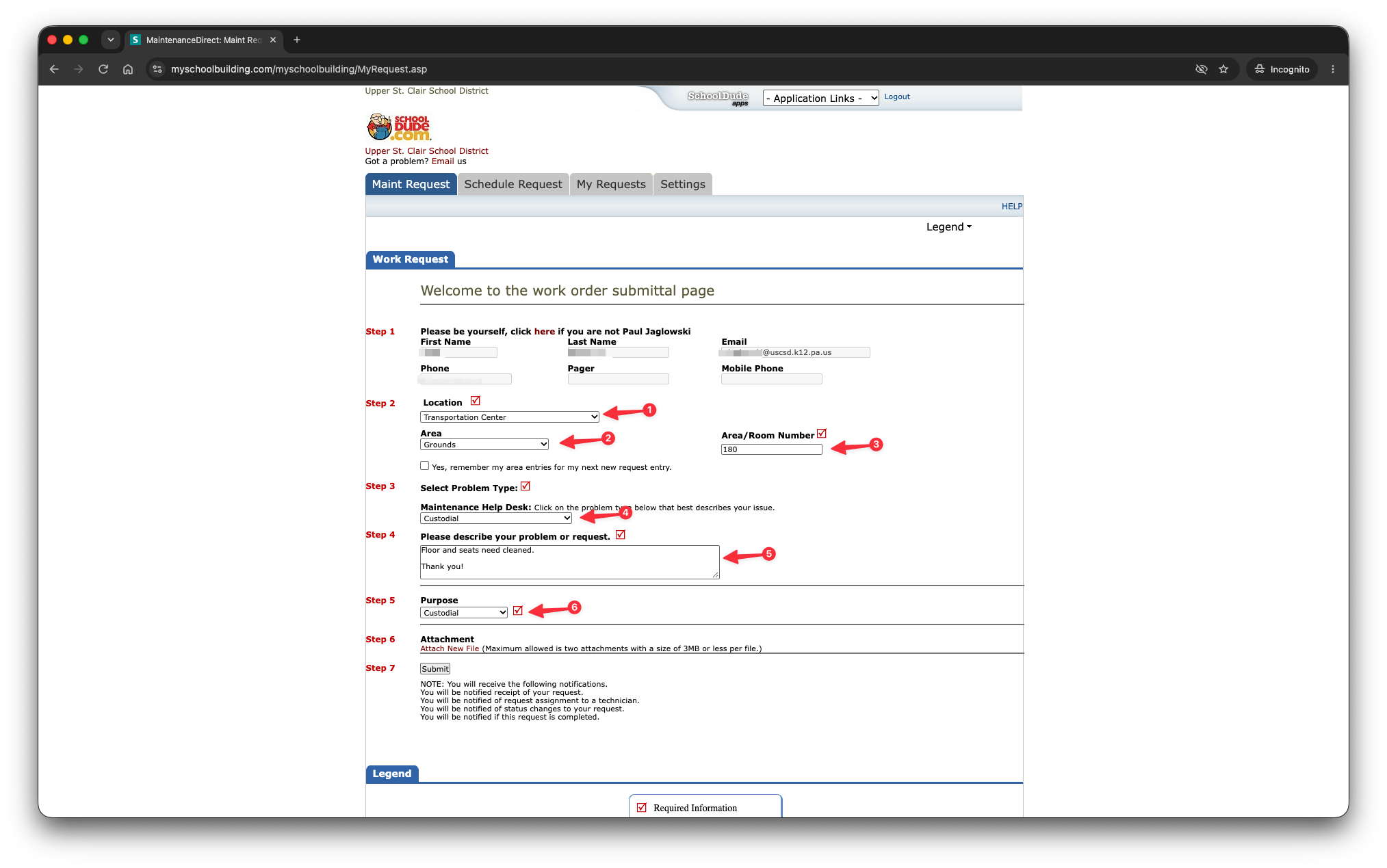
After sign-in, note that your first name, last name and district-issued email address automatically populate within the form.
Follow these steps to submit a work order for the custodial team:
1. select Transportation Center from the Location list box
2. select Grounds in the Area list box
3. enter the vehicle number in the Area/Room Number field
4. select Custodial in the Maintenance Help Desk list box
5. enter a description of the cleaning services being requested
6. select Custodial in the Purpose list box
Click the Submit button when the form is complete.
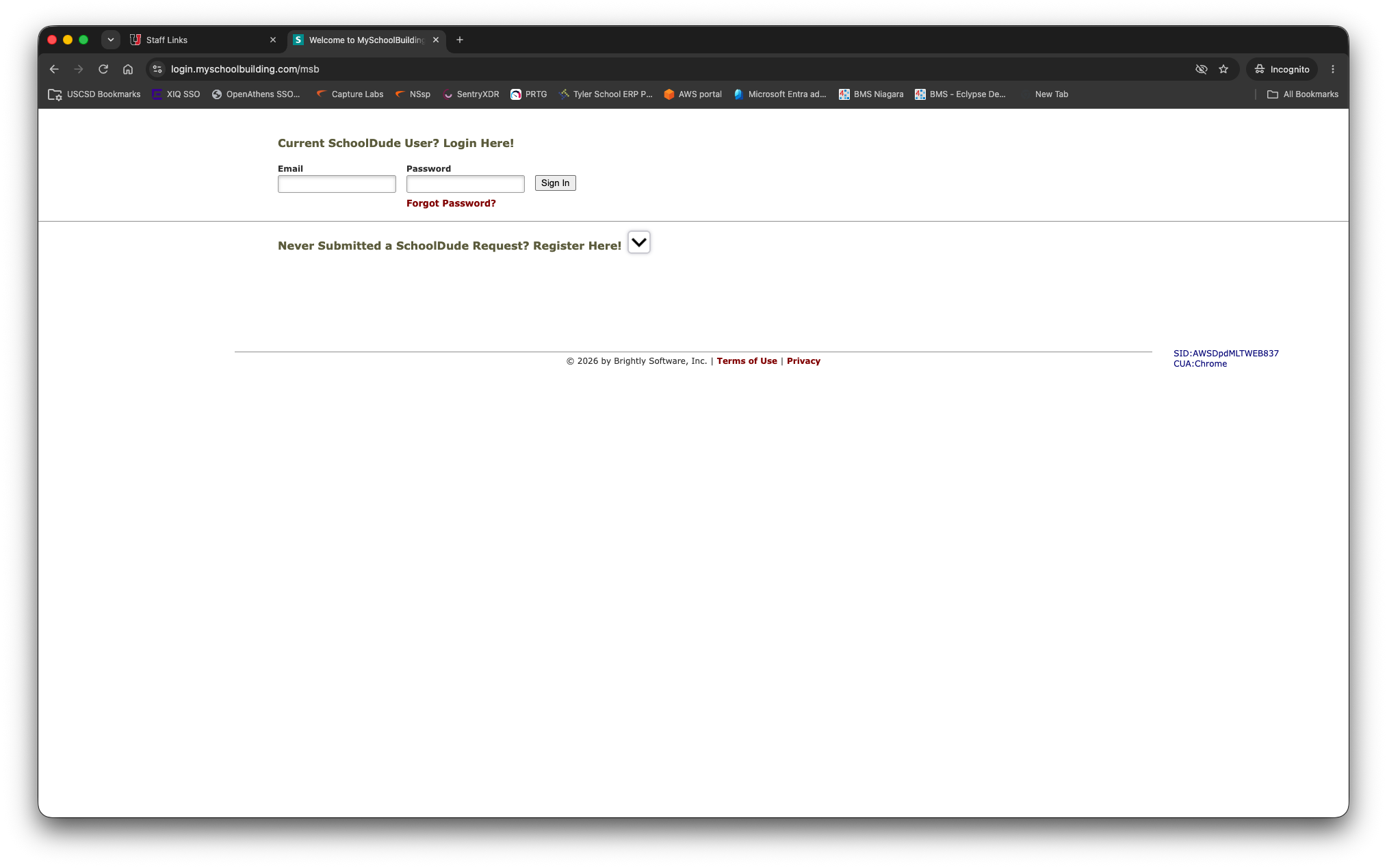
After clicking the Submit button, you will be brought to the Current SchoolDude User web page shown below. Please disregard this page, you do not need a SchoolDude account to submit work orders.
SchoolDude will send you a message via email regarding the work order you submitted. Several people who manage facilities will be copied on this message automatically. As your work order status changes, you will receive updates via email as well.