


 3673
3673
The following are steps to fix issues with Bluetooth accessories, like wireless earbuds.
1. From the Mac desktop, hold down the Shift+Option keys and then click on the Bluetooth menu item to reveal the hidden Debug menu
2. Select “Reset the Bluetooth module” from the Debug menu list

3. When finished resetting, reboot the Mac as usual and go through the process of connecting the Bluetooth device(s) to the Mac as you typically would, everything should now work fine
You’ll notice there are several other options available in the Bluetooth Debug menu, including logging options, the ability to factory reset all BT connected Apple devices, and the ability to remove all BT connected items in one fell swoop, those options can be useful for other scenarios, but for troubleshooting purposes, the reset seems to be most valuable.
If you do not have the Bluetooth menu in the top right-hand corner of your MacBook, follow the steps below to enable it:
1. Click on the Apple in the top left corner, then click on "System Preferences"
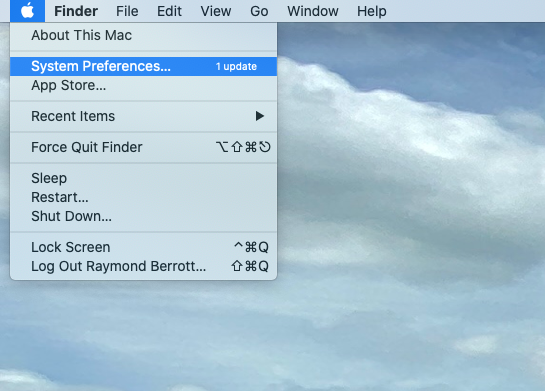
2. Click on Bluetooth

3. Click on the checkmark box next to "Show Bluetooth in menu bar"


