


 182
182
This tutorial will show you how to log into your Mac, set up Google Chrome and Google Drive, install printers and give you information on where to learn more.
The USC Technology Department manages your Mac, so you will occasionally encounter messages from your Mac, keeping you informed on what software has been updated and if you need to reboot.
Before logging into your Mac, you must have previously set up your SSO account. Instructions on setting up your SSO account are included in the Technology Department Onboarding message sent to the email address used during your Human Resources Department onboarding. Or, you may read the SSO account setup instructions in the following Technology Department Knowledge Base article.
https://support.uscsd.k12.pa.us/kb/article/735-getting-started-with-your-single-sign-on-sso-account/
If you are not sure what a SSO account is, please see the following article in the Technology Department Knowledge Base, then return to these instructions.
https://support.uscsd.k12.pa.us/kb/article/312-what-is-a-single-sign-on-sso-account/
Once your SSO account is set up, you will use this account to sign into your Mac.
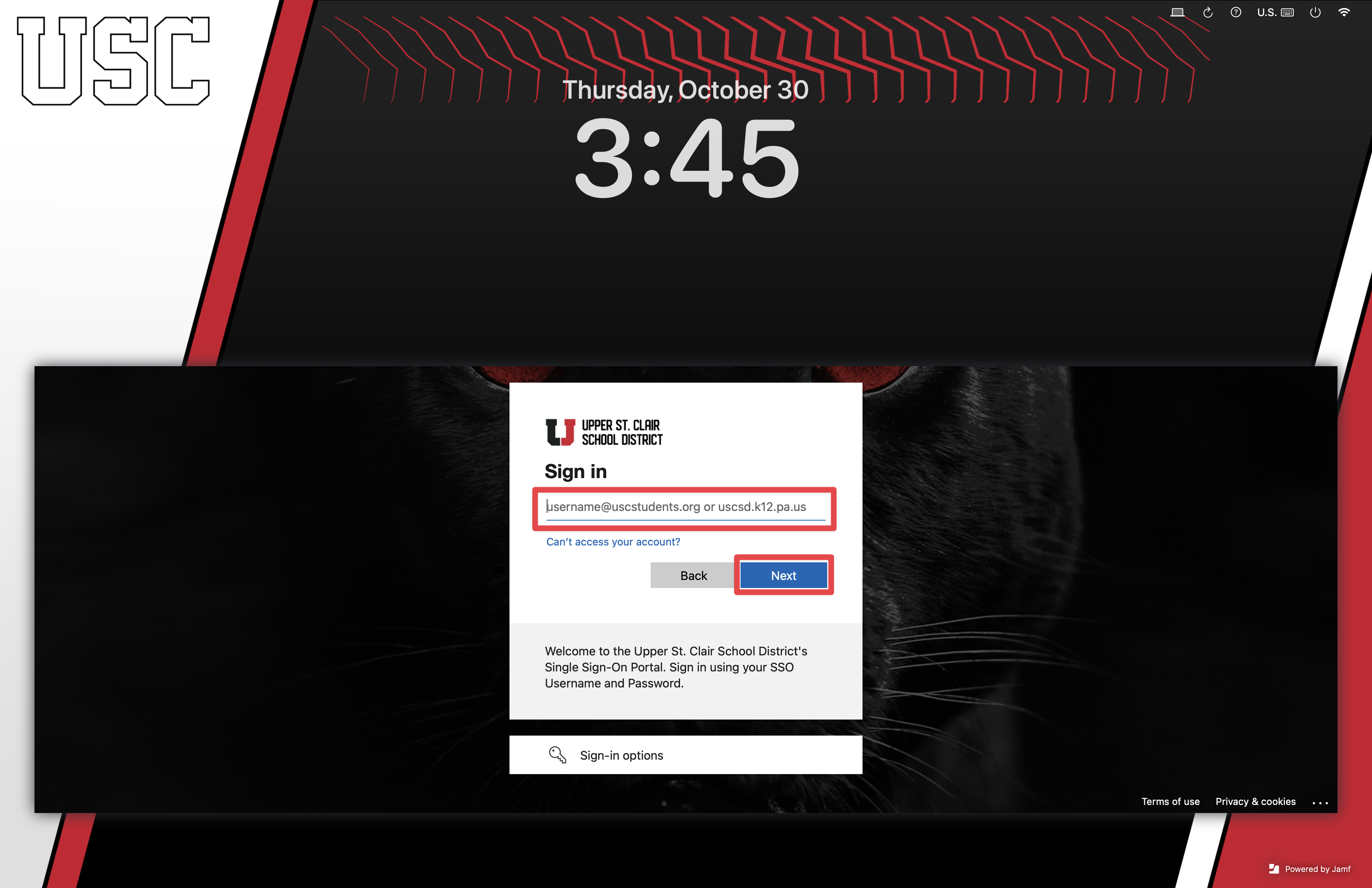
Enter your SSO account username and click the Next button.
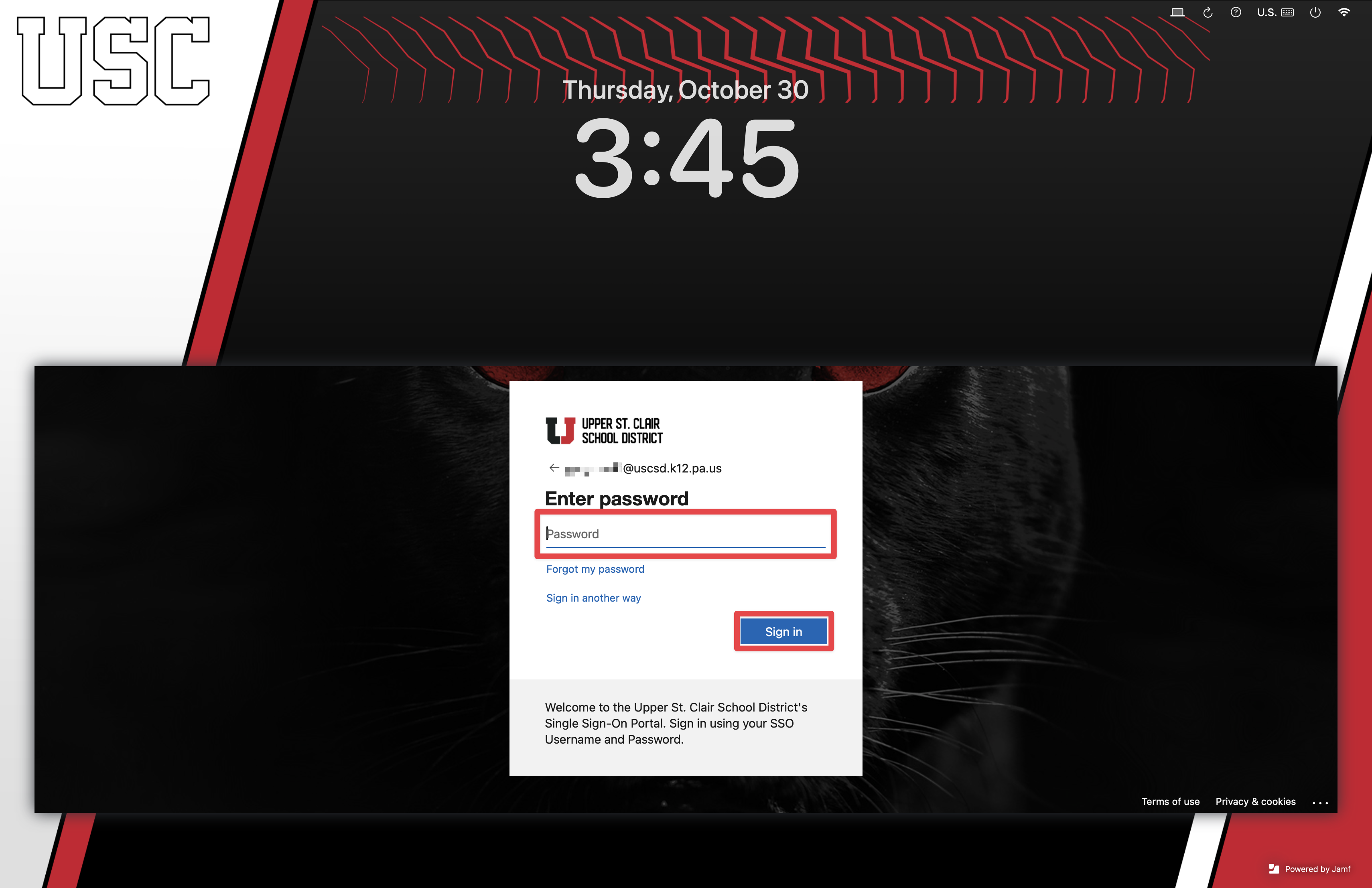
Enter your SSO account password and click the Sign in button.
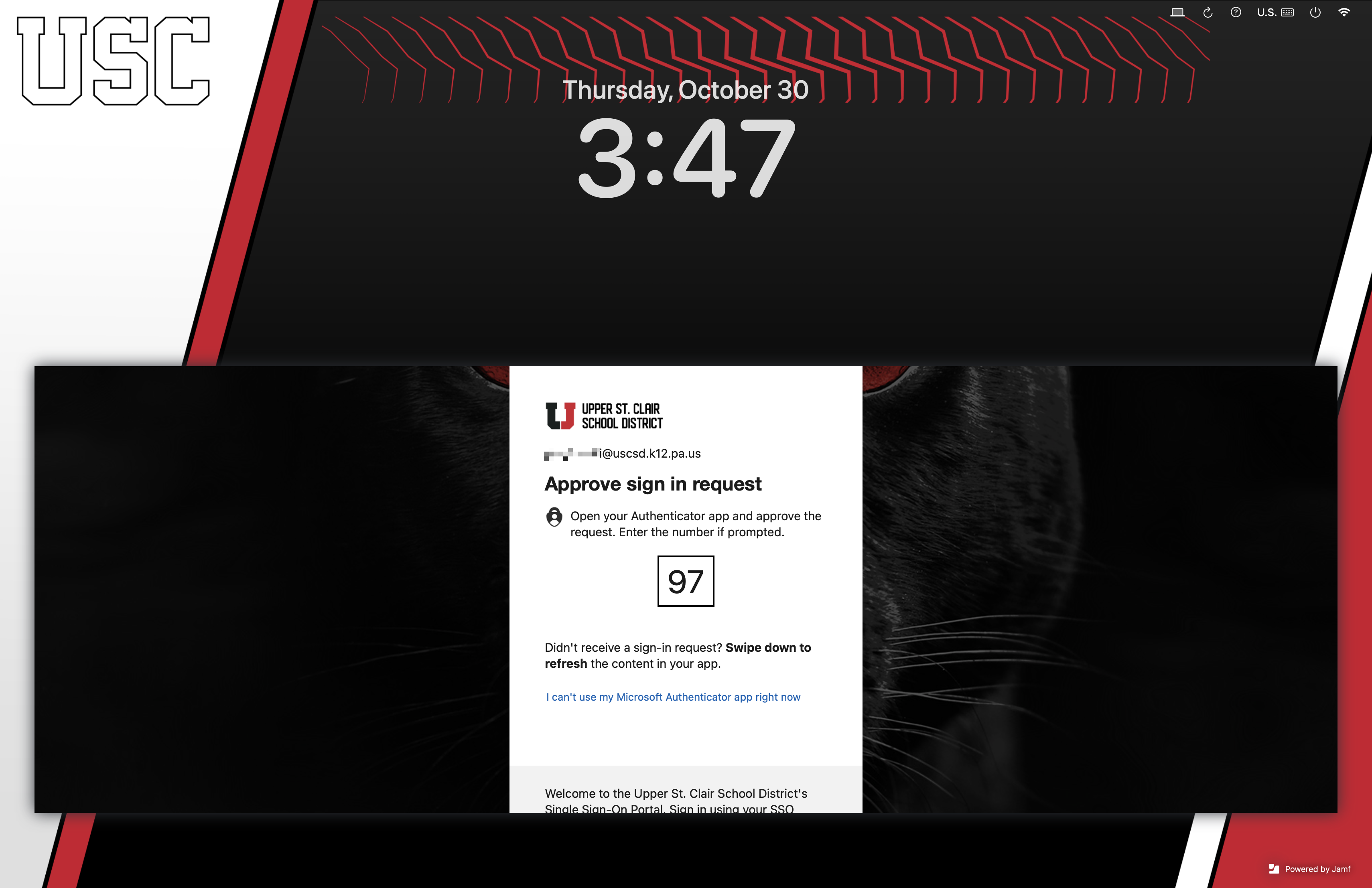
Enter your SSO account code, also known as a MFA code. The image below shows a popular SSO account code method, where two digits are presented and you must enter those digits into the Microsoft Authenticator app on your phone.
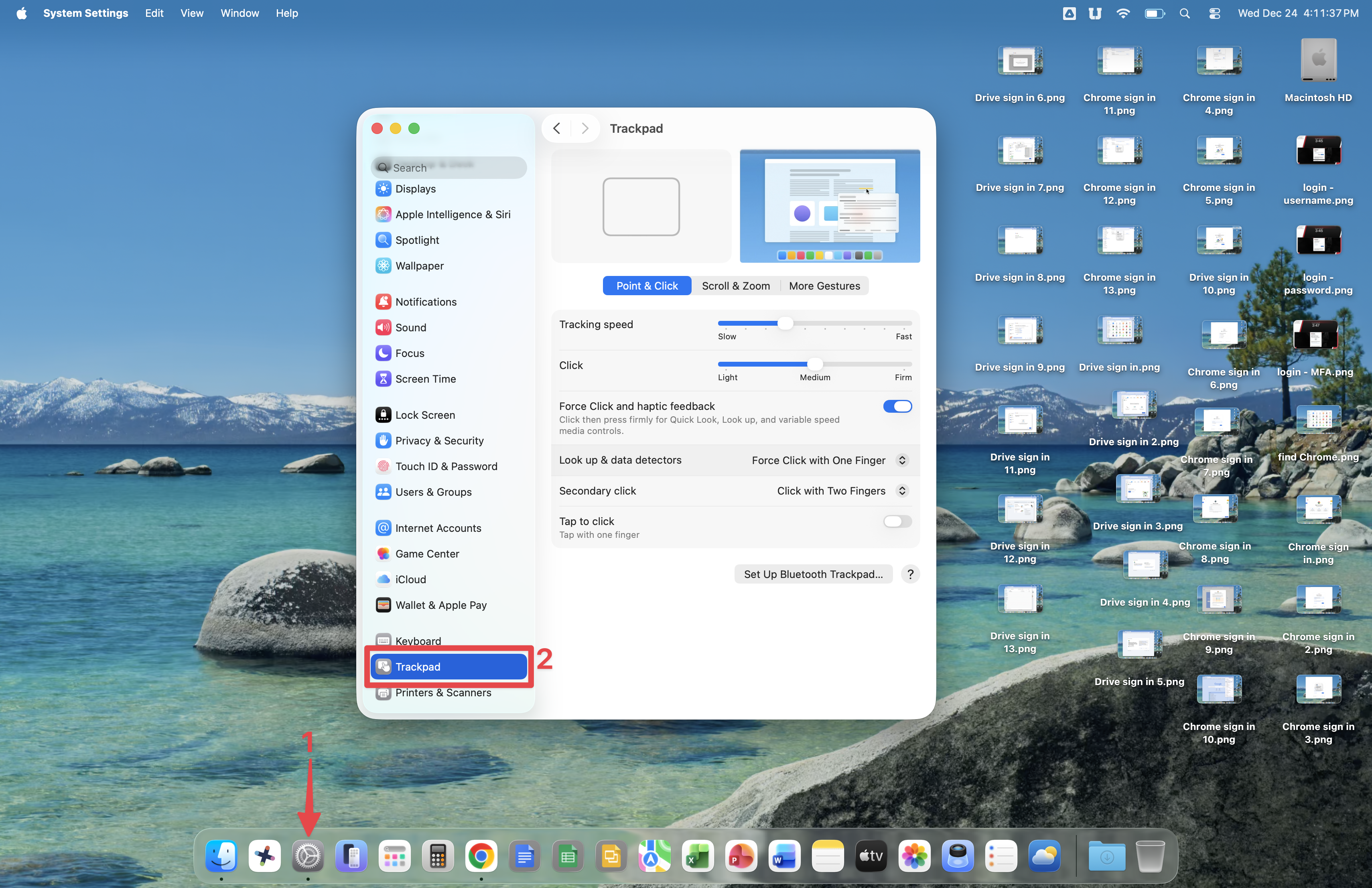
Once logged in, open the System Preference app and scroll down in the left pane until you see the Trackpad section. In this section, you can enable Tap to click, Secondary click (aka. right-click), and set your scrolling style.
Please note that during the setup of your Mac, you will encounter messages informing you of software being added and configured automatically.
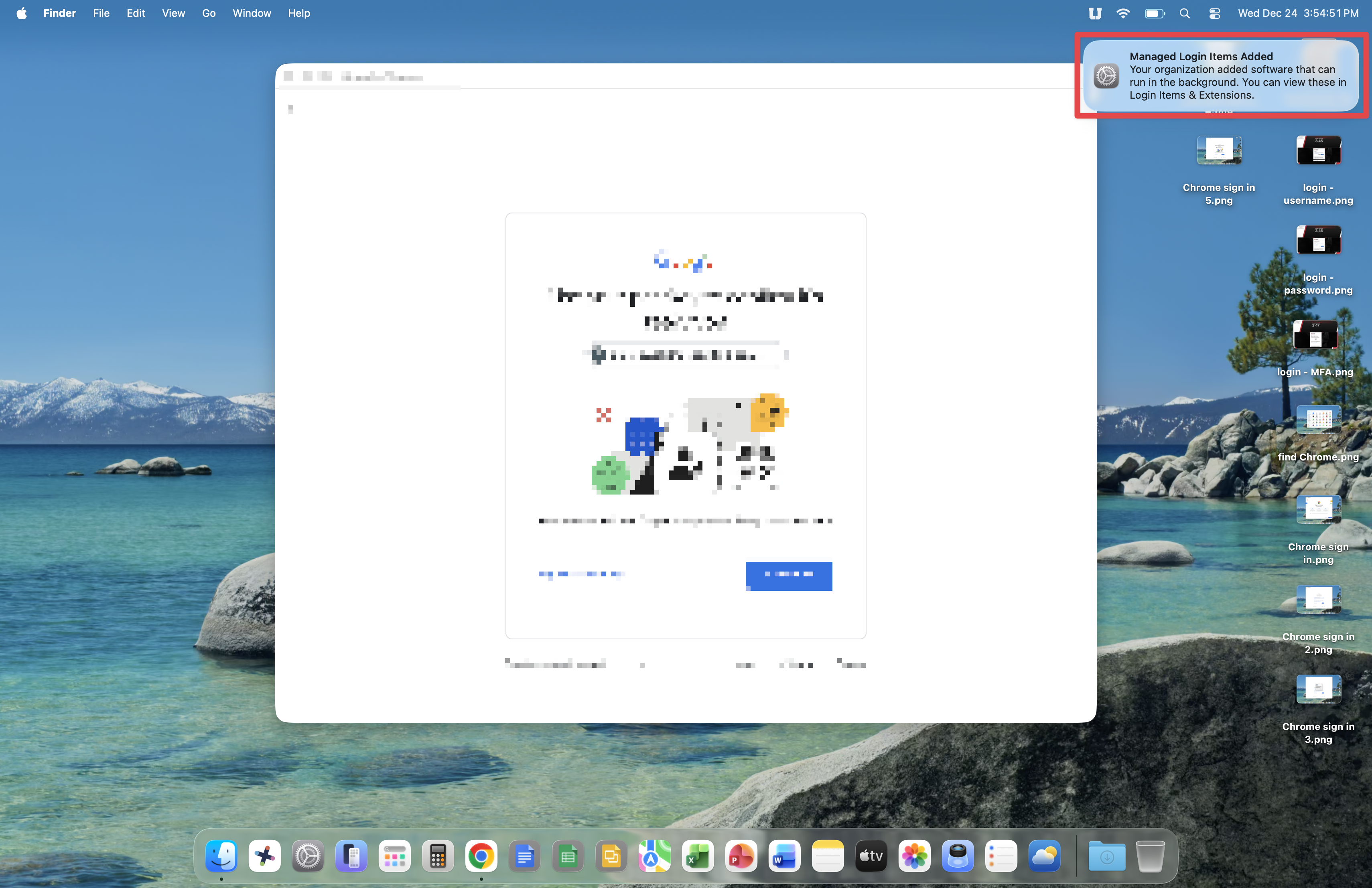
Now, you'll open Google Chrome and set it up. Open the Finder, go to Applications, then double-click the Google Chrome icon.
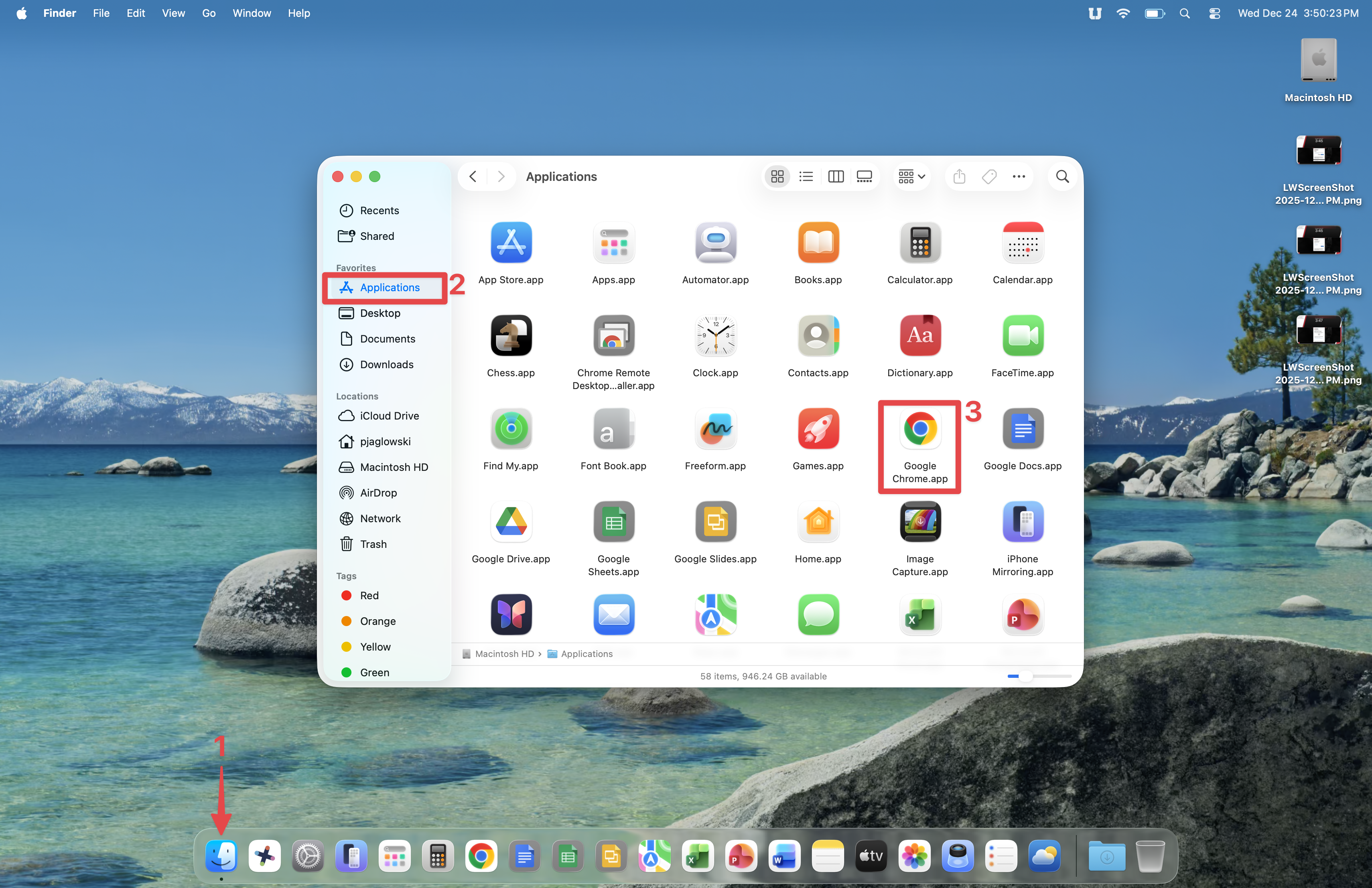
Click the Sign In button.
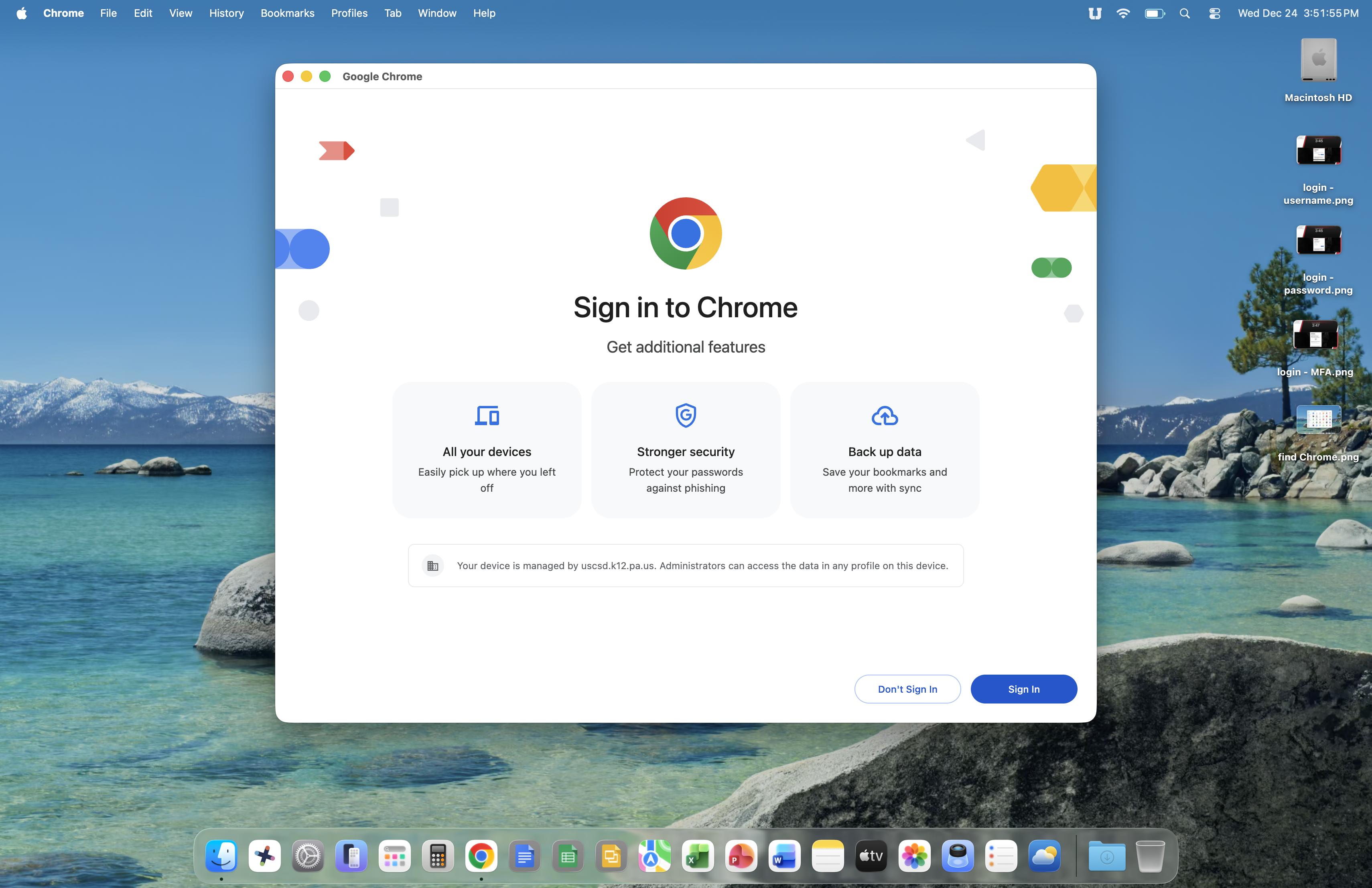
Enter your SSO account username and click Next.
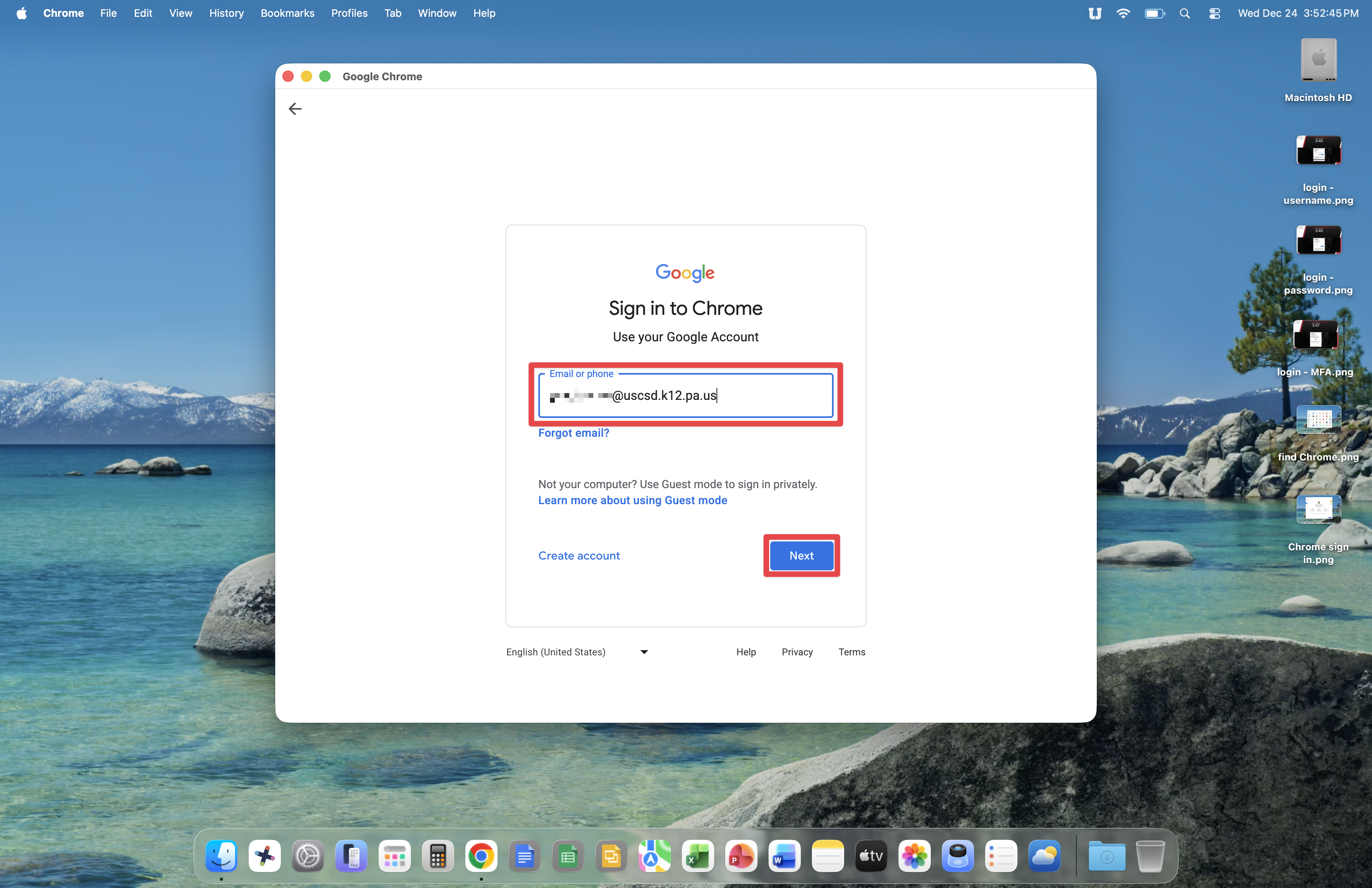
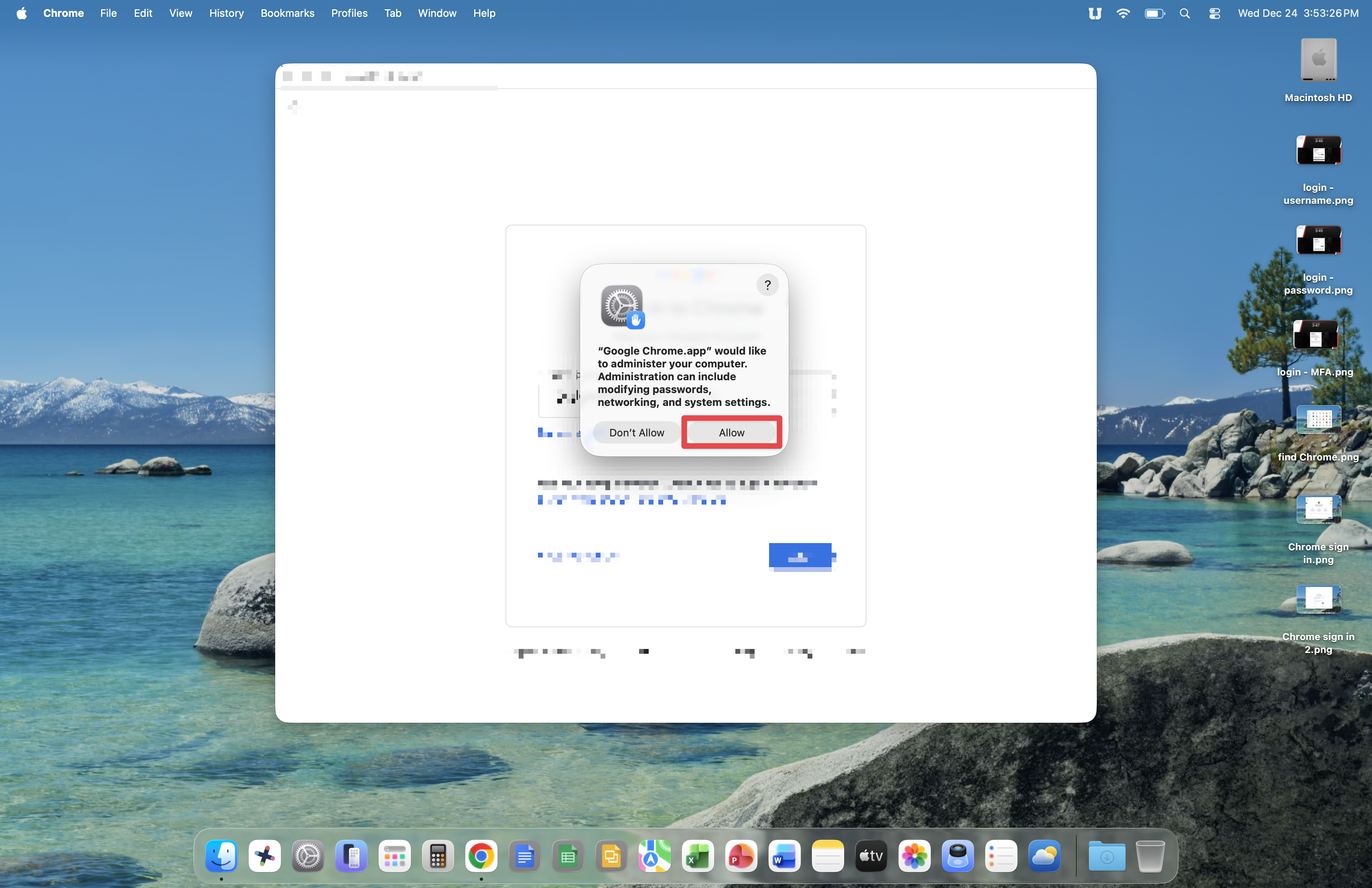
At this point, you may encounter a prompt asking if you'd like to allow Google Chrome to administer your computer. Click the Allow button at this prompt.
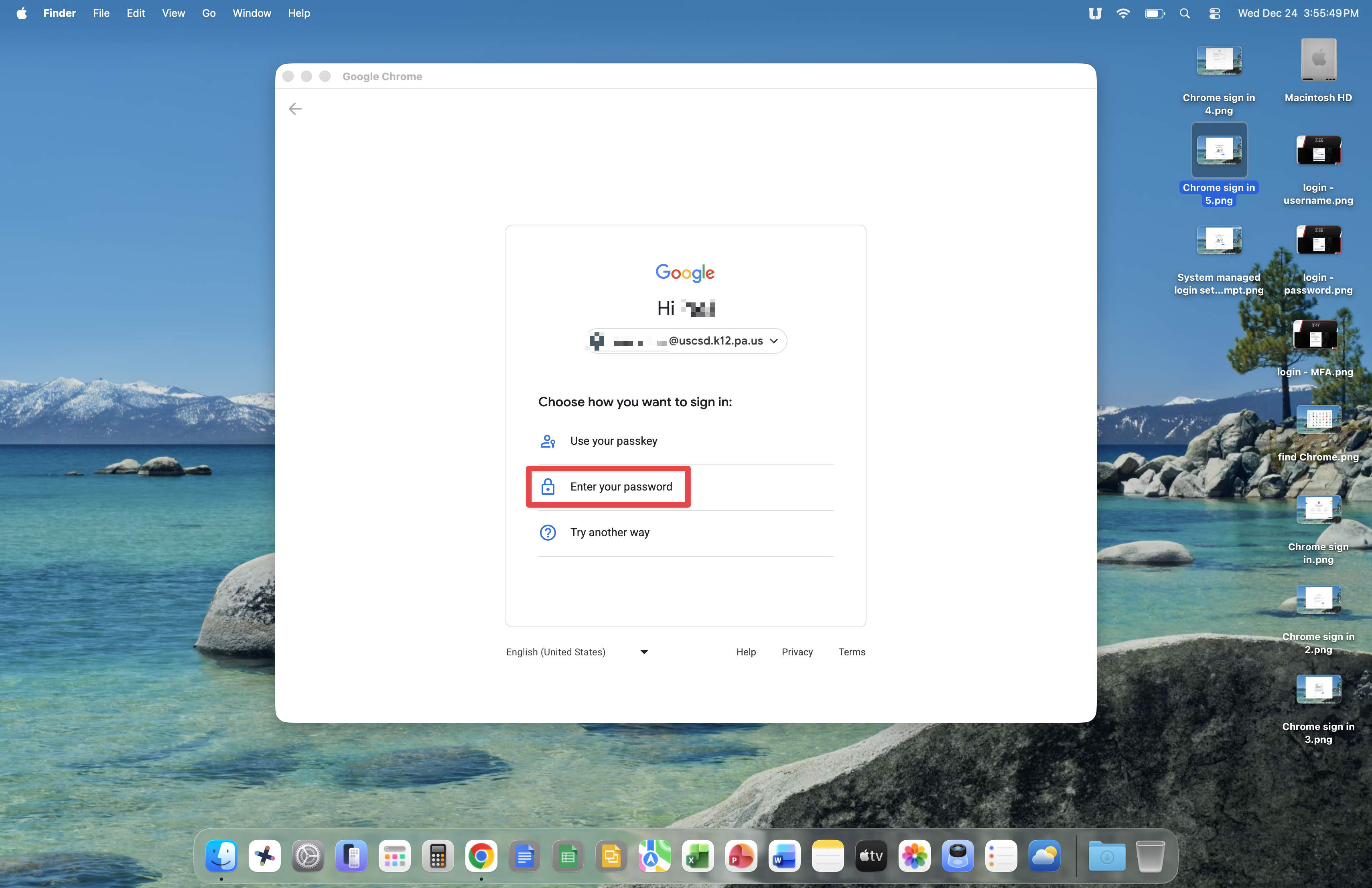
Google Chrome will ask how you would like to log in. Click Enter your password.
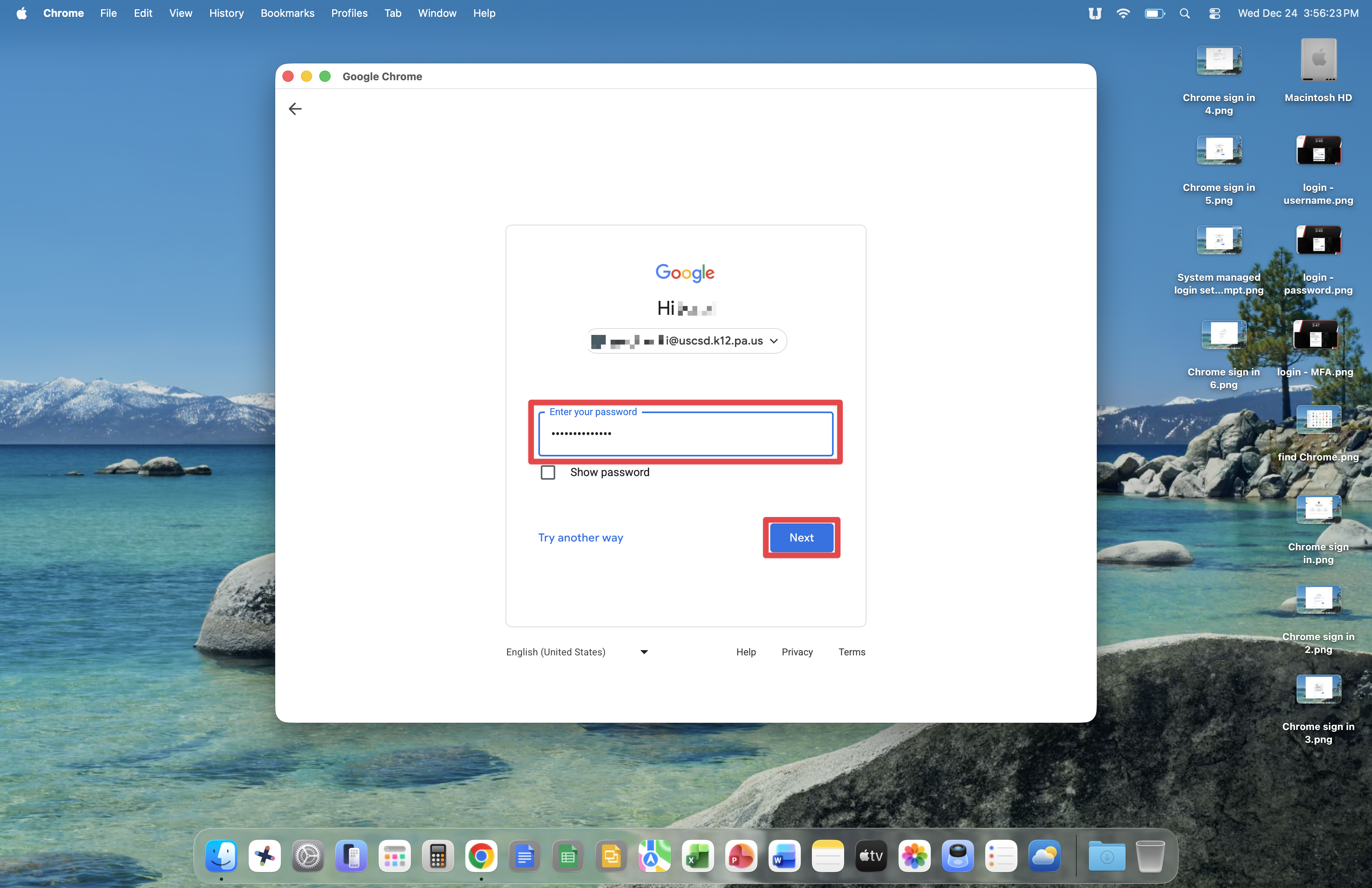
Enter your SSO account password and click Next.
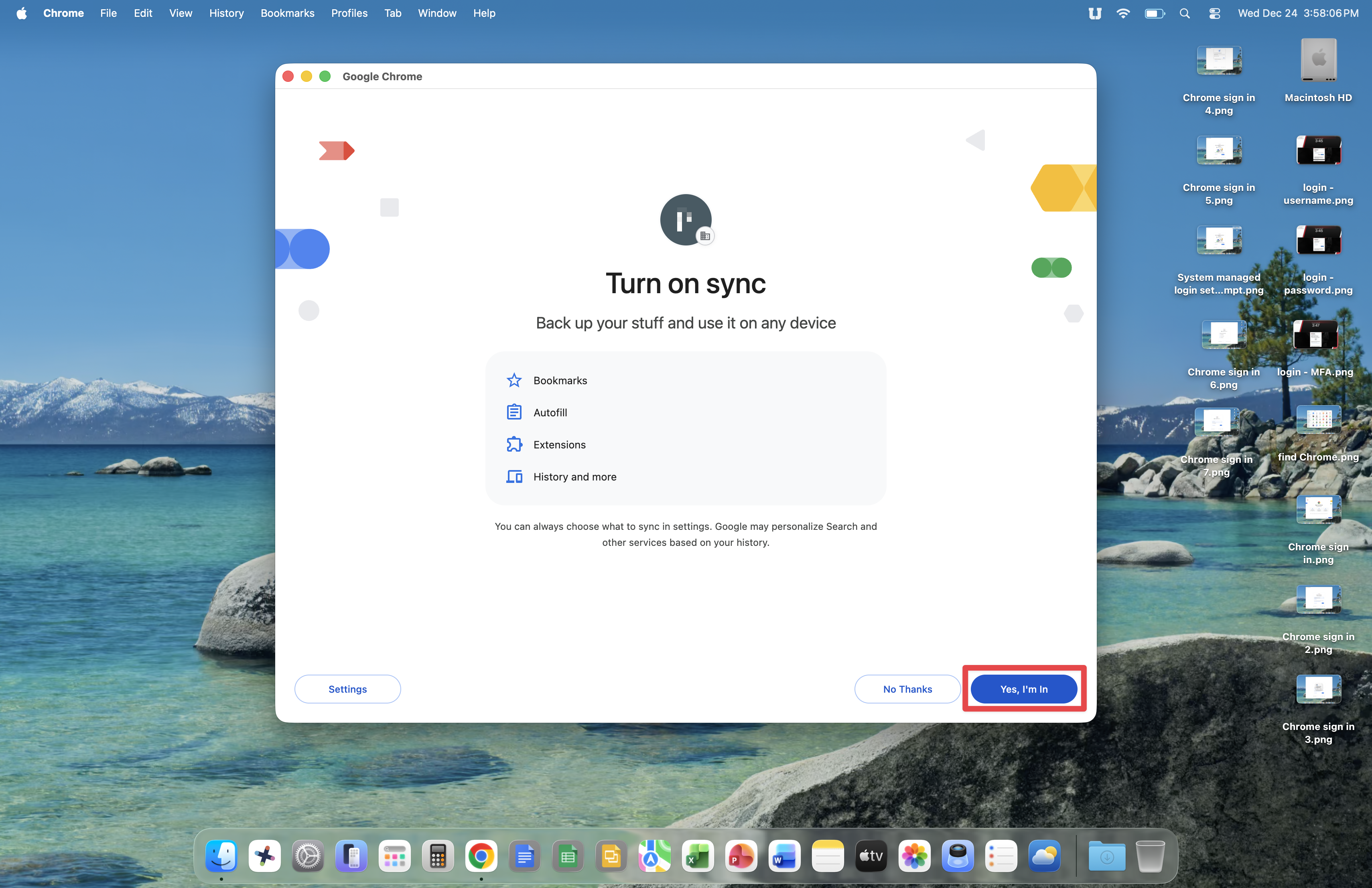
Now you can turn on Google Chrome Sync, allowing you to save passwords, web history and bookmarks in your Google account.
Click the Yes, I'm in button.
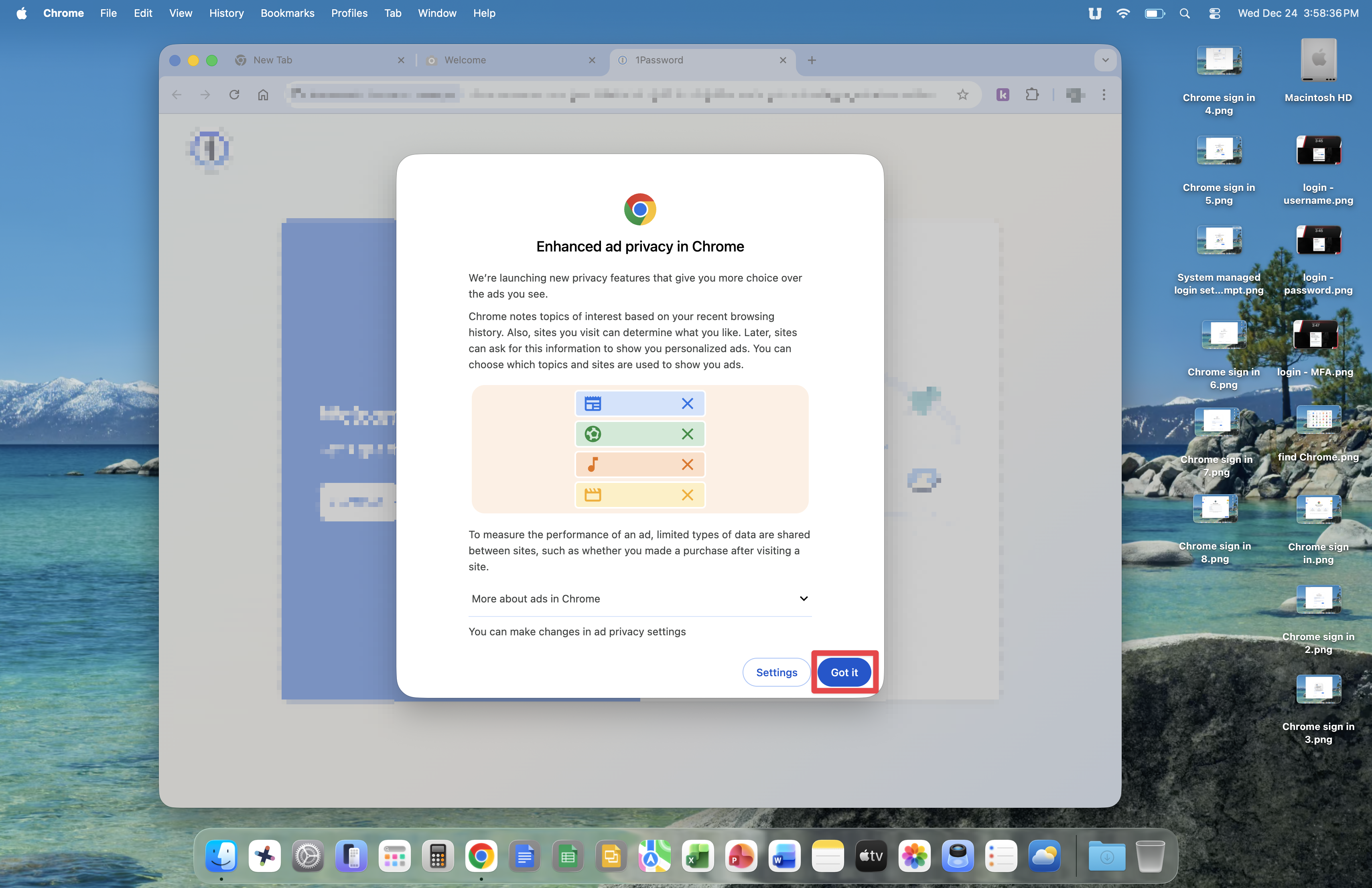
Click the Got it button when the Enhanced ad policy is presented.
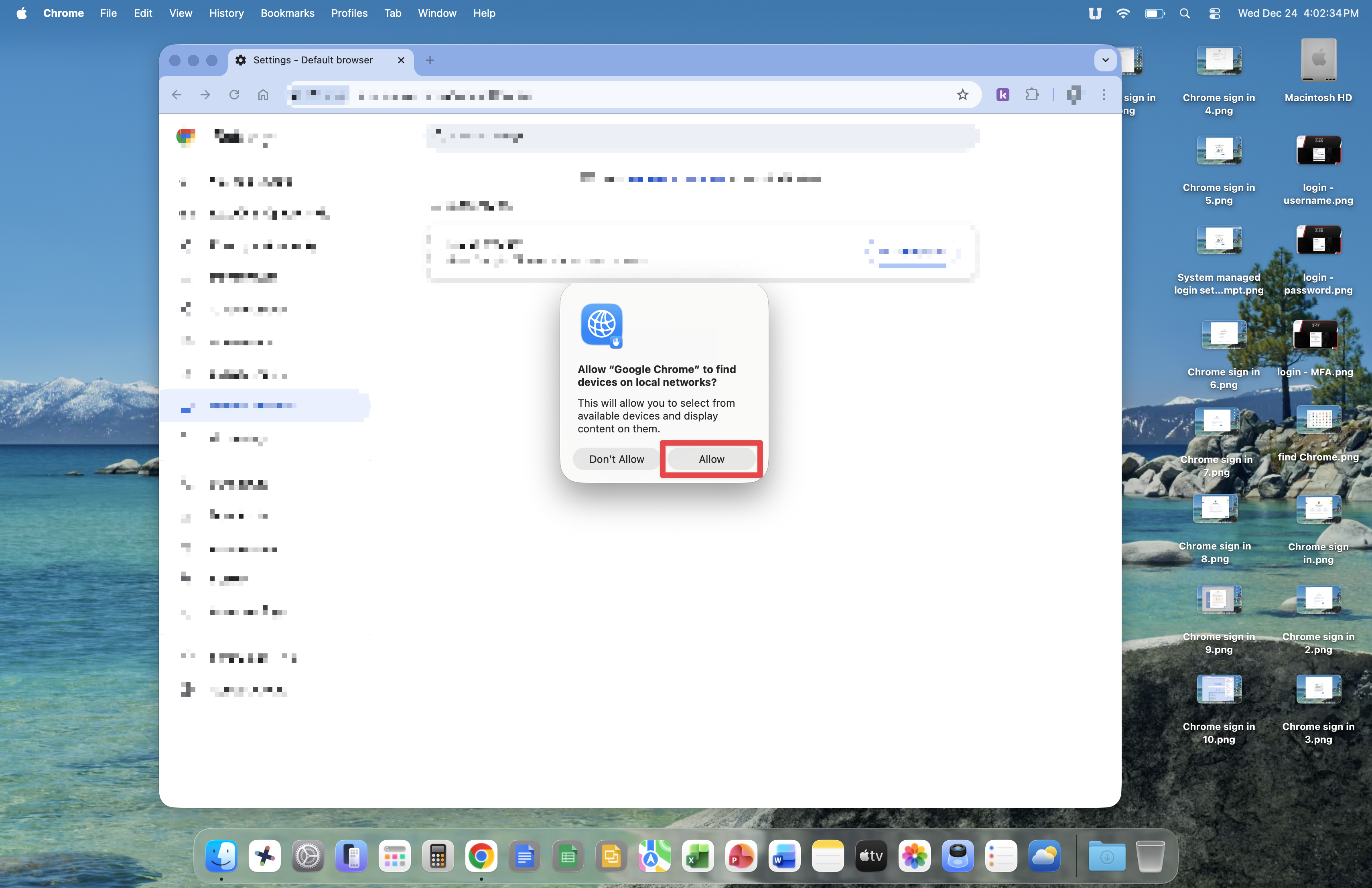
Around this point, you may encounter a message asking if Google Chrome can find devices on local networks. Click the Allow button and continue.
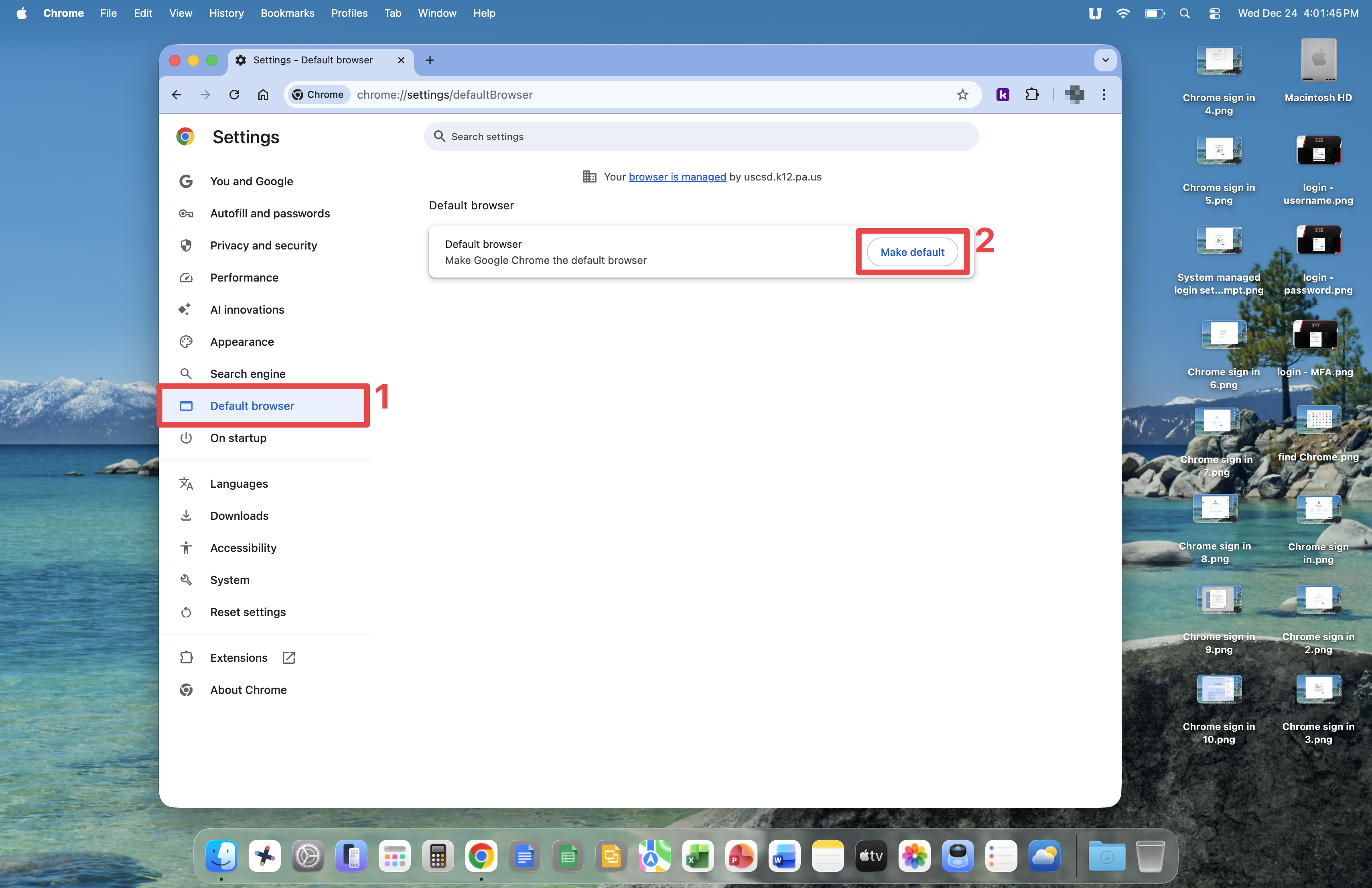
It is suggested that you make Google Chrome the default web browser on your Mac. You are welcome to use the Safari web browser, but note that Google Chrome is managed by the USC Technology Department, giving you quick access to applications and web sites, as well as keeping Google Chrome updated automatically.
To make Google Chrome the default web browser, click the three-dot menu, then Settings.

Now click Default browser, then the Make default button.
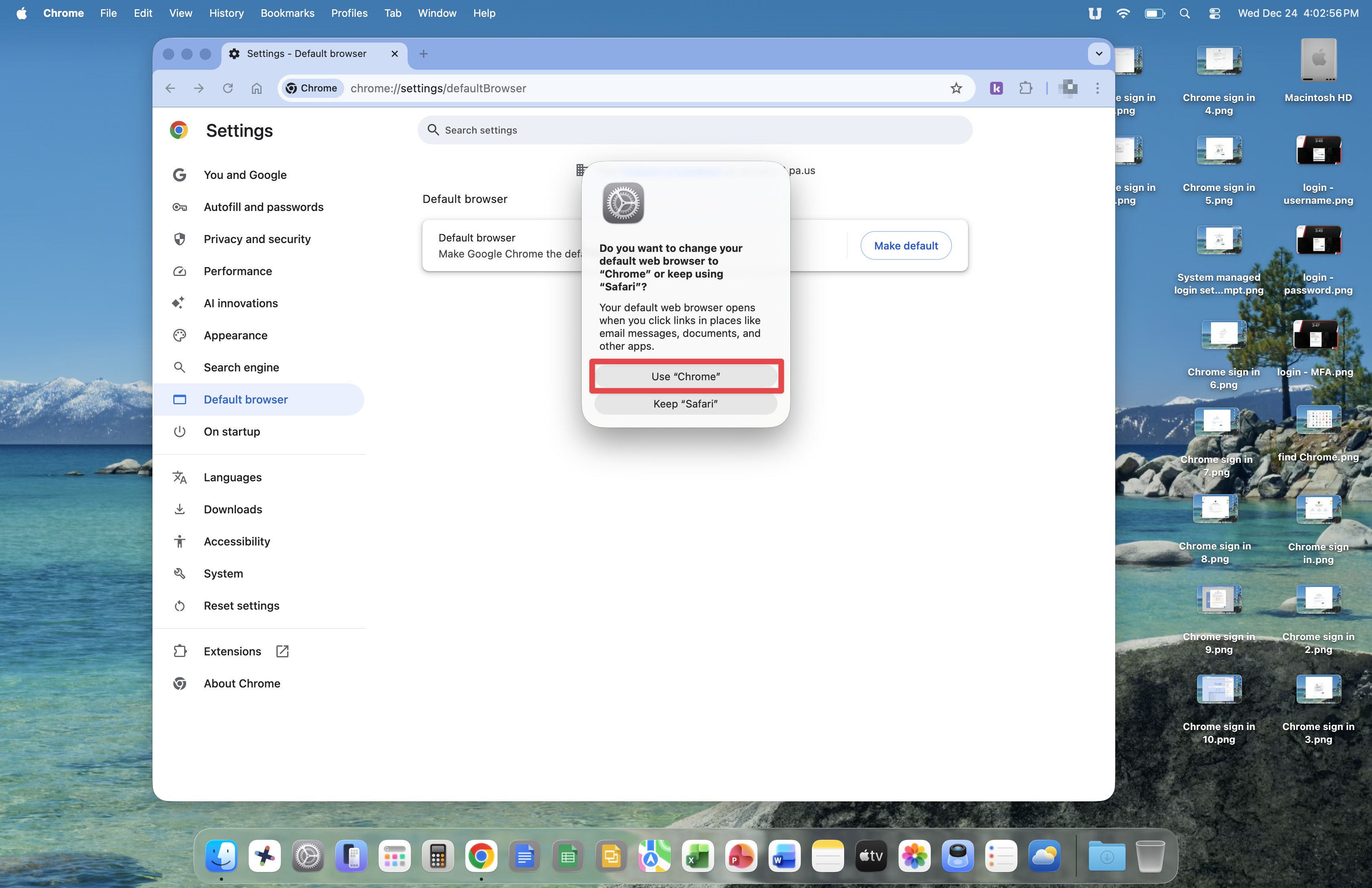
Your Mac will ask again if you want to make Chrome the default browser. Click the Use "Chrome" button.
Google Chrome is now set up. Next we'll set up Google Drive.
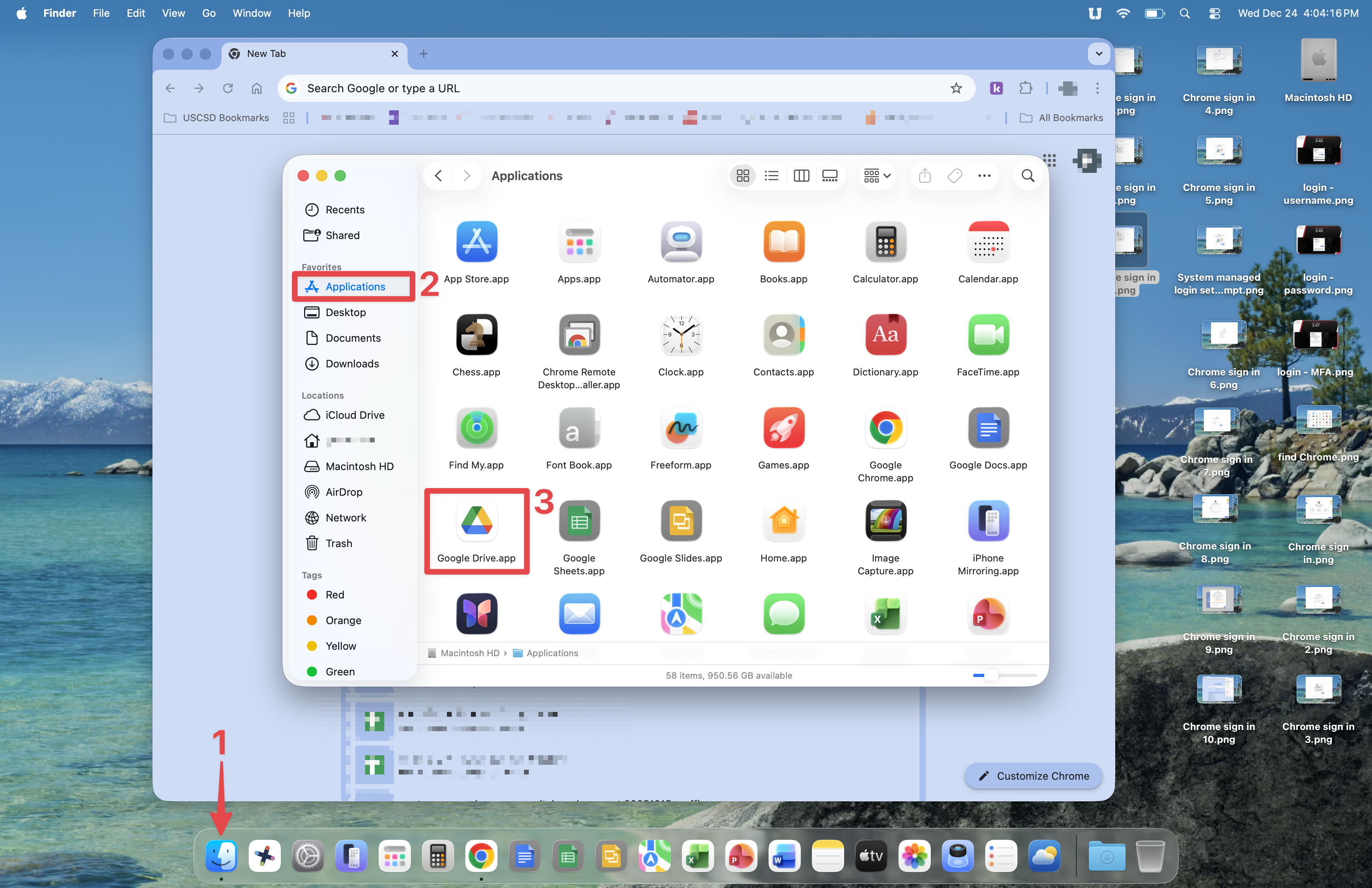
Open the Finder from your Dock, click Applications and double-click the Google Drive icon.
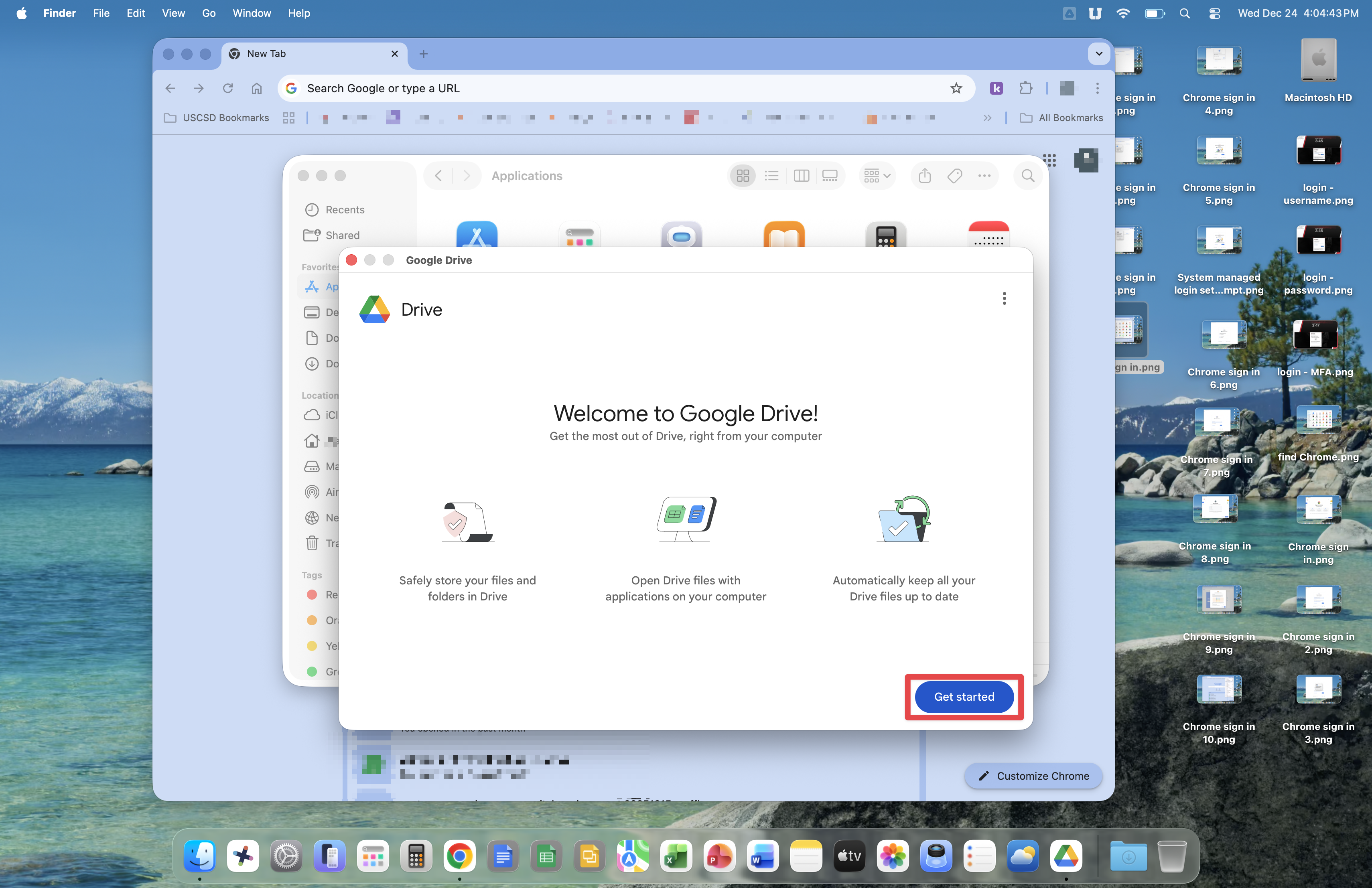
Click the Get started button.
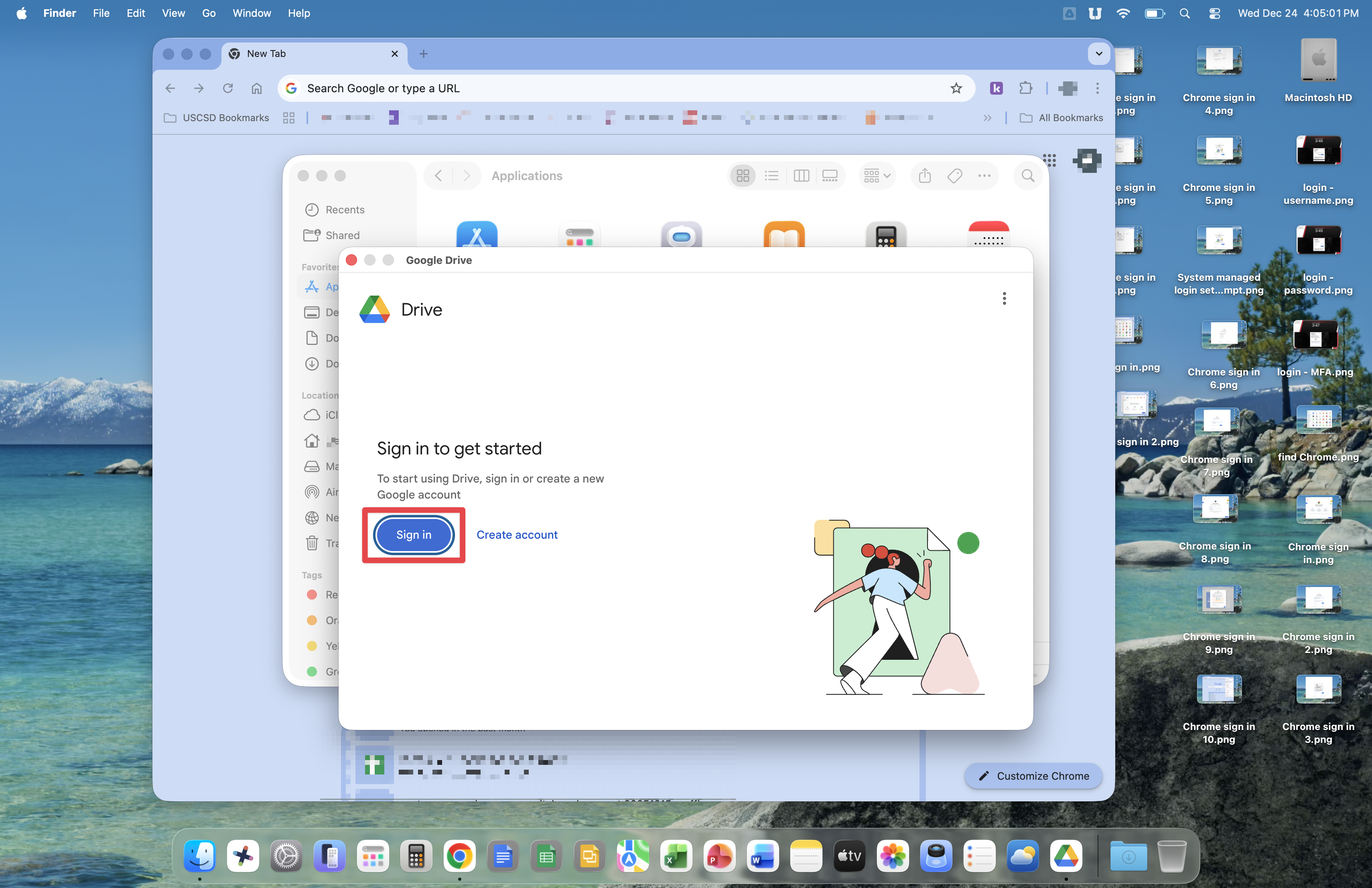
Click the Sign in button.
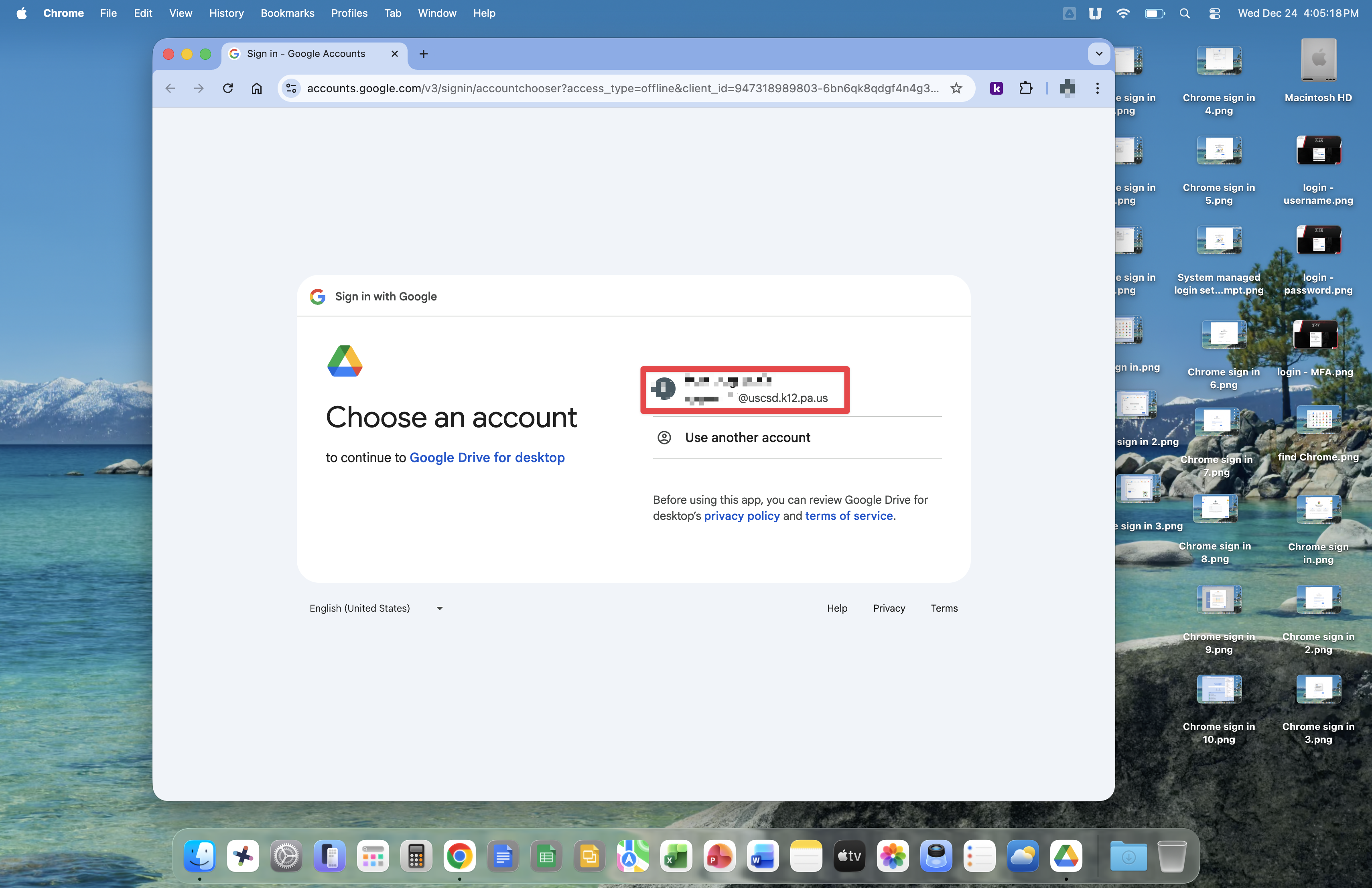
At the Choose an Account window, click on your SSO account. This account is shown because you've already used it to sign into Google Chrome.
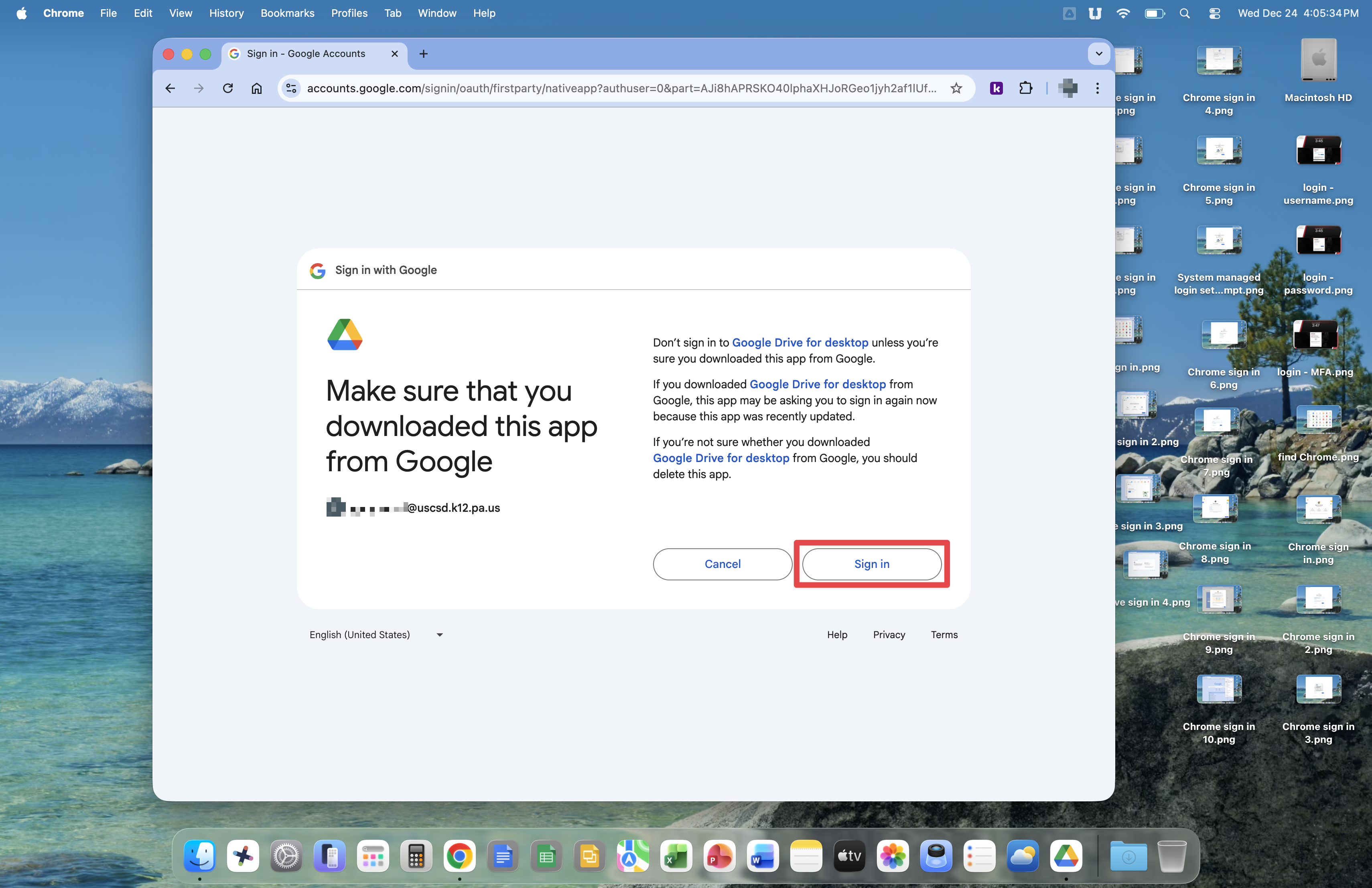
Click Sign in at the Make sure you downloaded this app from Google window.
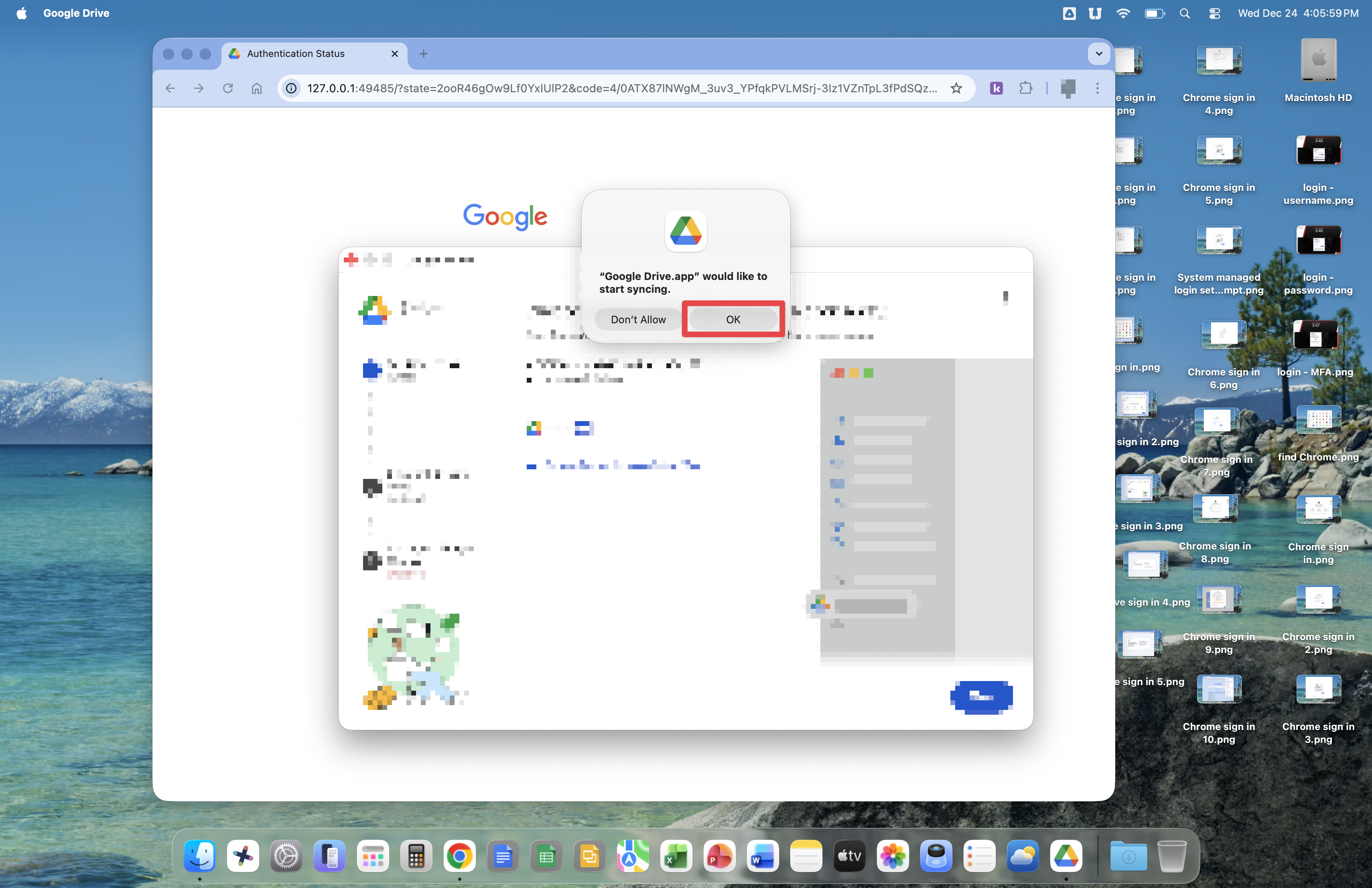
Google Drive will now perform some setup steps of it's own.

A prompt stating that Google Drive would like to start syncing will appear. Click the OK button.
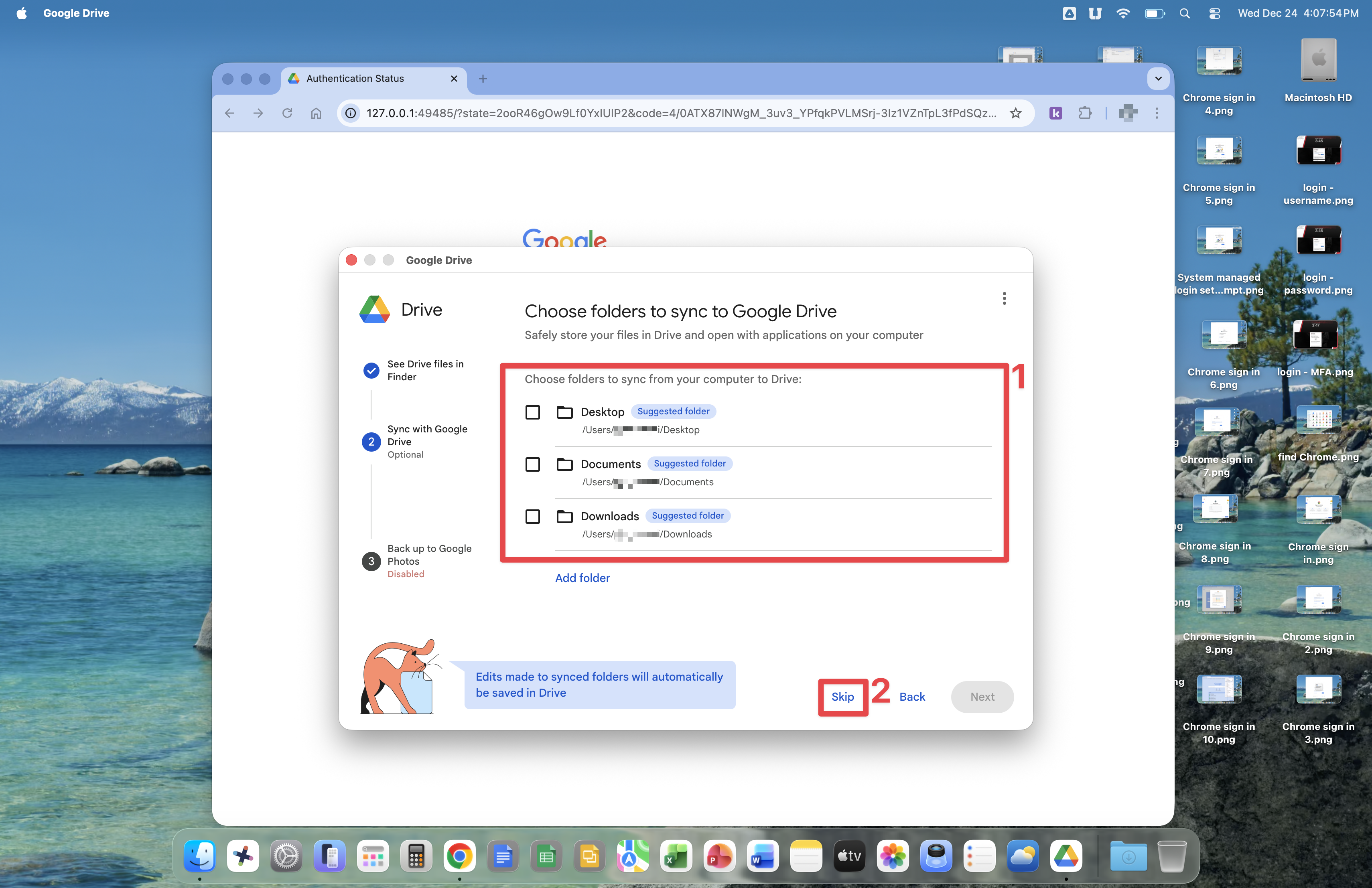
At the Choose folders to sync to Google Drive window, it is suggested that you ensure all checkboxes remain un-checked and click on the Skip button.
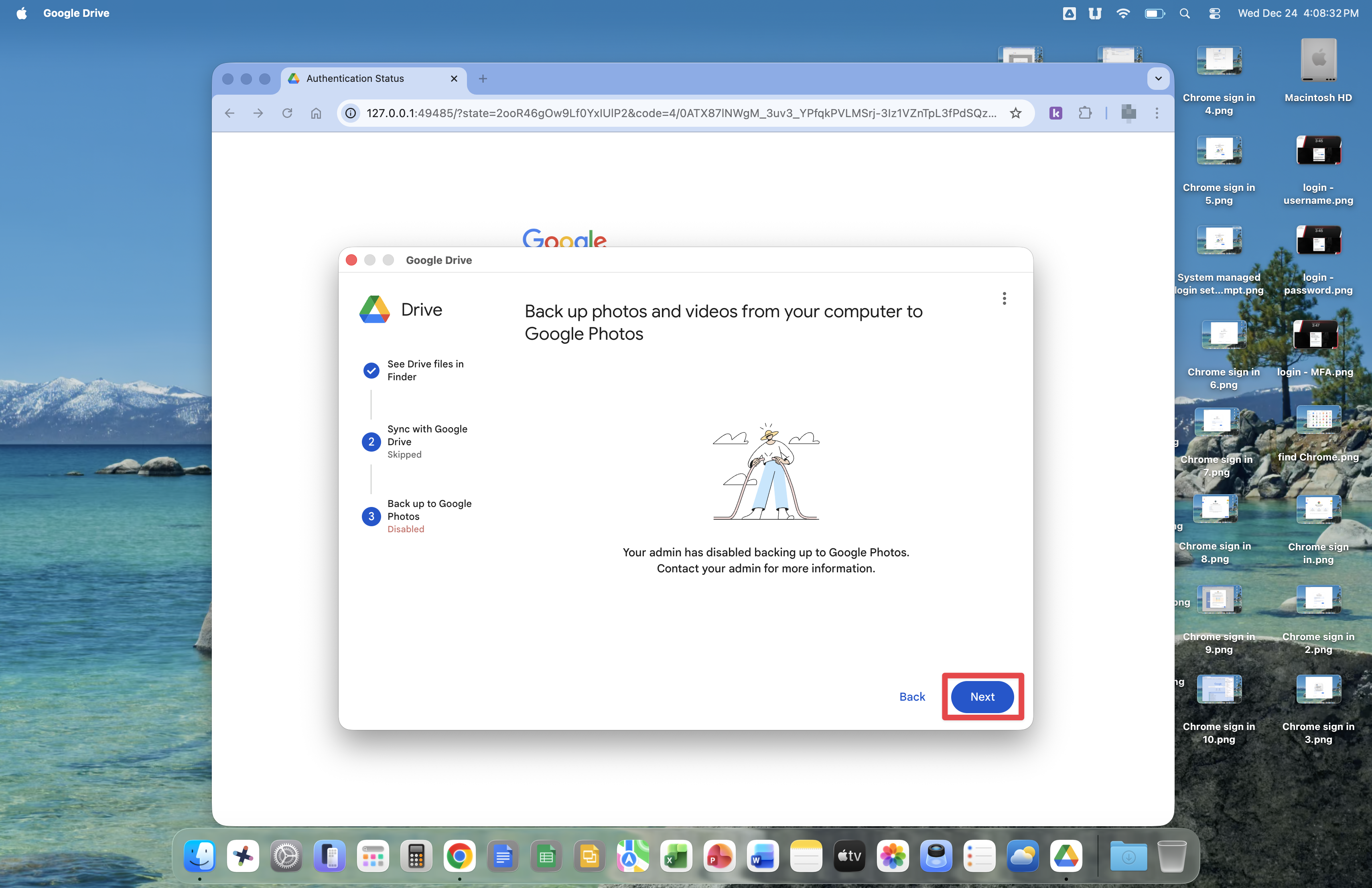
Click the Next button at the Back up photos and videos from your computer to Google Photos window. The Technology Department has disabled this feature.
Google Drive is now set up. You can open Google Drive from the Applications section in Finder or the top menu bar at any time to see if files are syncing or other Google Drive related activities are in progress.
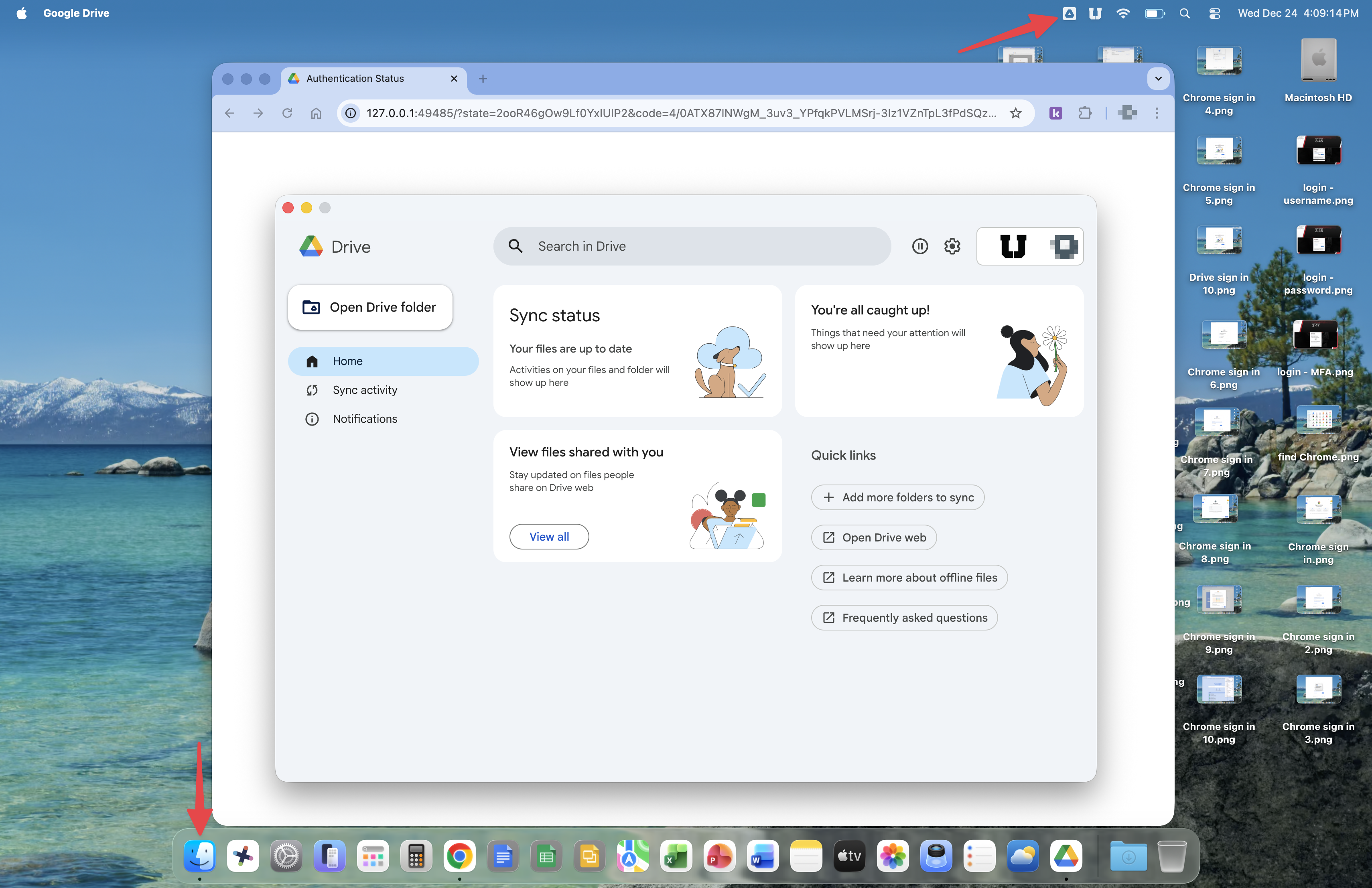
Around this time, you will encounter the You're helping improve Drive for Desktop message. Click the Dismiss button to close this prompt.

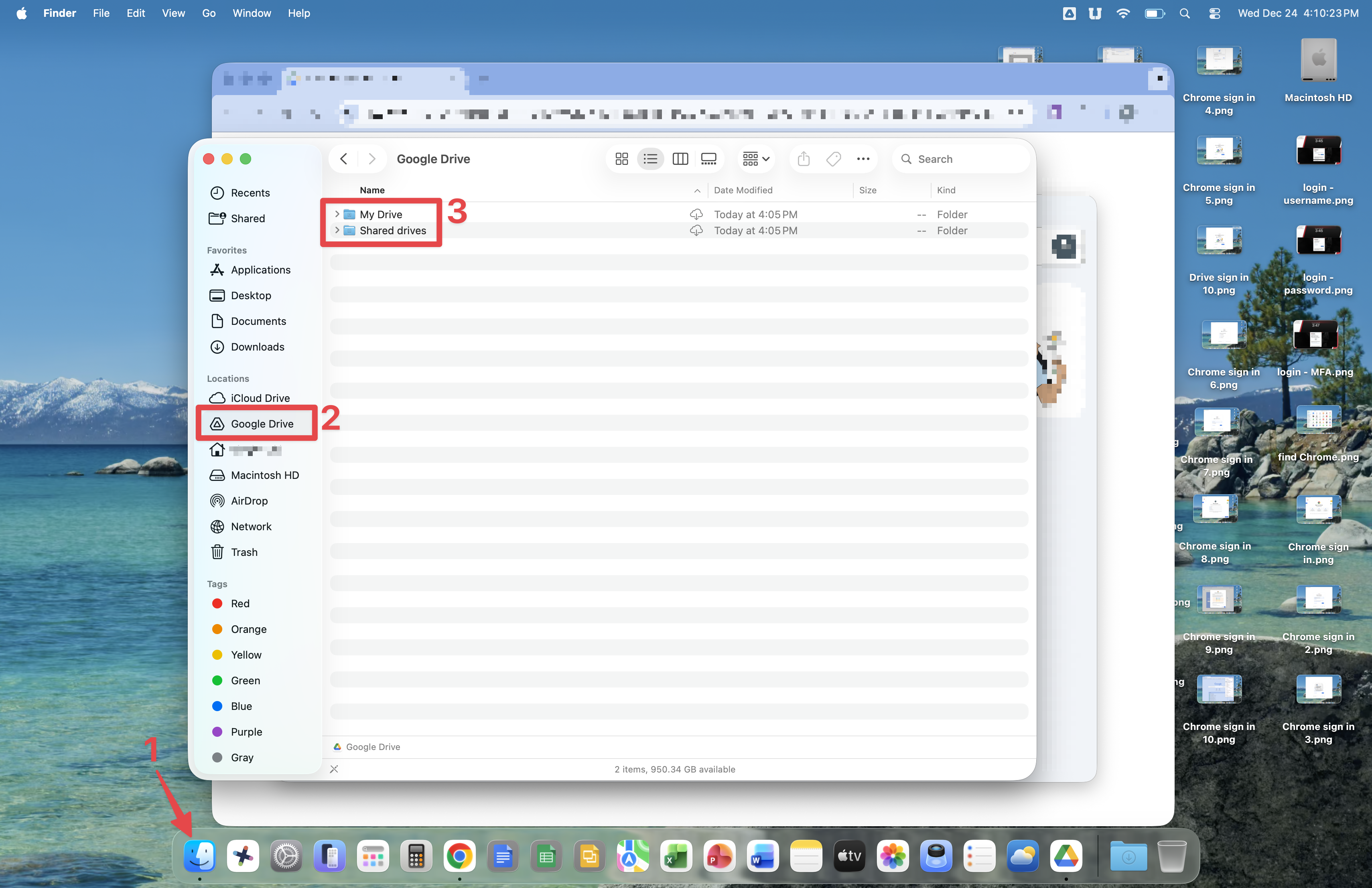
With Finder open, you will see that Google Drive has created the My Drive and Shared drives folders. My Drive is your personal space for storing files, please note that you can share files from My Drive as well. Shared drives is the place where all drives that have been assigned to you are shown. Shared drives are common areas for file storage, accessible by those in your department on on your team. Some Shared drives are accessible by everyone at USC.
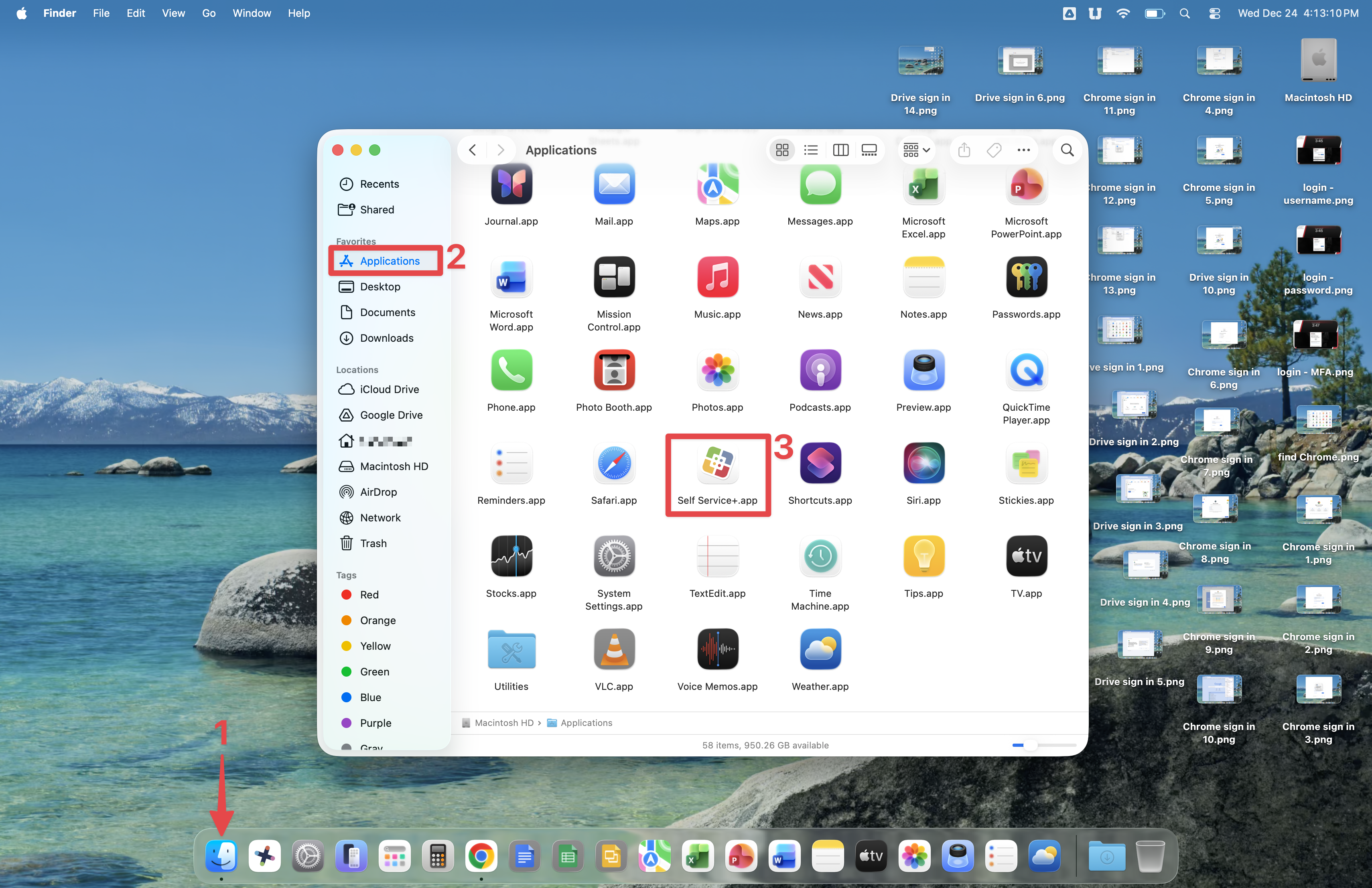
We will explore Self Service+ next. This app allows you to install printers and other software made available by the Technology Department.
Open Finder and click Applications, then scroll down and double-click the Self Service+ icon.
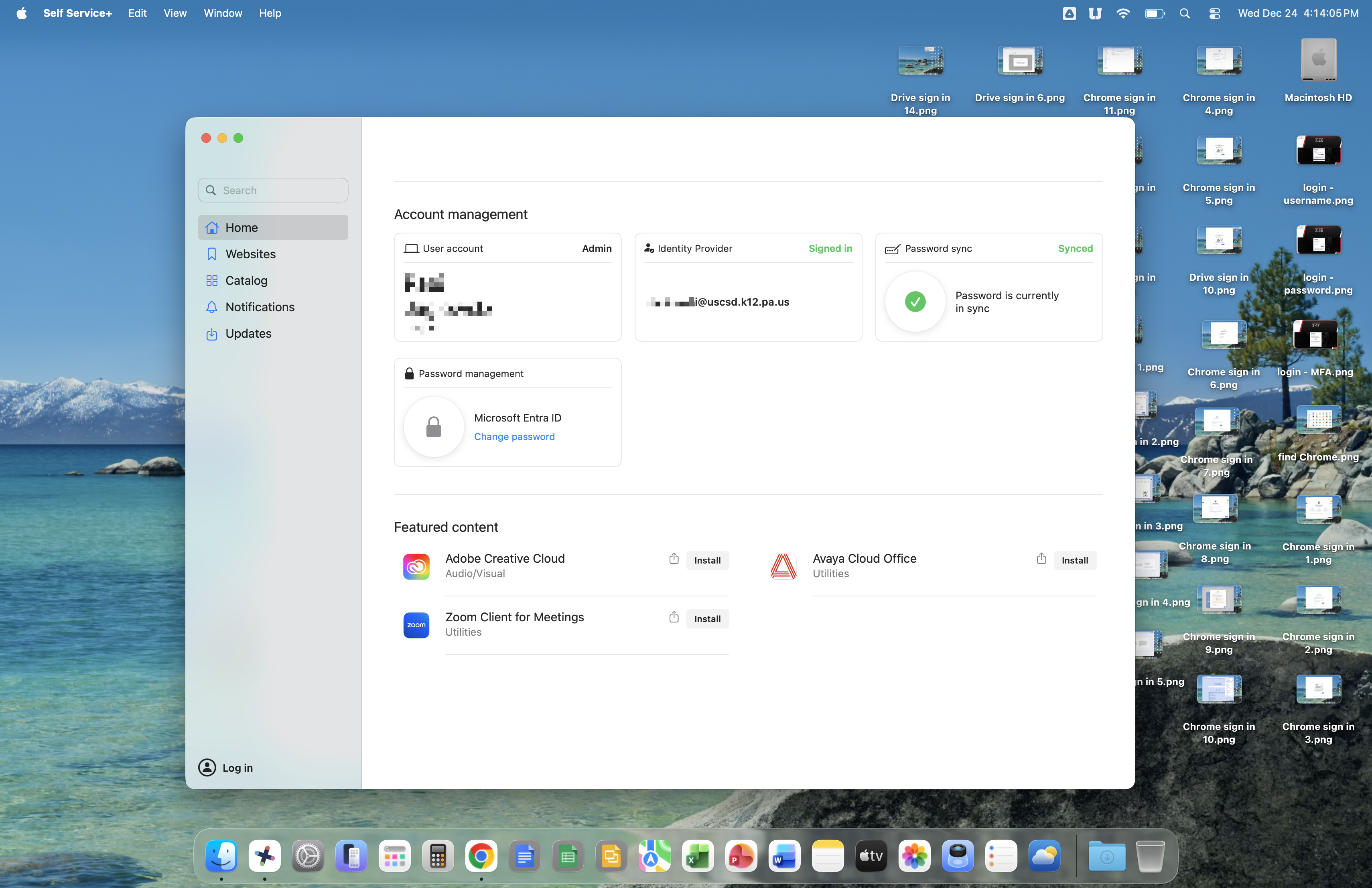
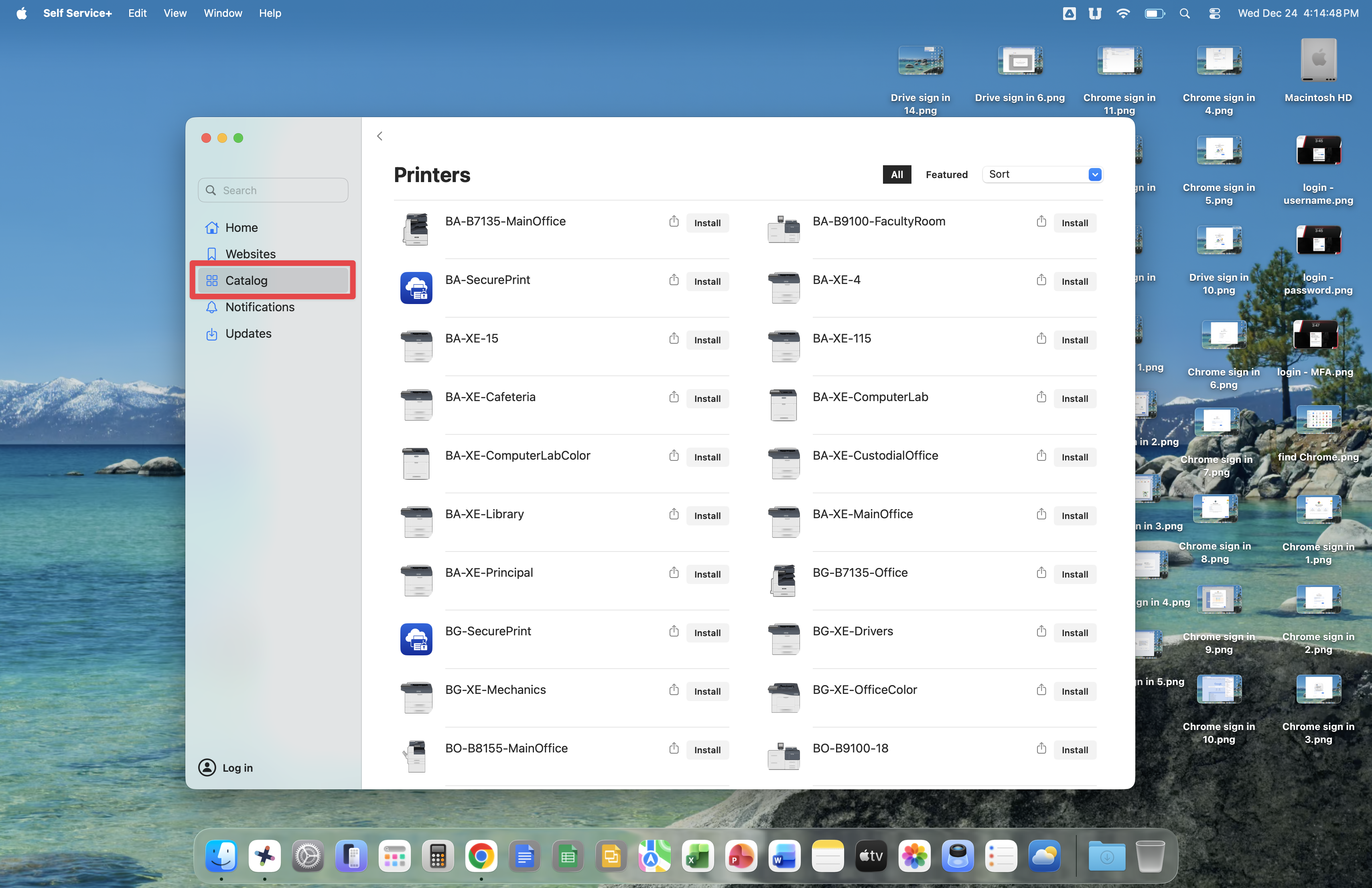
Once open, Self Service+ will show some detail about your SSO account and allow for SSO account password management. You will also see the Catalog section, which is where you will find printers and software for installing onto your Mac.
Click the Catalog button and go to the Printers section. A listing of all printers are shown, each following the naming pattern two character building abbreviation - printer manufacturer - room location.
You've completed the basic Mac setup.
The Technology Department's Knowledge Base offers further reading about using your Mac. Please visit the following links to learn more.
printing - https://support.uscsd.k12.pa.us/kb/section/6/
macOS - https://support.uscsd.k12.pa.us/kb/section/25/
software, ie. Gmail, Google Meet, Canvas, Kami - https://support.uscsd.k12.pa.us/kb/section/13/
audio/visual equipment, ie. Promethean ActivPanel, Apple TV - https://support.uscsd.k12.pa.us/kb/section/4/

