It is important to back up your Music library so you don't lose any music or videos stored in it if you need to swap your machine or have it repaired.
You do not need to worry about streaming services such as Apple Music, Spotify, or Pandora. Those services store your data in the cloud, so no local files need to be moved.
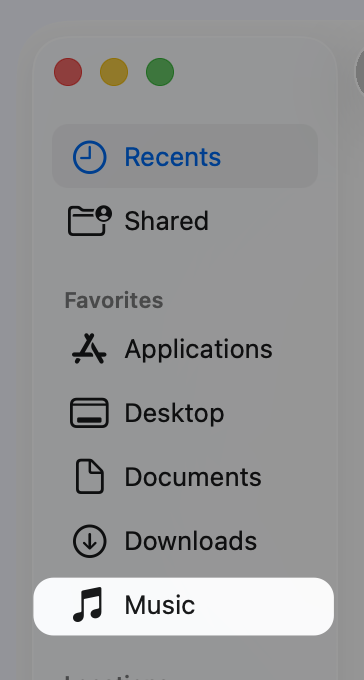
By default, the Music folder is not on the Finder Sidebar. You might have added it, and your Finder Sidebar looks like the picture below. If you see it, you can skip to the next section. If it is not there, please add it using the steps below. Adding the folder will make the backup process easier.
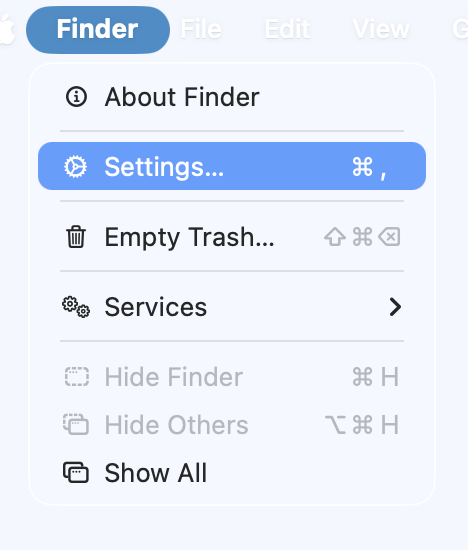
If you do not see the Music folder on the Sidebar, select Finder from the top menu bar (next to the Apple logo), and click Settings. You can also use the key shortcut <control> <comma>
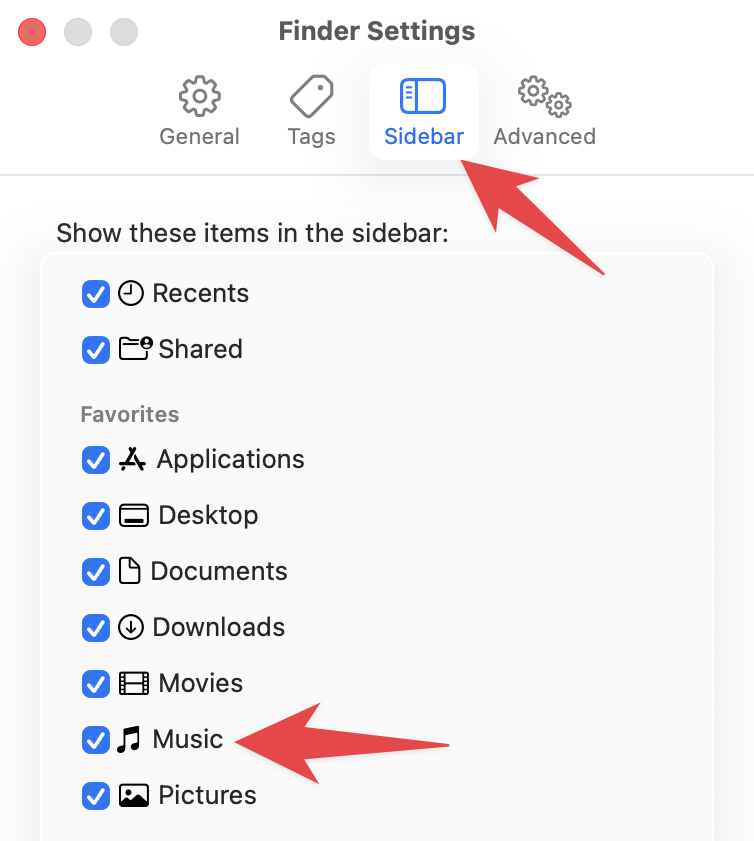
In Settings, select Sidebar, then select the Music checkbox. If you are also backing up Movies and Pictures, select those checkboxes.
To start the Music backup process, launch the Music App.
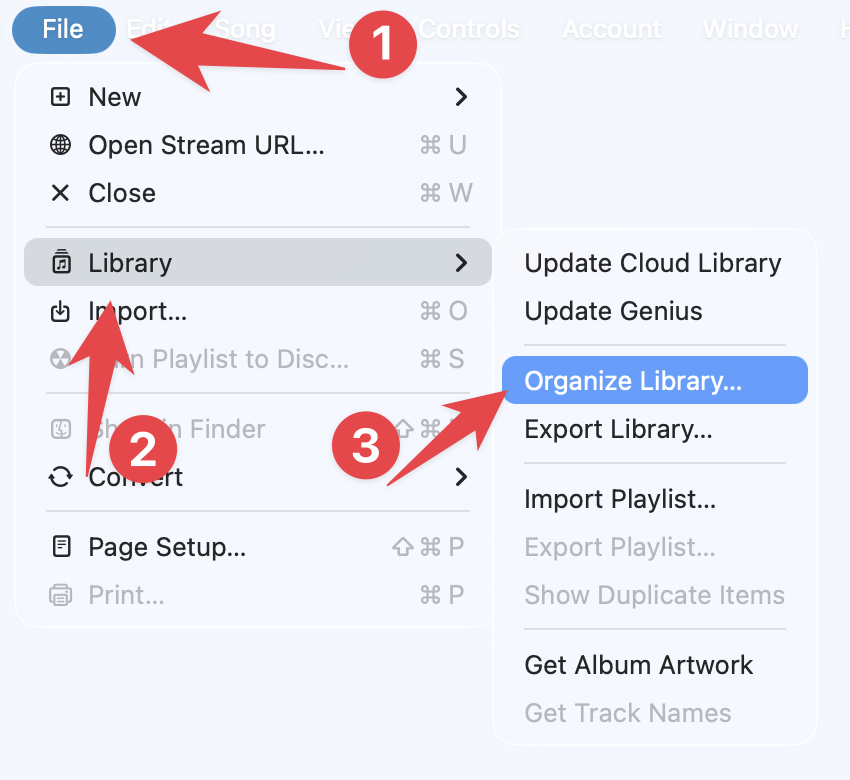
Once launched, go to File [1] > Library [2] > Organize Library [3]
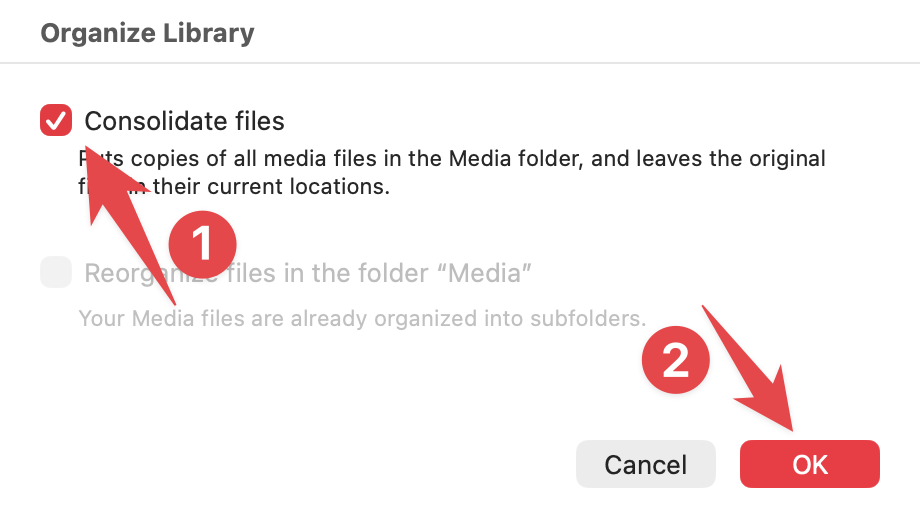
In the Organize Library window, select the Consolidate Files [1] checkbox, then select OK [2]. This step ensures Apple Music copies every track into the central Music folder before you back it up.
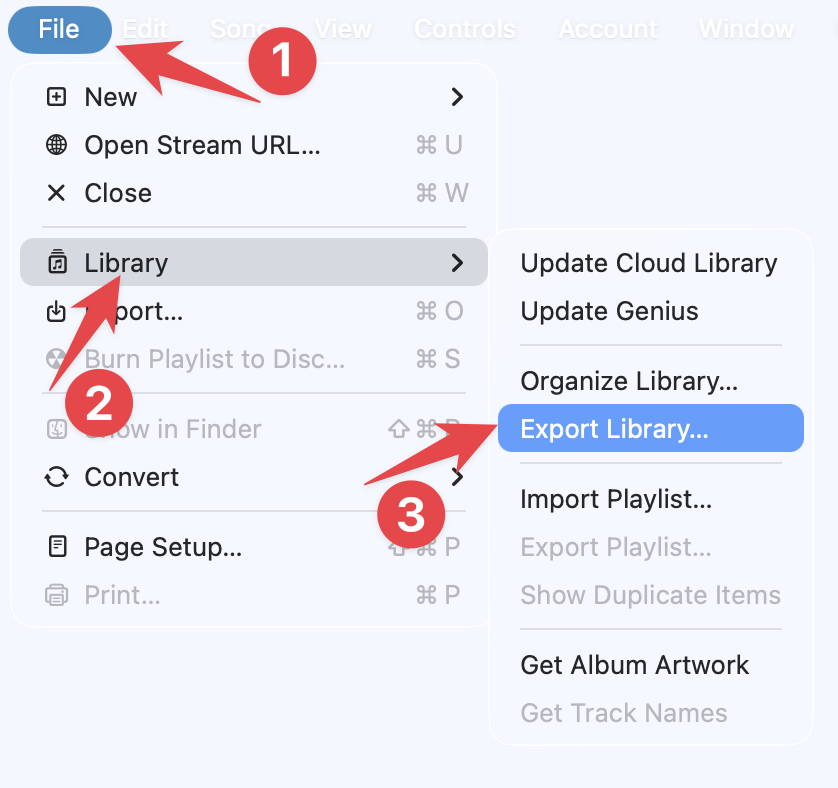
Now we will back up your Playlists. In Music, go to File [1] > Library [2] > Export Library [3]
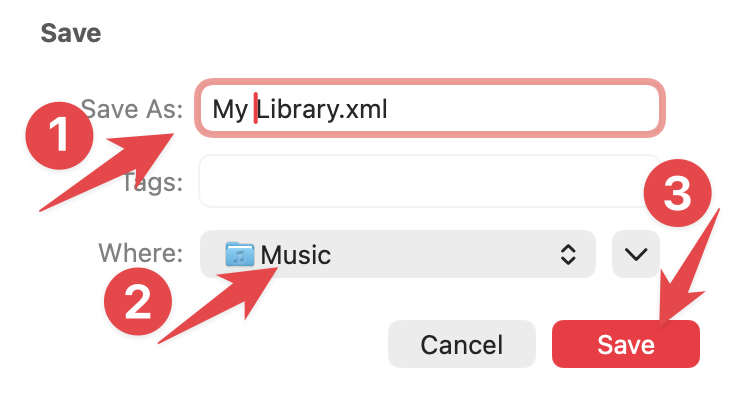
Type in a name for your file [1], change the save location to Music [2], then select Save [3].
Quit the Music app, then open a Finder window.
In the Finder window, select the Music folder on your Sidebar
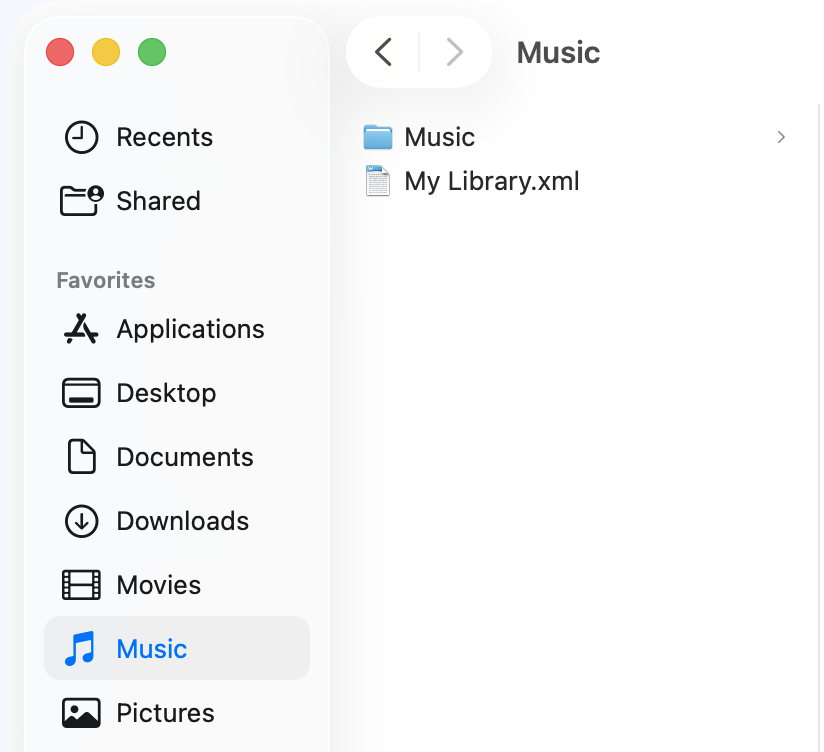
There may be other files or folders in your Music folder, and that is OK. Verify that there is a folder called Music and the name of your Exported Library (.xml) file.
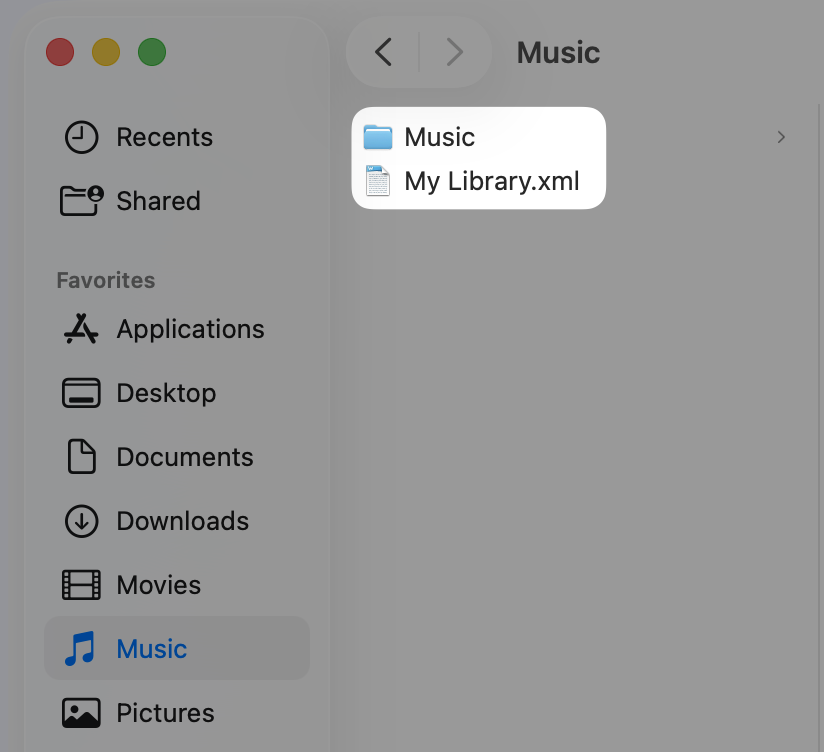
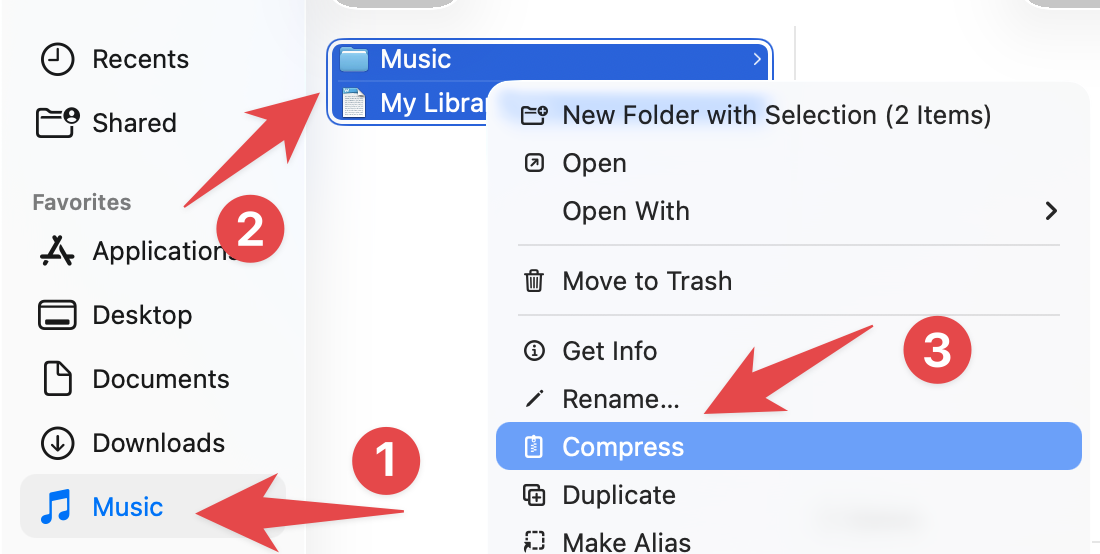
Select all the files and folders in your Music [1] folder by selecting Edit > Select All [2], typing <command> a, or <shift> clicking all the files and folders. Select File > Compress [3] or right-click the selected files and folders and select “Compress.”
Depending on the file sizes, compressing these files can take some time.
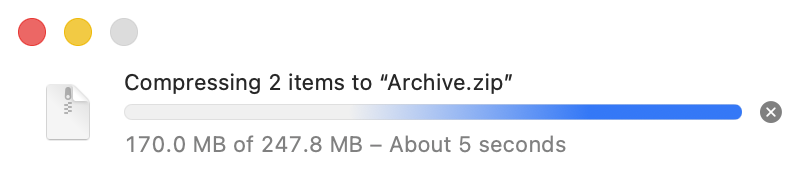
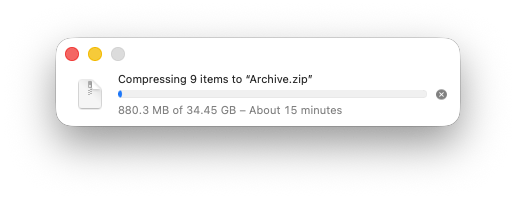
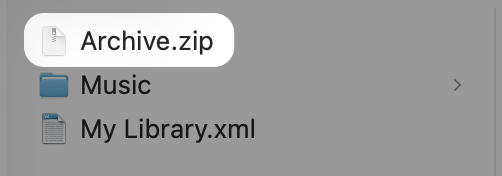
Once compression is complete, you will have a file in your Music folder named Archive.zip. The Archive.zip file is the compressed file you created.
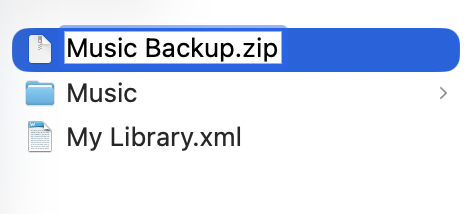
Rename the file to Music Backup.zip, so it is easy to locate when you copy it to Google Drive.
Copy the Music Backup.zip file to your Google Drive for backup.
Depending on the file size, it may take some time to copy to Google Drive. Please wait until the file has been fully copied before you turn off or close your computer. You can continue to do other tasks on your computer while it copies.
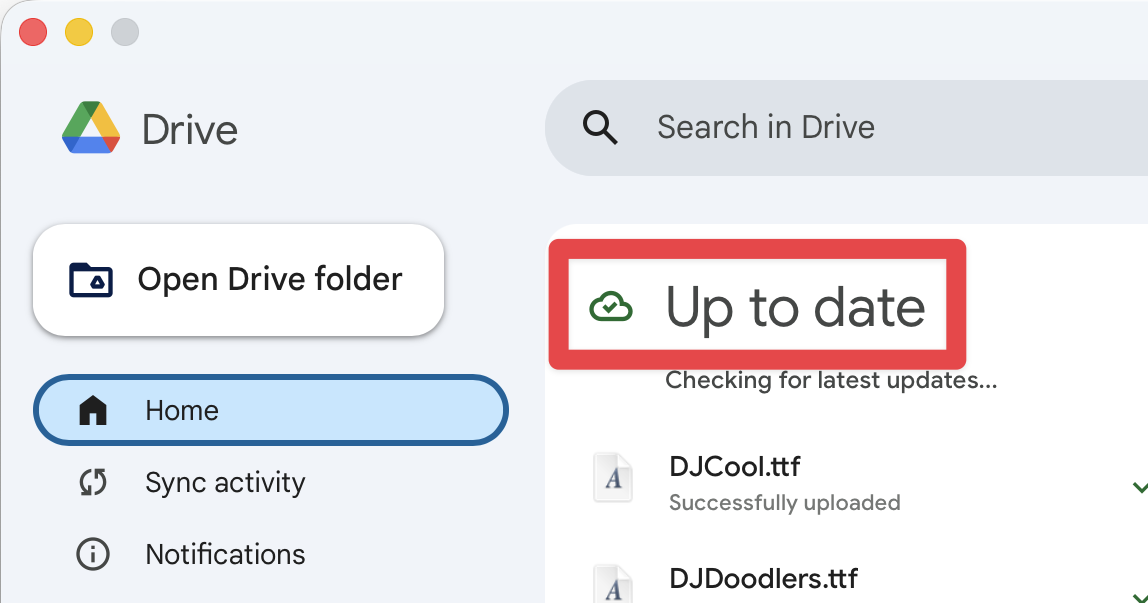
If the Google Drive icon [1] in the menu bar is spinning, a backup is currently in progress. To view more details, click that icon to open the application window. Within the app, select the Home [2] tab to see if Google Drive is still syncing your files [3].
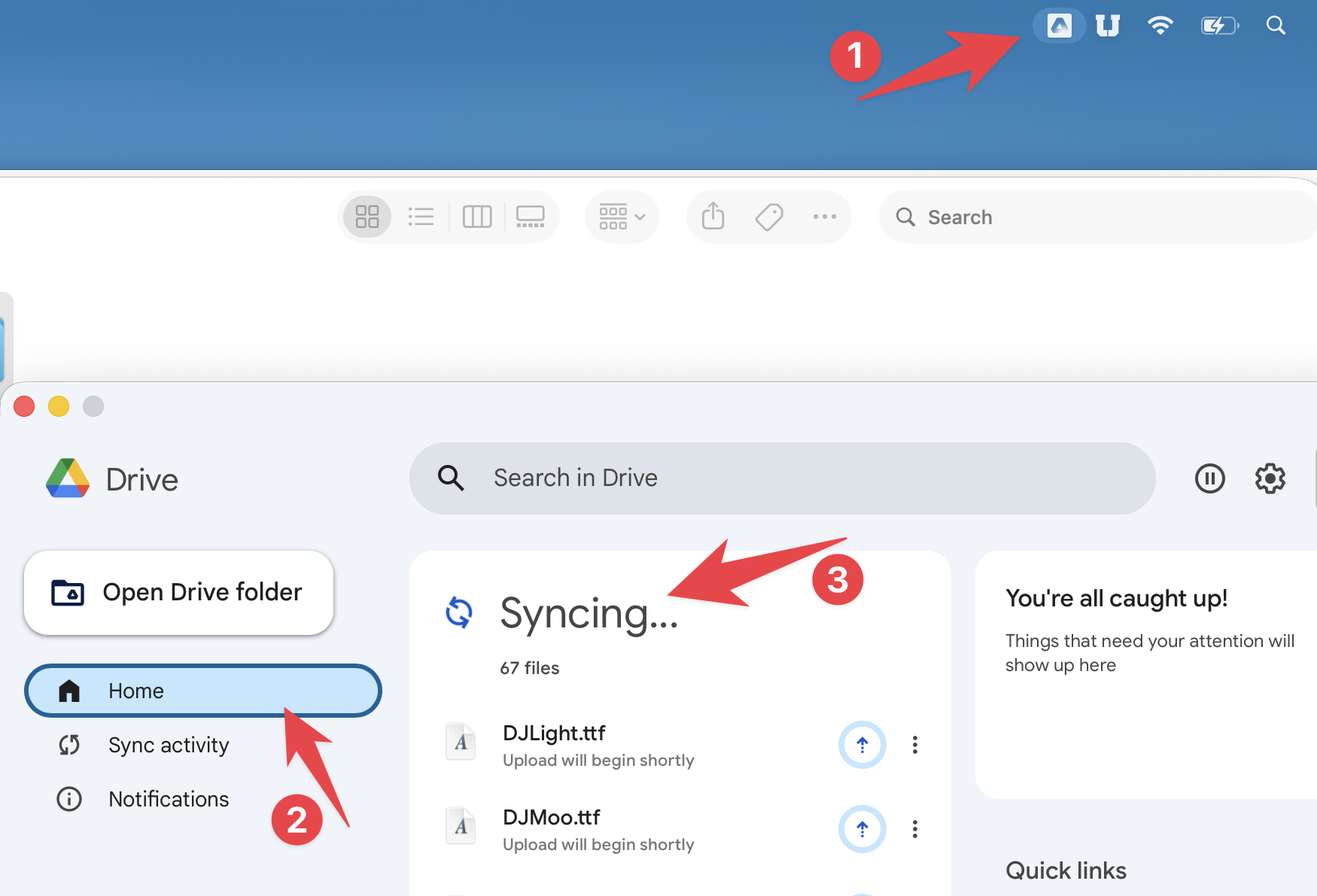
When it is done Syncing, you will see that it is Up to date