Backing up your Fonts
This guide illustrates how to backup fonts you may have added to your Mac. Backing up your fonts is done if moving to a new computer. Restoring your fonts onto the new computer is covered in the following article - https://support.uscsd.k12.pa.us/kb/article/106-restoring-your-fonts/.
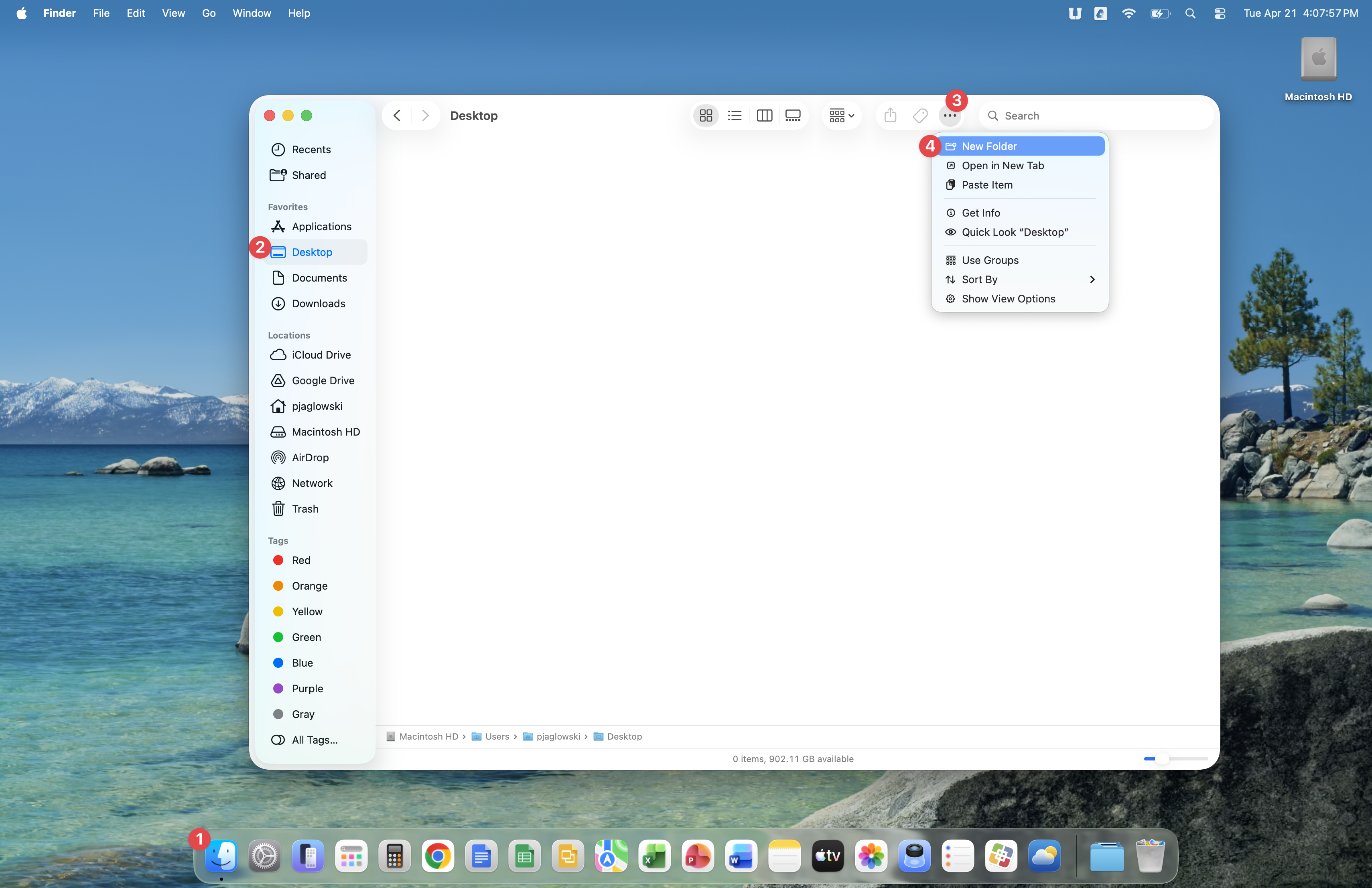
Open Finder, then click Desktop. Click the three dot menu, then click New Folder.
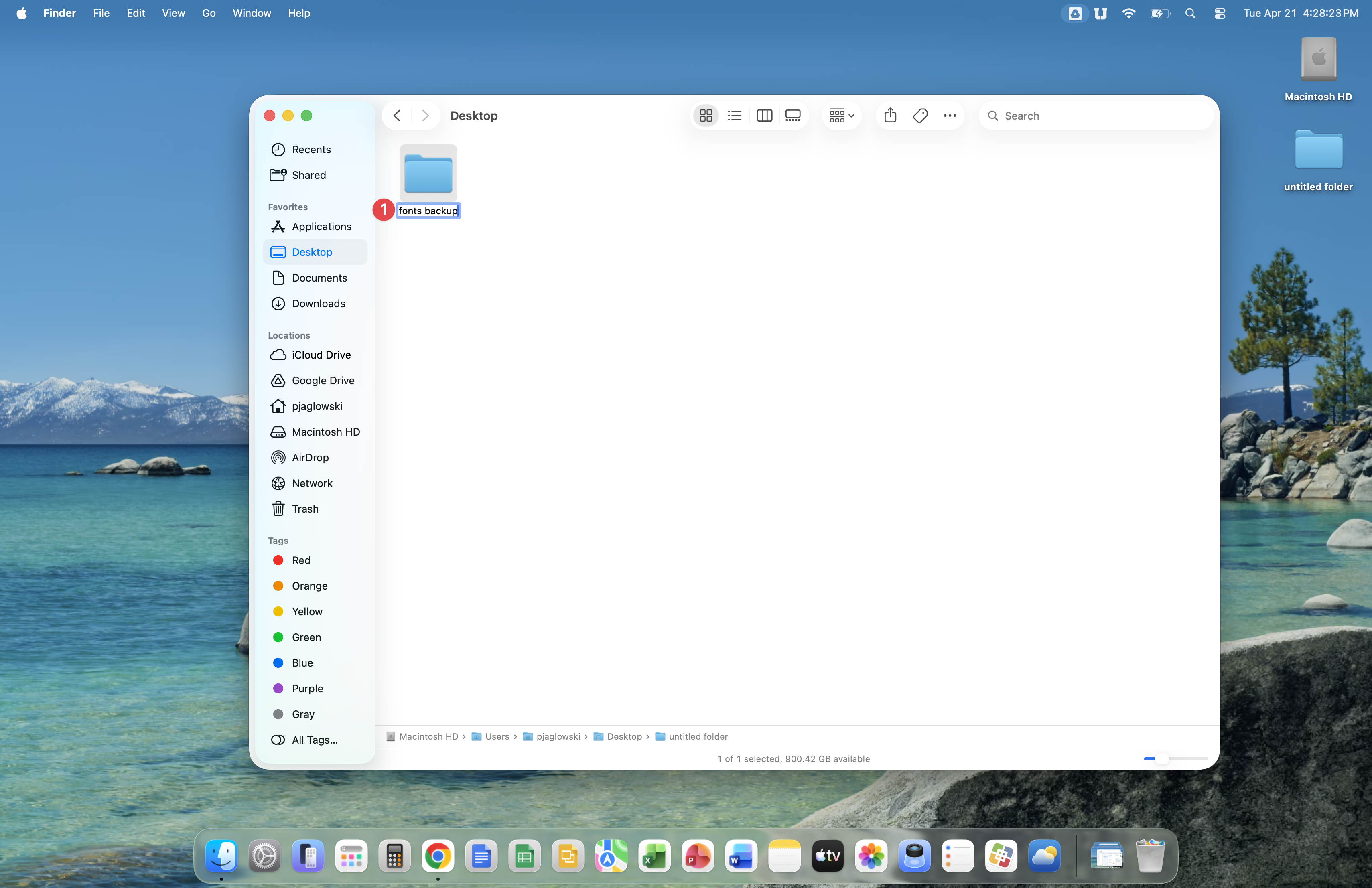
Name the new folder fonts backup.
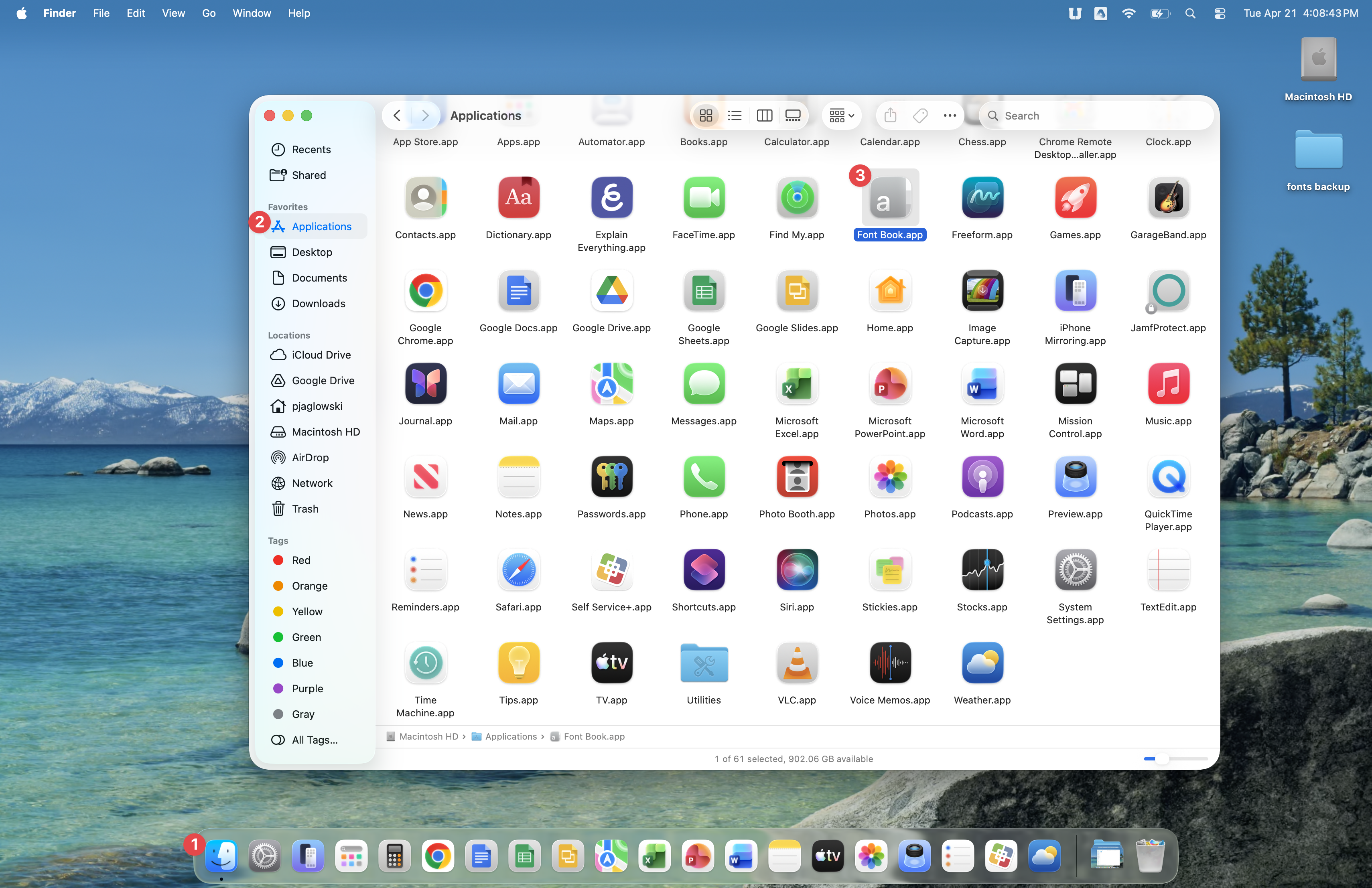
Click Finder, then click Applications. Double-click the Font Book app.
Click Edit, then Select All. Now click My Fonts. Any fonts you may have added to your computer will be shown. You can see below that the DJ fonts had been added to my computer.
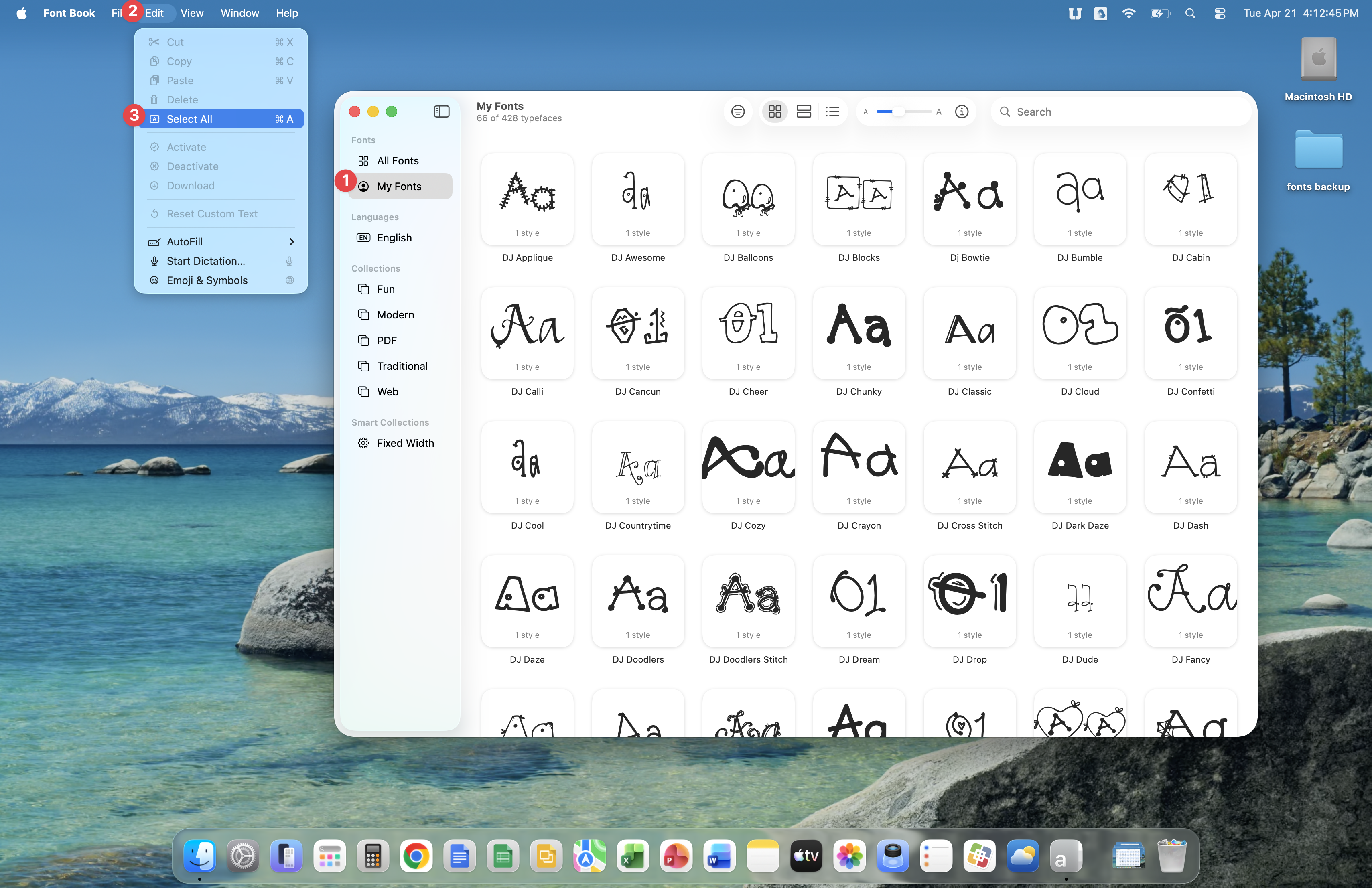
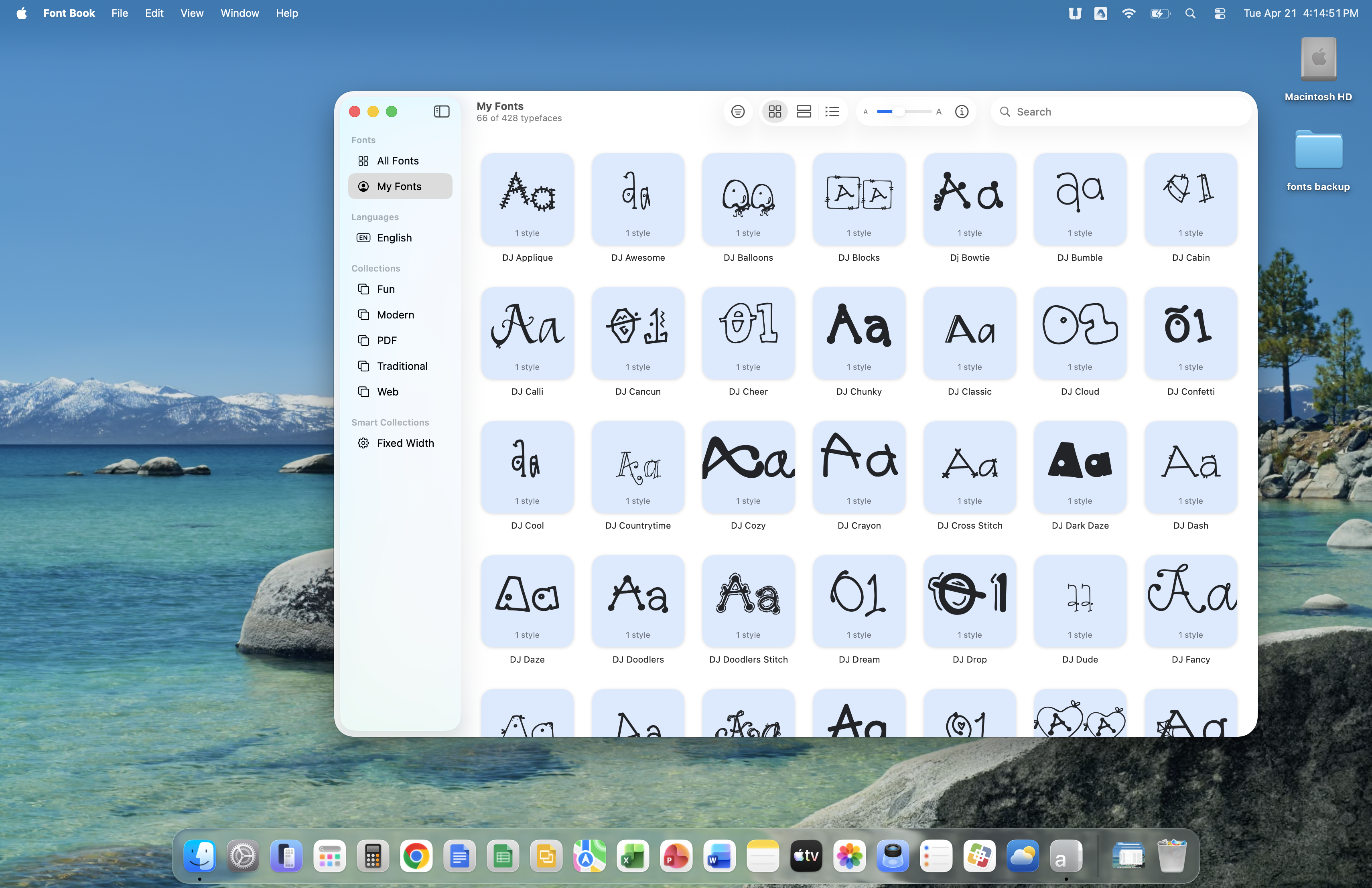
All of the fonts in My Fonts should now be selected.
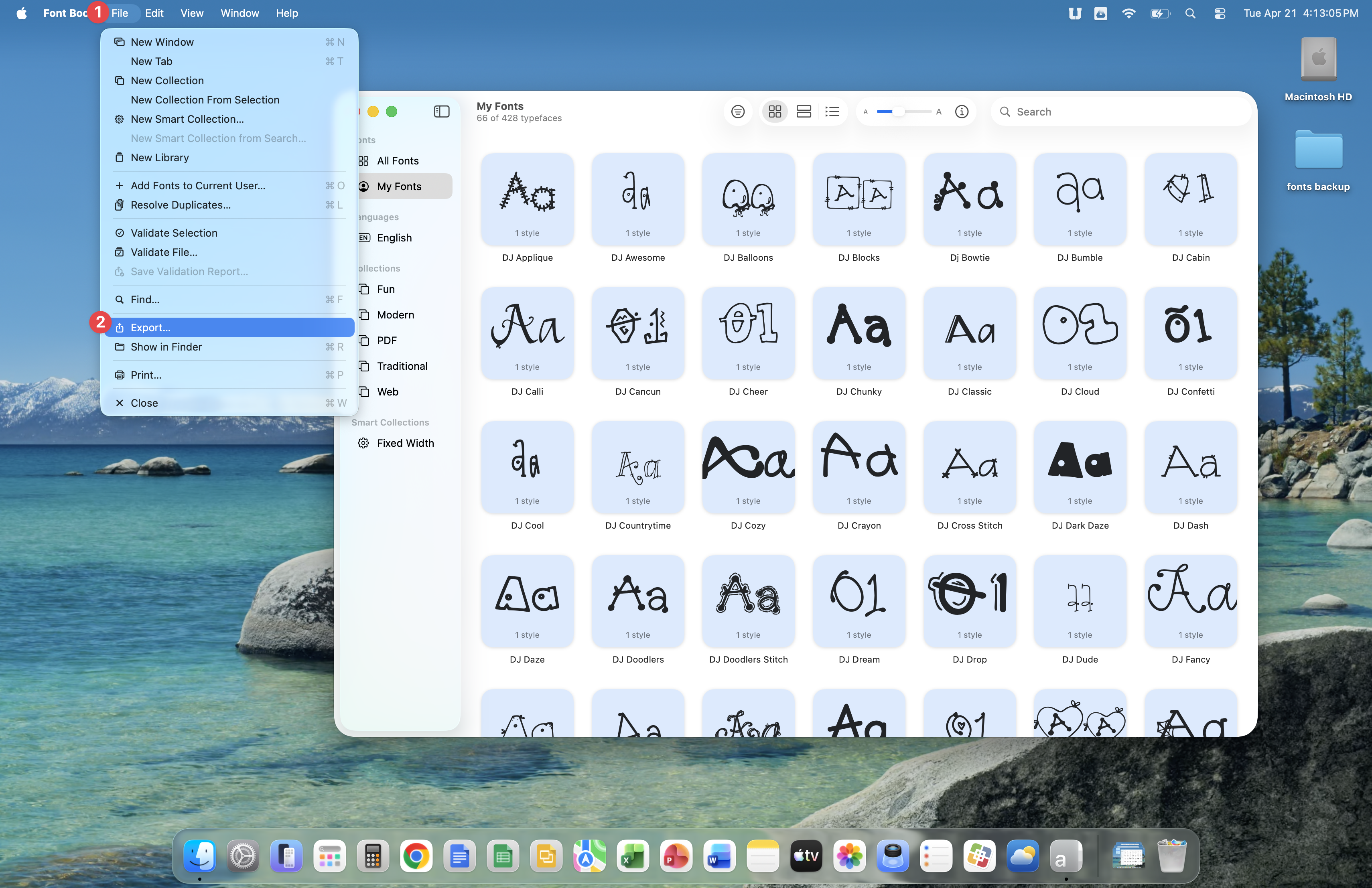
With all fonts selected, click File, then click Export.
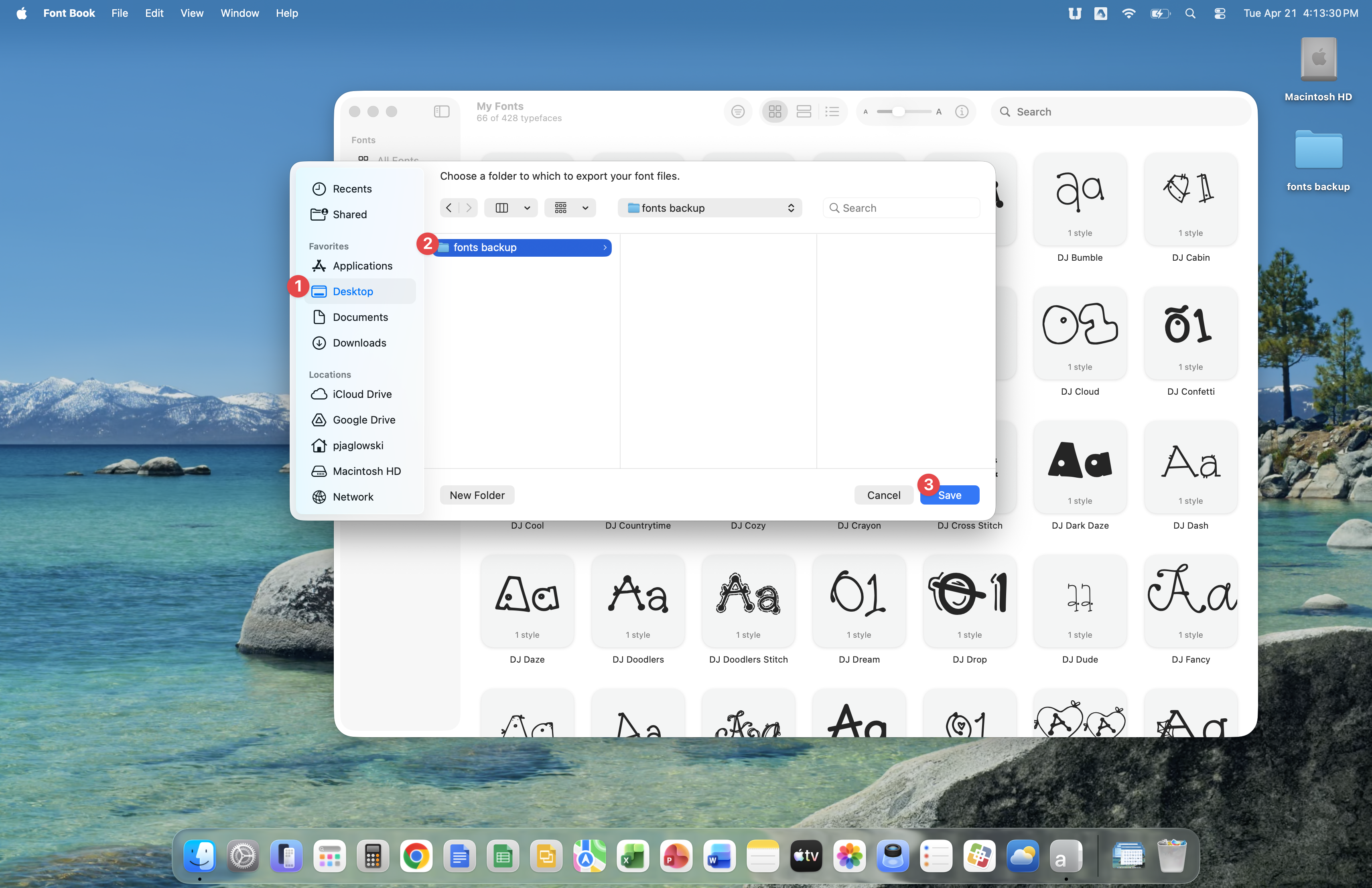
You are exporting your fonts to the folder you'd created earlier by clicking Desktop, then selecting the fonts backup folder. Finish exporting by clicking the Save button.
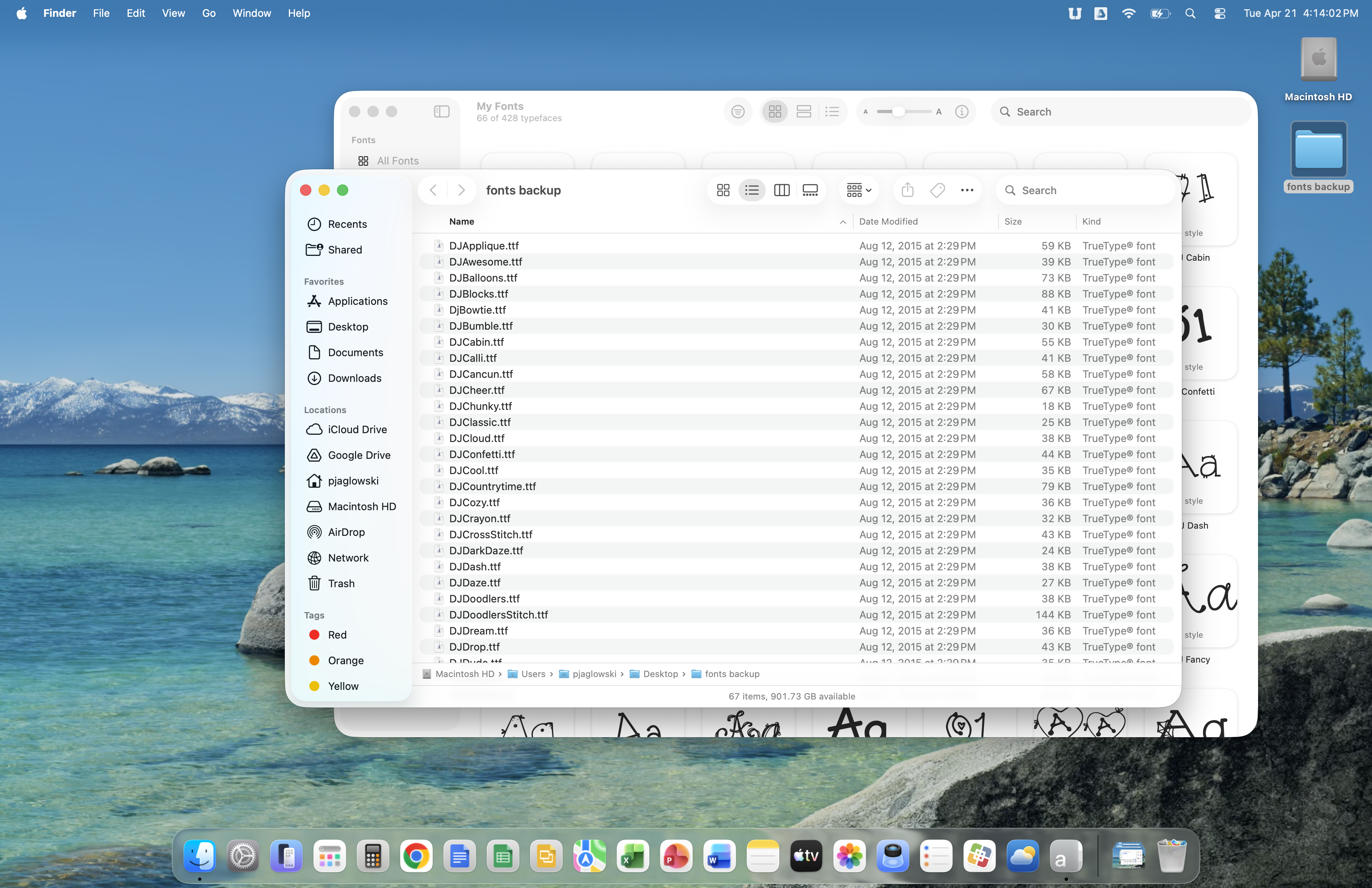
If you double-click on the fonts backup folder, the fonts you just exported should be seen inside the folder.
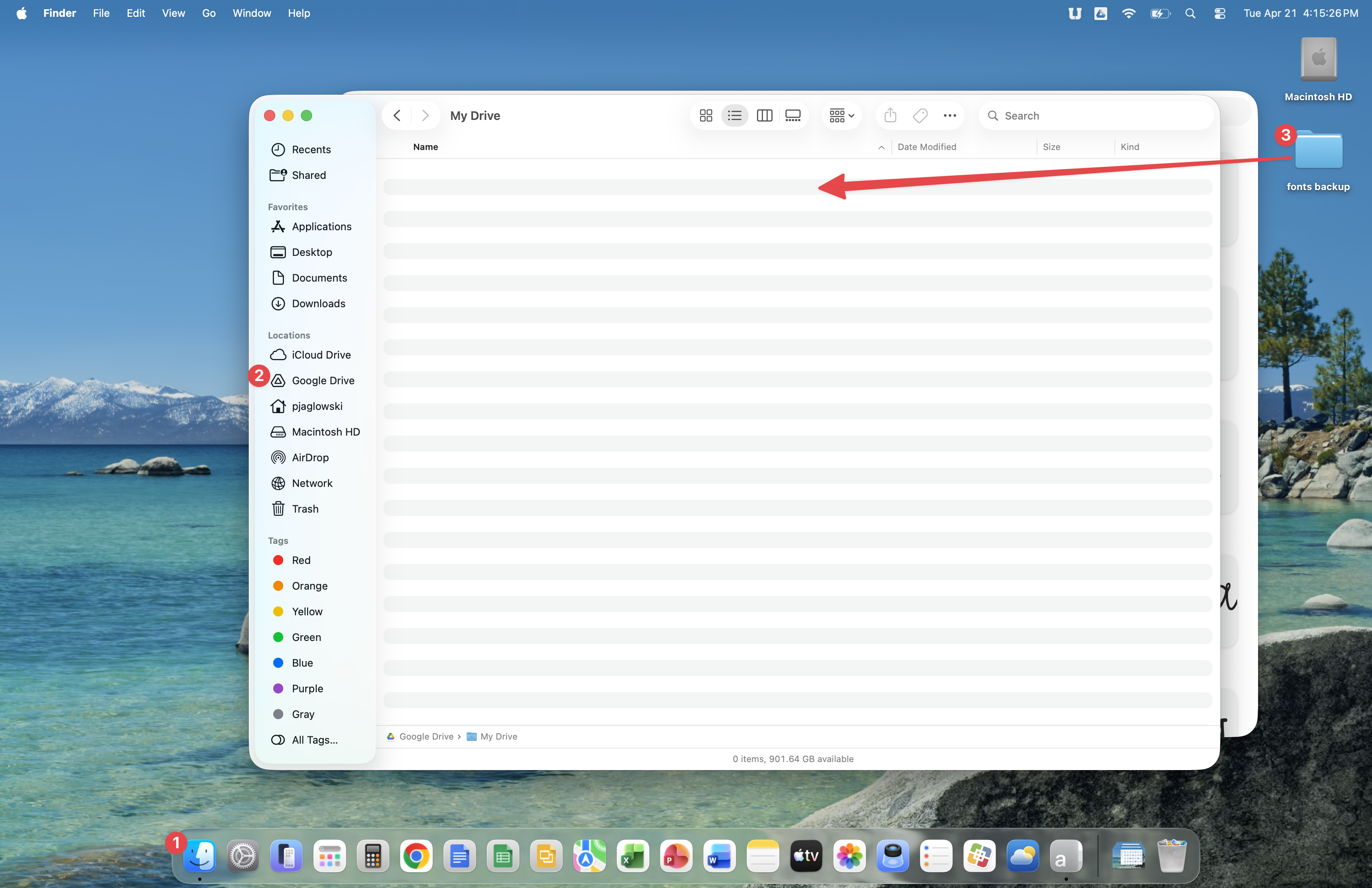
Click Finder, then click Google Drive, followed by opening My Drive. You should see the contents on My Drive. The My Drive in this example is shown below and is empty, but your My Drive likely contains files and folders you'd saved previously.
Drag the fonts backup folder from your desktop to an empty area in My Drive.
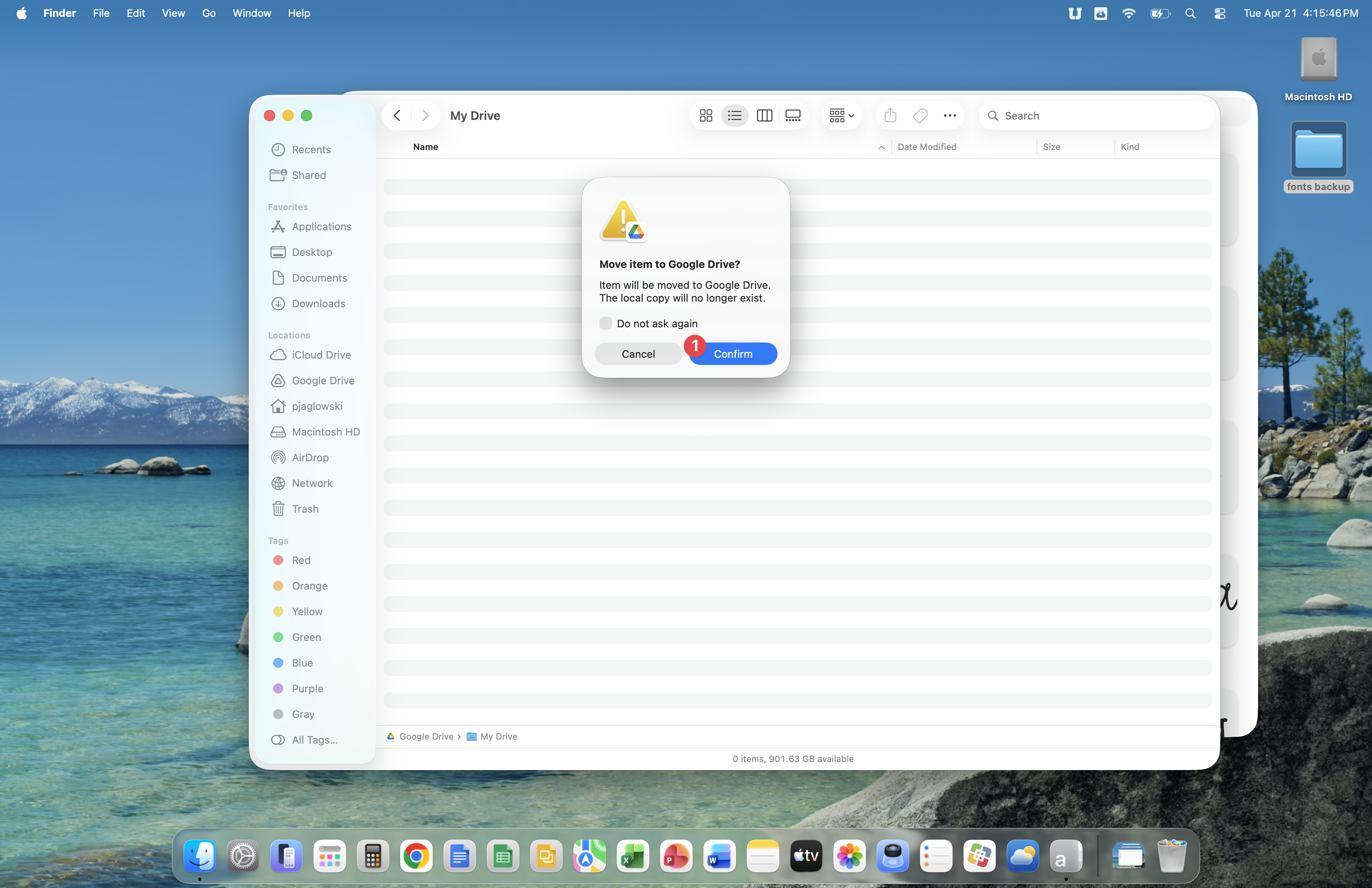
Google Drive will warn you that you are moving a folder to My Drive and it will no longer be found on your desktop. Click the Confirm button.
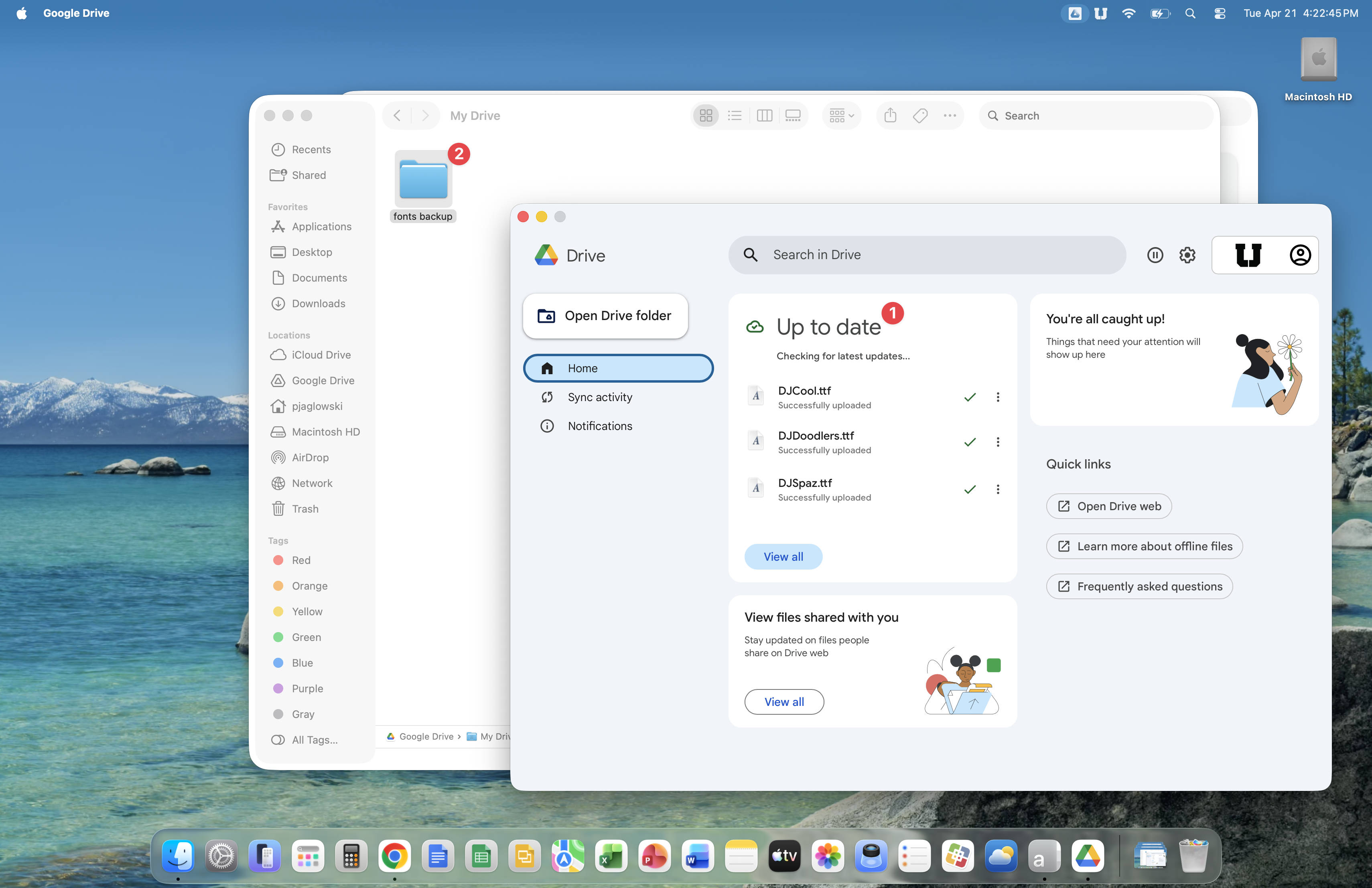
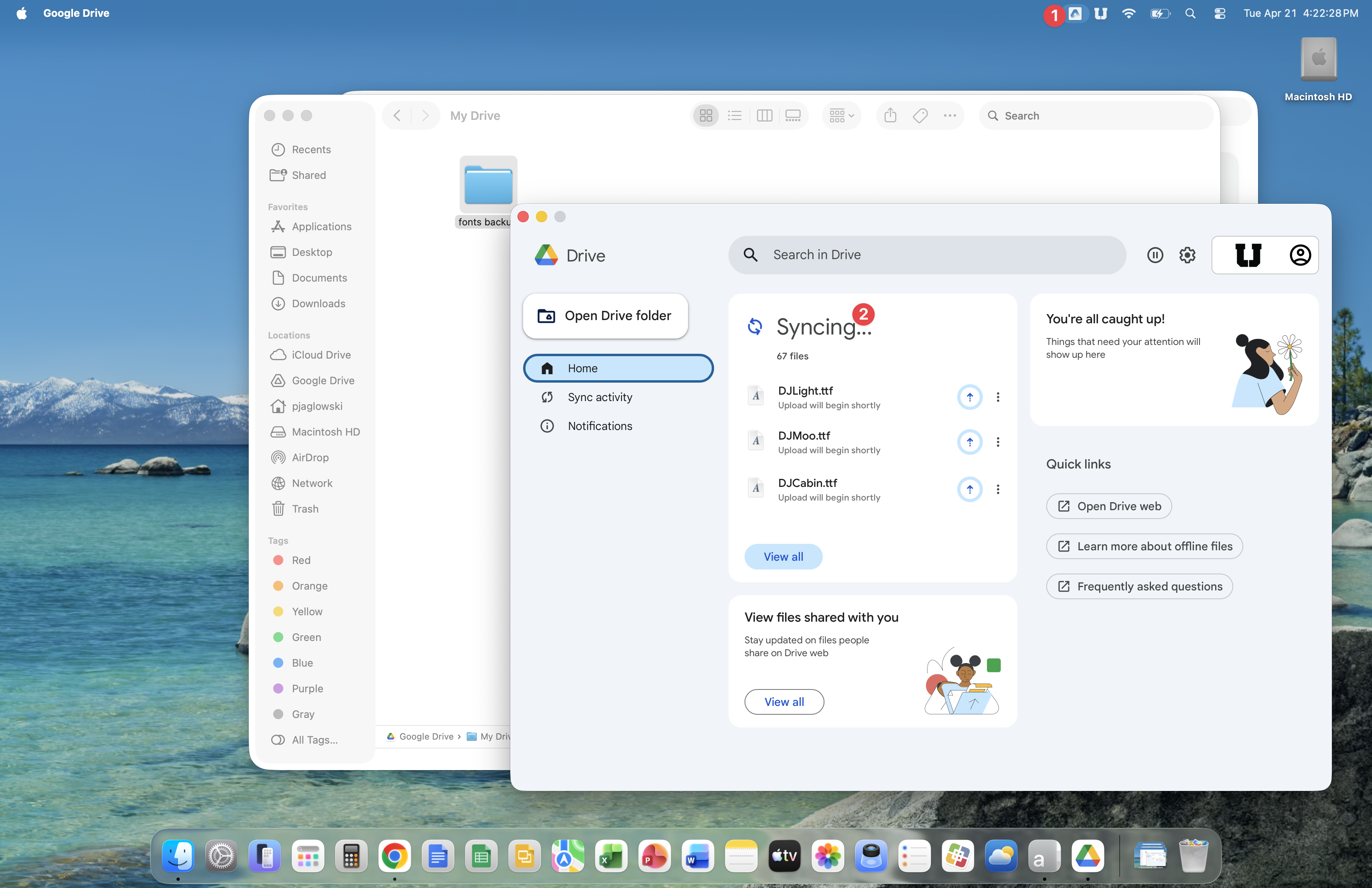
You must ensure that your fonts backup folder syncs to My Drive. To see the sync status, click the Google Drive icon in the task bar. The Google Drive window opens and the Syncing area shows all files being synced to Google.
Once the sync is complete, you will see Up to date as shown below. Your fonts are now in My Drive and ready to be moved to your new computer.