2555
2555
This knowledge base article will explain how to create a Kami assignment in Canvas.
Kami has a great video explaining the process below. Click here to watch the video.
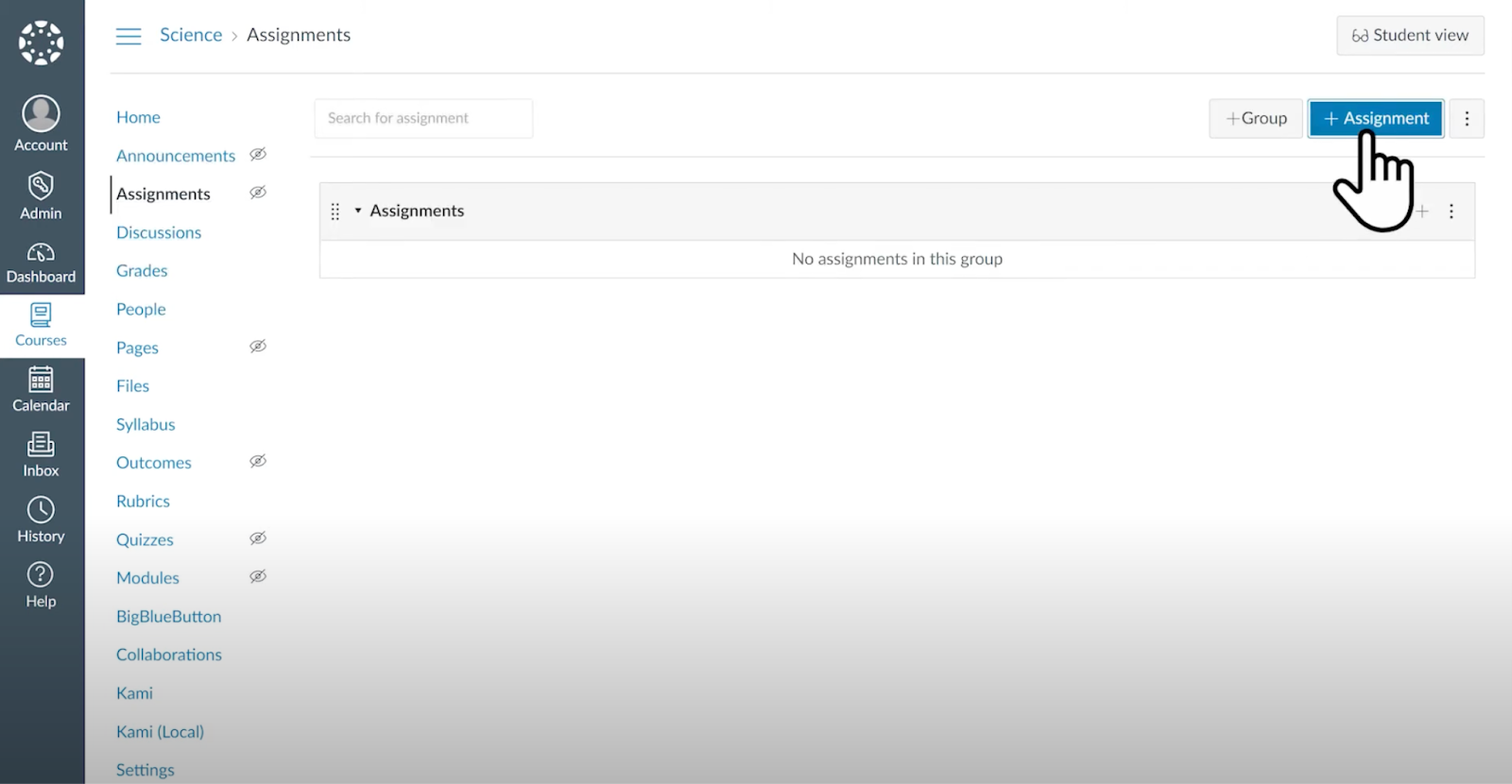
Click on “Assignments” in the left-hand navigation panel and click the “Assignment” button to create a new assignment.
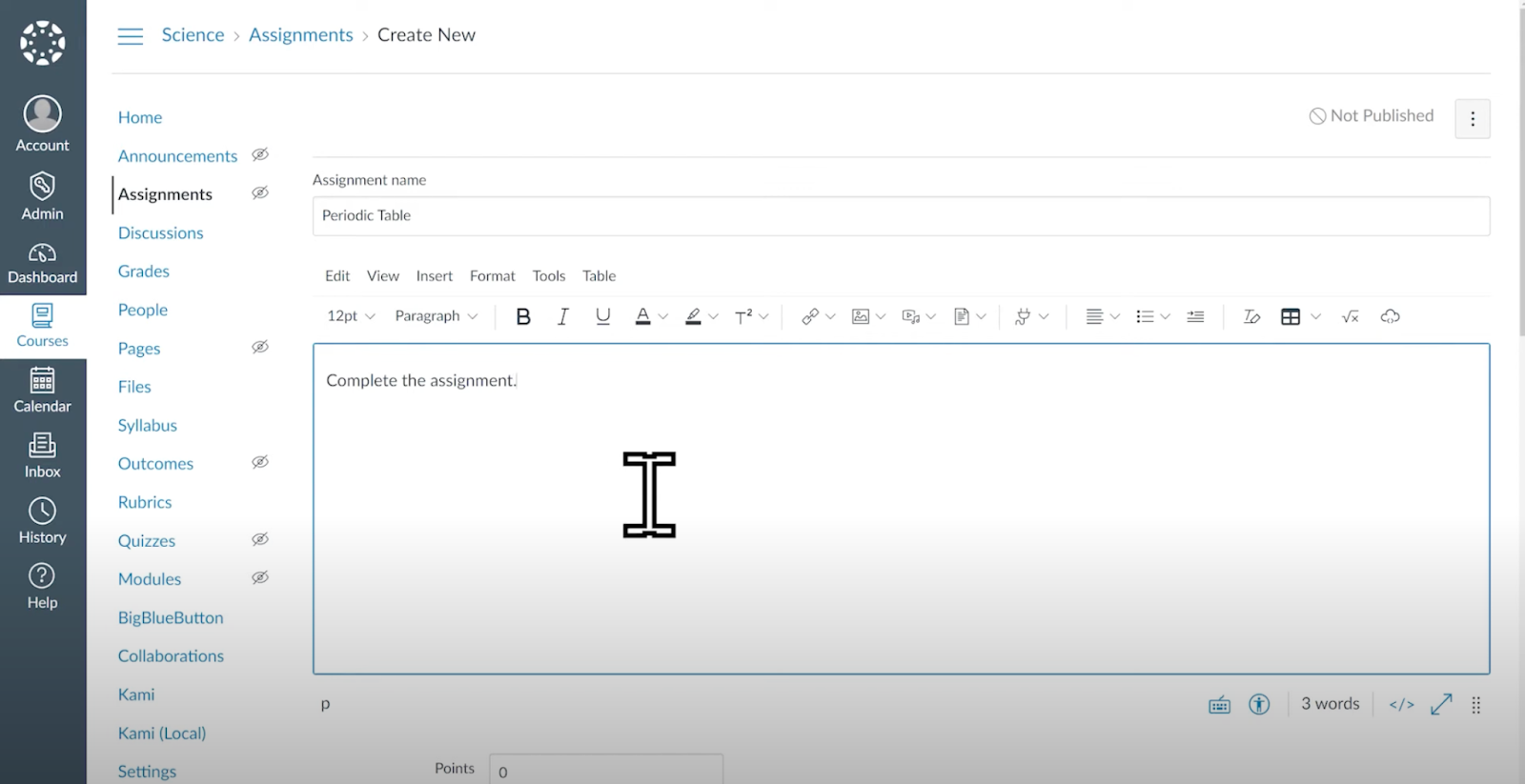
In the "Assignment Name" field, enter your title as your normally would. The same goes for the “Description” field.
Scroll down to the "Submission Type" section and choose "External Tool" from the dropdown menu.

Click the "Find" button to search for and select the Kami app. Then select “Kami Assignment”.
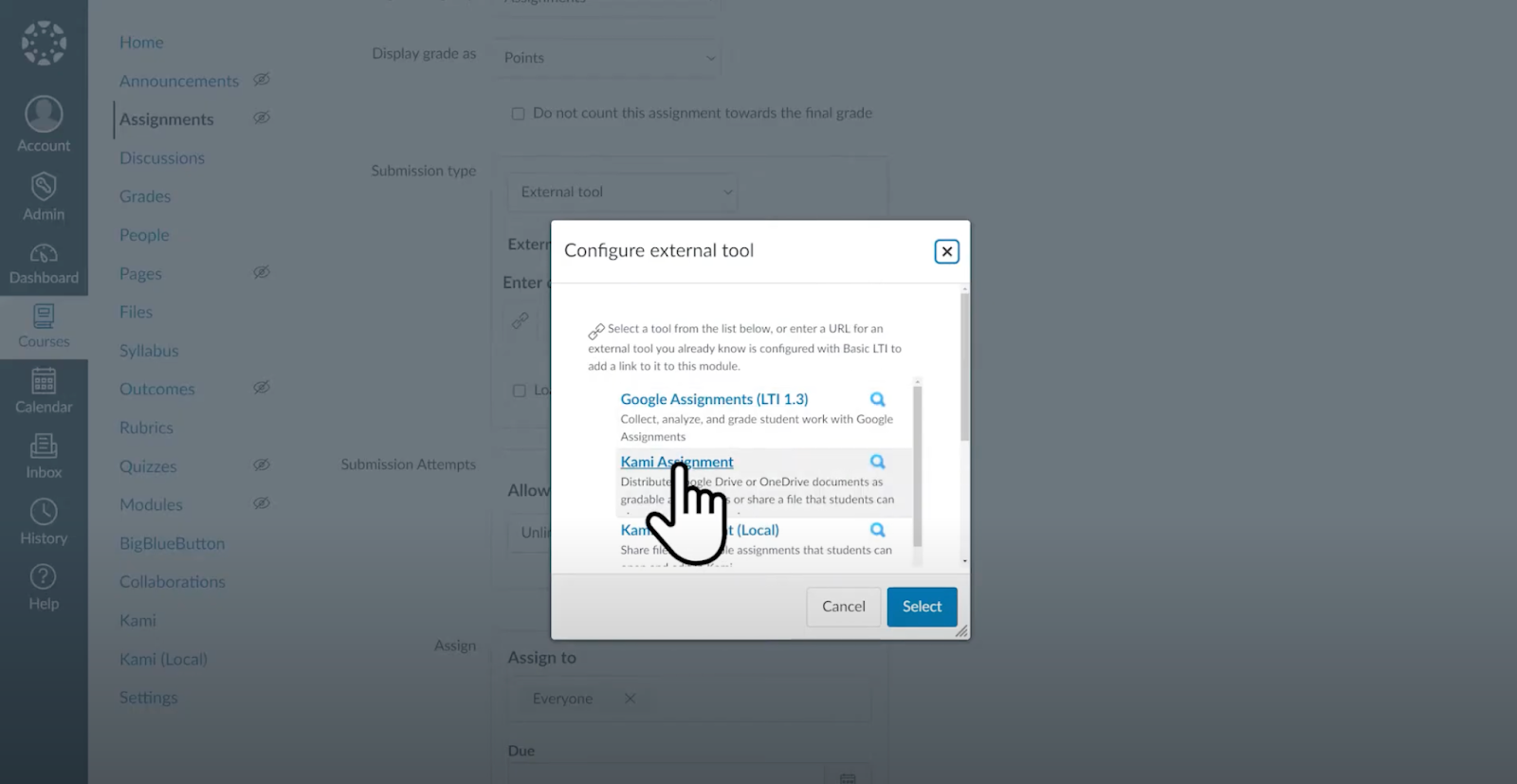
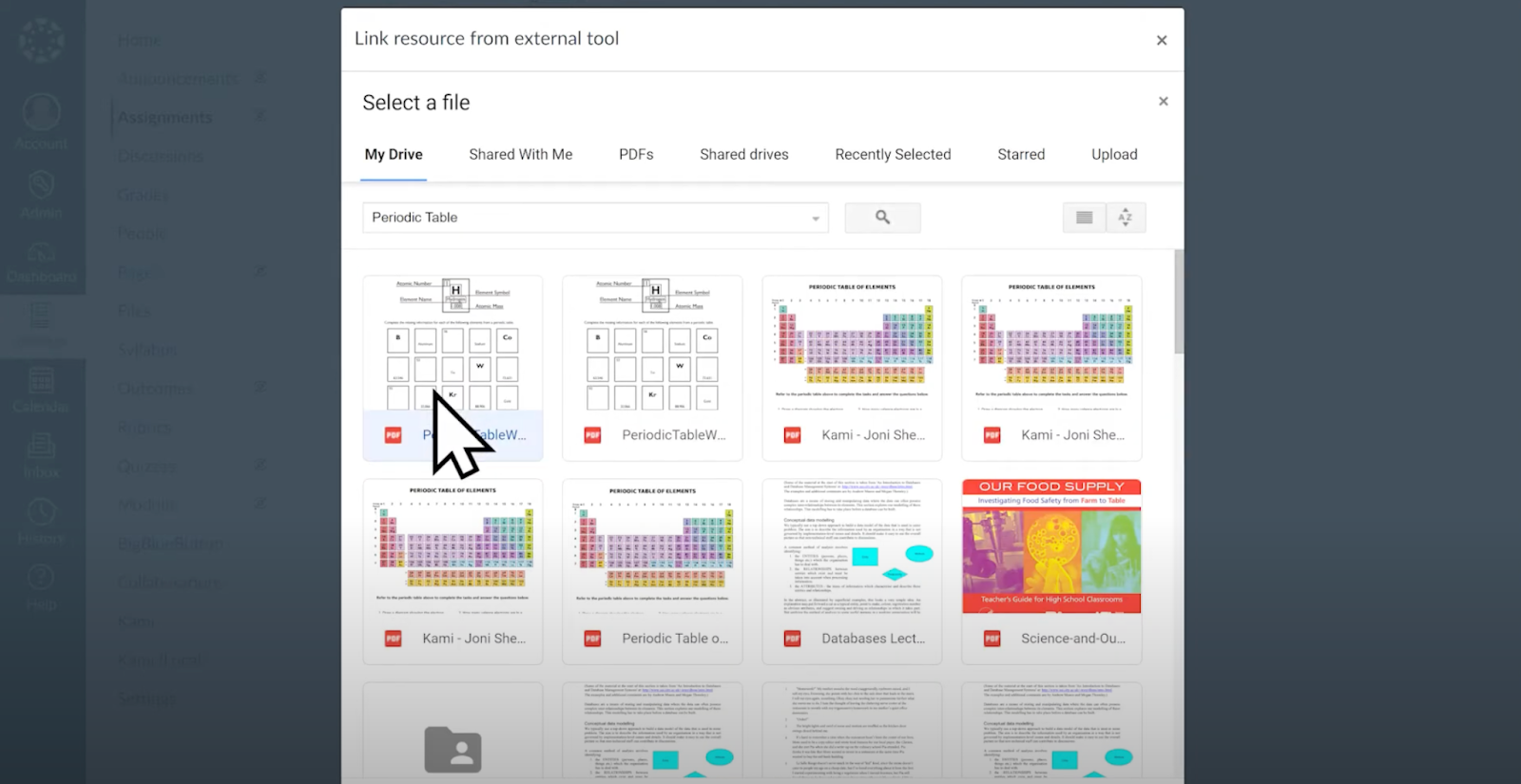
Select your assignment from Google Drive.
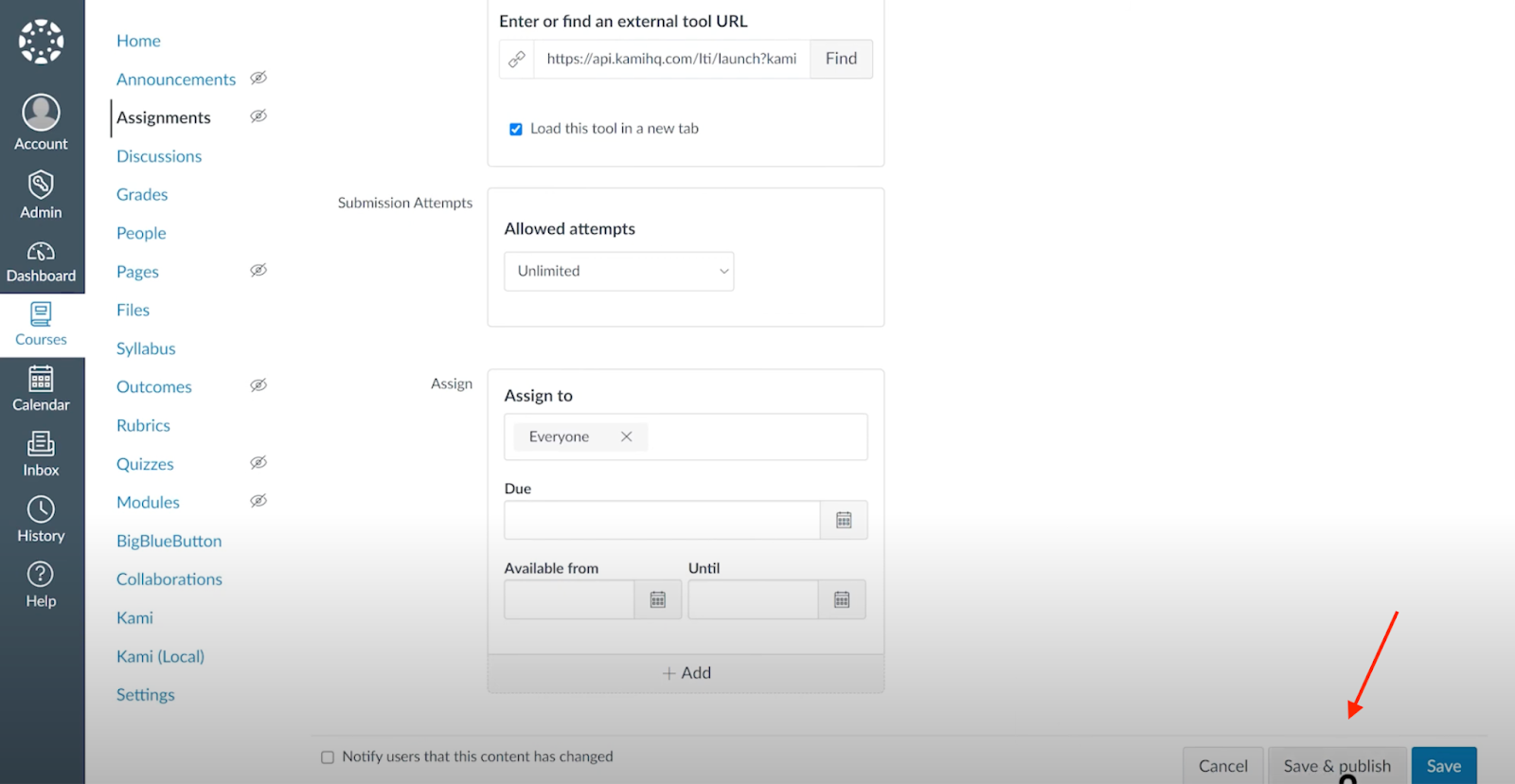
Make sure to select “Load this tool in a new tab”. This will allow students to have a full screen view of the assignment.

Configure any other assignment settings as per your requirements, such as due date, availability dates, points, etc.
Click the "Save & Publish" button to create the Kami assignment and make it available to your students.