739
739
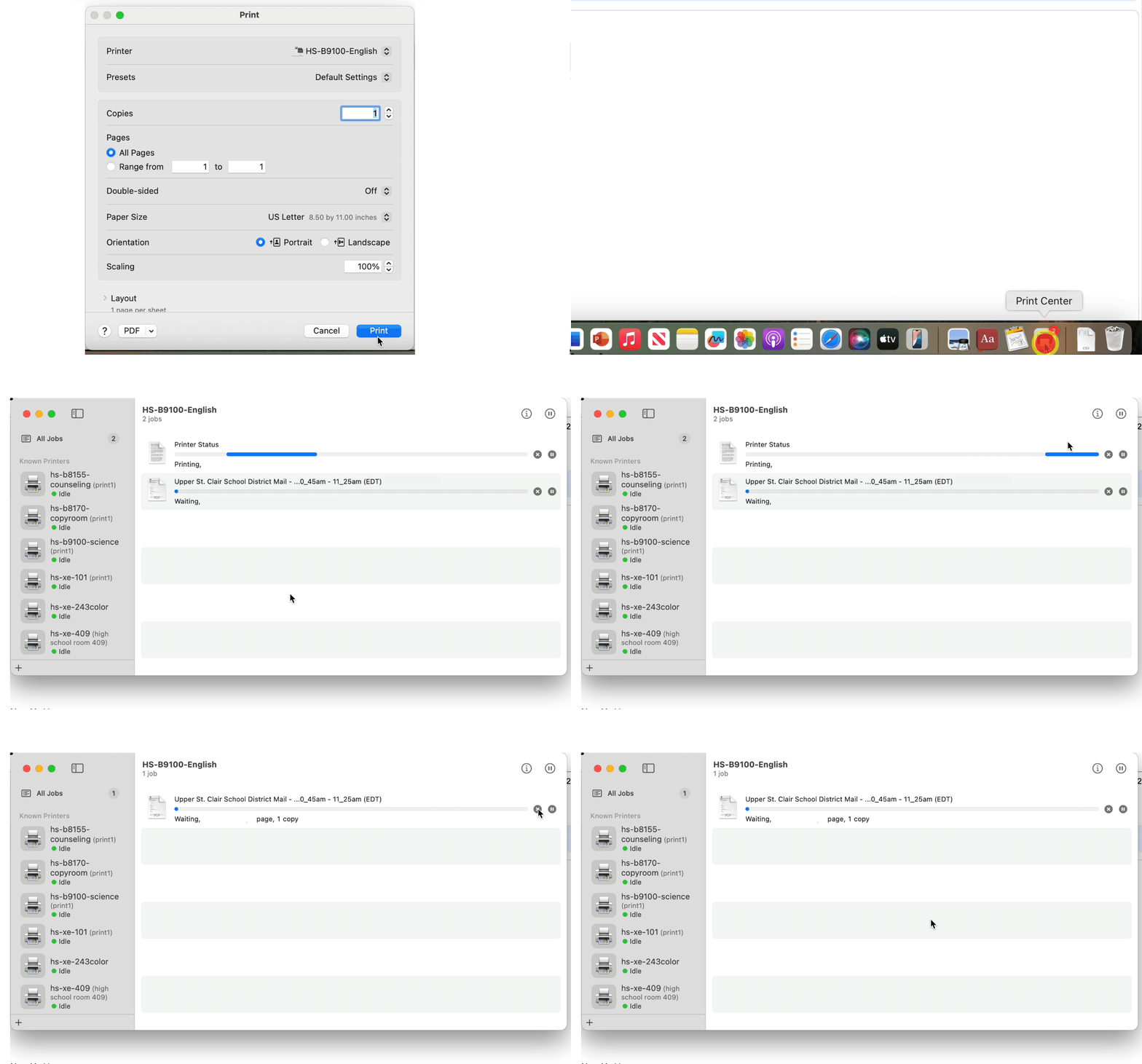
In macOS, if you notice that a print job is taking a long time, the delay is often caused by a “Printer Status” message in the Print Center. Deleting this “Printer Status” message allows the print job to release almost immediately.
We have outlined the steps to delete the "Printer Status" message below.
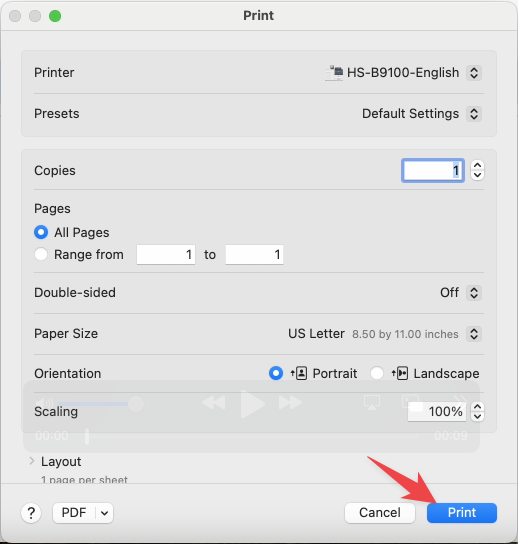
Print your print job as you normally would by selecting File, then Print. After all the options are selected, select "Print" from the print dialog box.
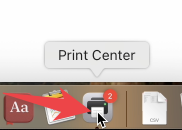
Once your print job is processed, it will appear in the Print Center on your Dock. Select Print Center to launch it.
When the Printer Center opens, you will see the "Printer Status" message at the top. Select the "X" at the right of the line to cancel it.
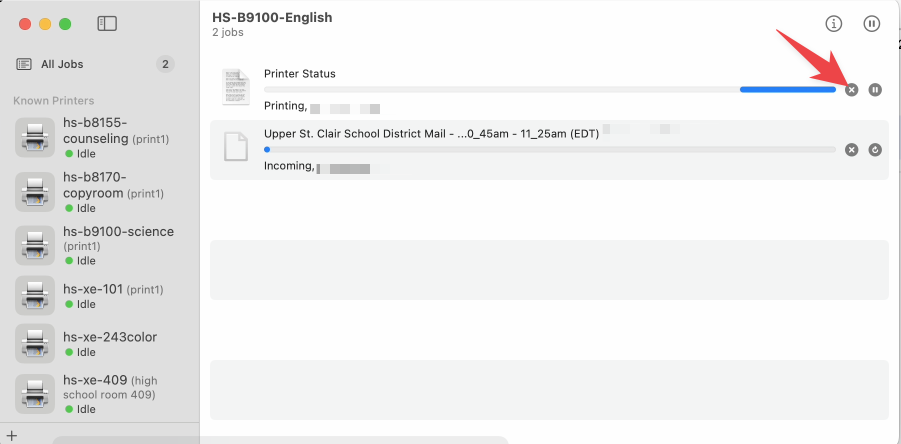
Once the "Printer Status" is cancelled, your print job will jump to the top of the print queue and be sent to the printer.
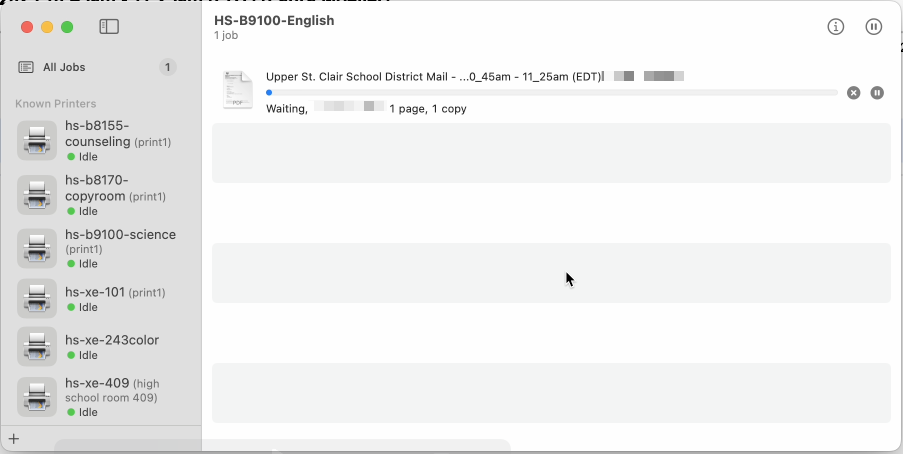
The whole process is outlined below.